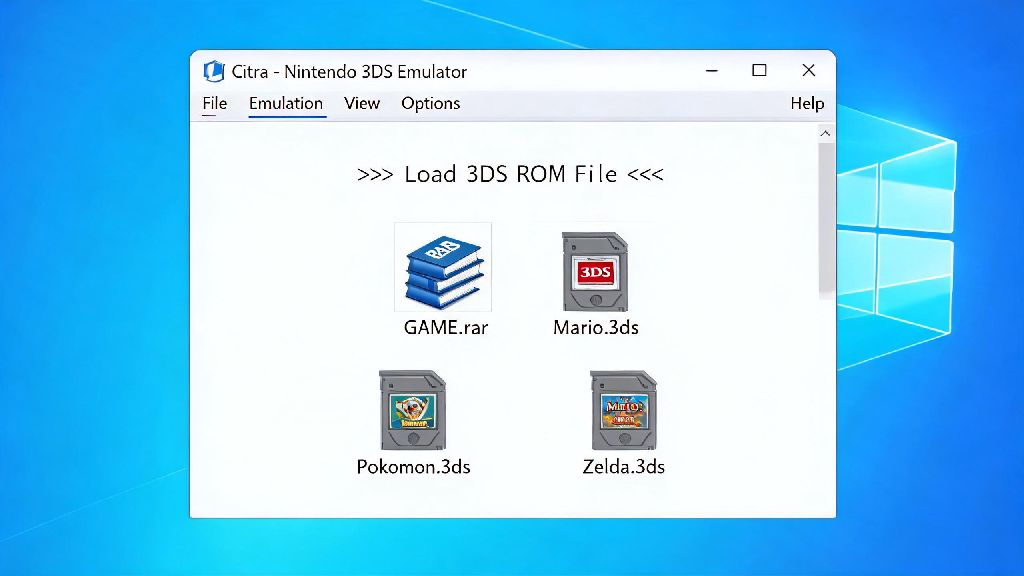
If you’ve ever played 3DS motion-controlled games like The Legend of Zelda: Ocarina of Time 3D or Mario Kart 7 on Citra, you know how frustrating it is to fumble with analog stick tilt for motion actions. You don’t have to splurge on a special 3DS controller to get that native motion feel, either. This guide will walk you through exactly how to use PS4 gyro on Citra emulator, so you can get that responsive, accurate control you’d get on a real 3DS handheld without extra cost.
Pre-Requisites Before You Start PS4 Gyro Setup
You don’t need any fancy extra hardware to get your PS4 gyro working on Citra, but there are a few key things you should have on hand to avoid setup headaches. Most issues with gyro detection come from using outdated software or unsupported accessories, so double check you have all the following before you begin:
- Official Sony DualShock 4 controller (third-party variants often lack functional gyro sensors)
- Latest official Citra Nightly or Canary build installed on your PC
- USB-C data cable (for wired connection) or Bluetooth 4.0+ adapter (for wireless play)
- At least 10MB of free storage for any small input driver updates you might need
Always use an official Sony PS4 controller for reliable gyro functionality, as knockoff models usually cut corners on the motion sensor hardware to keep costs low. Make sure you’re running the latest official Citra build, as older versions don’t support full DualShock 4 input mapping out of the box.
Step-by-Step Setup to Use PS4 Gyro on Citra Emulator
The setup process only takes 5 to 10 minutes, and you don’t need any third-party input tools to make it work. Start by connecting your DualShock 4 controller to your PC: if you’re using a wired connection, just plug the USB-C cable into your controller and your PC, and wait 30 seconds for the default drivers to install automatically. For wireless connection, hold the PS and Share buttons on your controller until the light bar flashes rapidly, then pair it through your PC’s Bluetooth settings menu.
Once your controller is connected, open Citra and navigate to Emulation > Configure > Controls. Under the Input Device dropdown at the top of the menu, select your DualShock 4 controller from the list of available devices. Scroll down to the Motion Controls section of the menu, which is usually near the bottom of the control mapping list. Set the motion input source to "DualShock 4" from the dropdown, not the default "Keyboard" option. You’ll be prompted to map the X, Y, and Z gyro axes: tilt the controller forward, backward, left, and right as prompted to assign each axis correctly.
Test your setup first with a simple motion-controlled game like Mario Kart 7 to make sure tilting the controller turns your kart correctly. If the axis is inverted, just toggle the "Invert Axis" checkbox next to the corresponding gyro axis setting. Once you confirm how to use PS4 gyro on Citra emulator works for your go-to games, you can create separate control profiles for different game genres, like racing and puzzle games, that rely more heavily on motion controls. A lot of players like to tweak their gyro sensitivity after initial setup to match their playstyle. If you’re someone who plays both 3DS games and casual mobile titles during breaks, you might already be familiar with Hindi777, a popular platform that caters to casual gamers who want quick, accessible sessions between longer Citra playthroughs. Once you’ve got sensitivity set to a level that feels comfortable, save your control profile so you don’t have to redo the setup every time you open Citra.
Calibration Tips for Optimal PS4 Gyro Performance
Even if your initial setup works, poor calibration can lead to annoying drift or unresponsive inputs that ruin your gameplay. A few small tweaks can make your gyro feel just as responsive as a real 3DS handheld’s motion controls, and you only have to do them once per profile. Always calibrate your PS4 gyro on a flat, stable surface before you start playing, and make sure there are no other wireless devices like routers or wireless headsets nearby that could cause interference with the controller’s signal.
If you notice drift while playing, where the game registers motion even when you’re holding the controller still, pause the game, go back to the controls menu, and run the re-calibration tool built into Citra. You can also adjust the dead zone for the gyro if you find small, accidental tilts are triggering in-game actions: a dead zone of 5-10% is ideal for most players, as it blocks accidental inputs without reducing responsiveness. Don’t crank your gyro sensitivity above 80% if you’re new to motion controls, as it will make small adjustments feel jumpy and hard to control. Start with 40-50% sensitivity and work your way up as you get used to the feel of the gyro.
Common PS4 Gyro Issues on Citra and Fixes
Most gyro issues on Citra are super easy to fix, and you don’t need any special software to resolve them. The most common issue is the gyro not being detected at all: if that happens, first check that you didn’t accidentally select the wrong input device in Citra’s controls menu. If that’s not the problem, unplug and replug your controller (if wired) or re-pair it via Bluetooth (if wireless) to reset the connection.
If you’re using a custom input wrapper like DS4Windows, make sure it’s not blocking Citra from accessing the controller’s gyro sensor directly: in most cases, you don’t need DS4Windows at all for Citra, as it supports DualShock 4 natively now. Another common issue is input lag with wireless gyro: if you notice a delay between tilting your controller and the in-game action, switch to a wired connection, as Bluetooth can sometimes have latency issues if you have lots of other wireless devices active in the same space. If you still have issues after trying these fixes, check the official Citra community forums for controller-specific troubleshooting tips for your operating system.
Once you get the hang of setting it up, learning how to use PS4 gyro on Citra emulator completely changes how you experience motion-controlled 3DS games. It’s far more responsive than using an analog stick for tilt actions, and you don’t have to buy any extra hardware to make it work. Spend a few minutes tweaking sensitivity and calibration to match your playstyle, and you’ll be pulling off perfect drift turns in Mario Kart and accurate motion-based puzzles in Zelda games before you know it.