If you’ve ever downloaded a 3DS game file only to find it’s packed in a RAR archive, you’ve probably stared at your Citra emulator wondering why it won’t recognize the file right away. Most 3DS ROMs are shared in compressed formats to save storage space and cut down on download times, but that doesn’t mean you have to be stuck figuring out how to get them to load. We’ve put together this simple walkthrough to show you how to run a rar on citra 3ds emulator without the usual headache of missing files or load errors. We’ve tested every step across both desktop and mobile builds of Citra, so you can follow along no matter what device you’re using.
Step-by-Step: How to Run a RAR on Citra 3DS Emulator
First, it’s important to clear up a common misconception: Citra cannot natively read RAR files directly. The emulator is built to load uncompressed 3DS game files, so you’ll need to extract the contents of the RAR first before you can play. This simple process is all you need to know when learning how to run a rar on citra 3ds emulator, but there are a few edge cases you should prepare for.
Start by downloading a reliable file extraction tool if you don’t have one already. For Windows, 7-Zip and WinRAR are both solid, free options. Mac users can use The Unarchiver, and Android users will get the best results with ZArchiver. These tools support all common RAR variants, including multi-part archives that are split into smaller files for easier sharing.
Once you have your extraction tool installed, locate your downloaded RAR file or files. All parts of a multi-part RAR must be stored in the same folder for the extraction to work properly, so double check that you haven’t saved different parts to separate download folders. Right click the first RAR file (usually labeled .part1.rar or just the base name if it’s a single archive) and select the extract option for your tool. We recommend extracting to the same folder as the RAR first, so you can easily find the game file later.
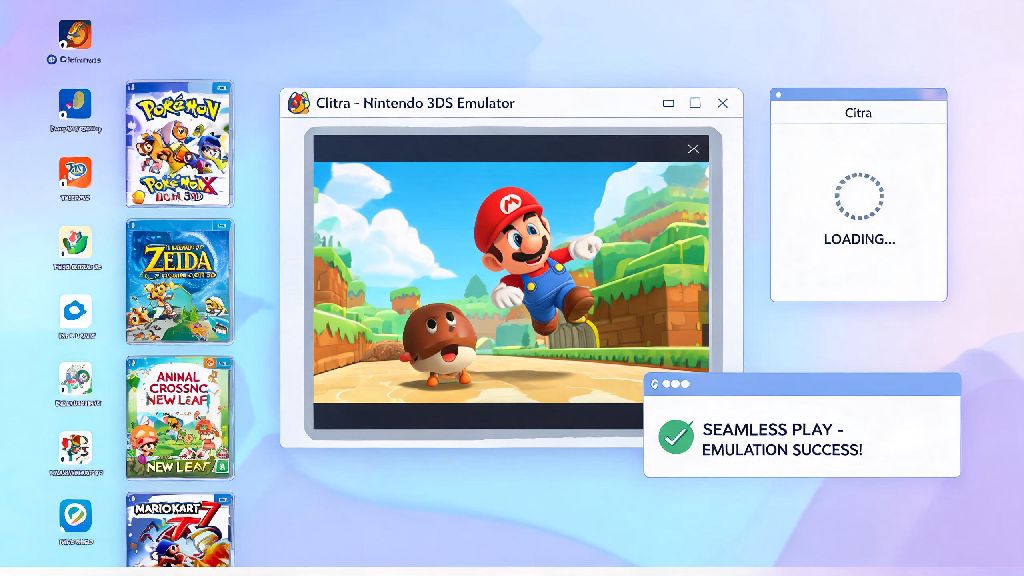
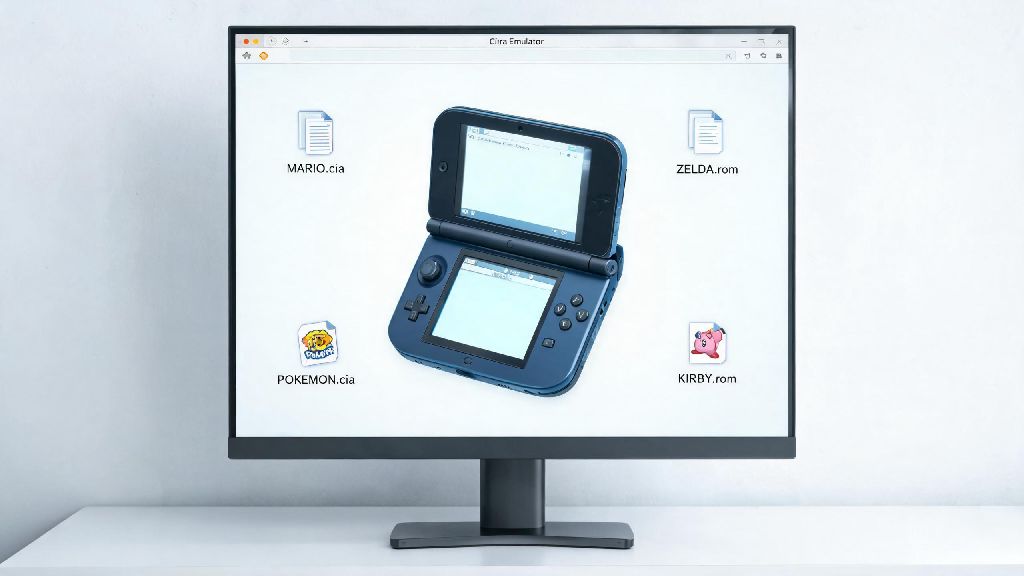
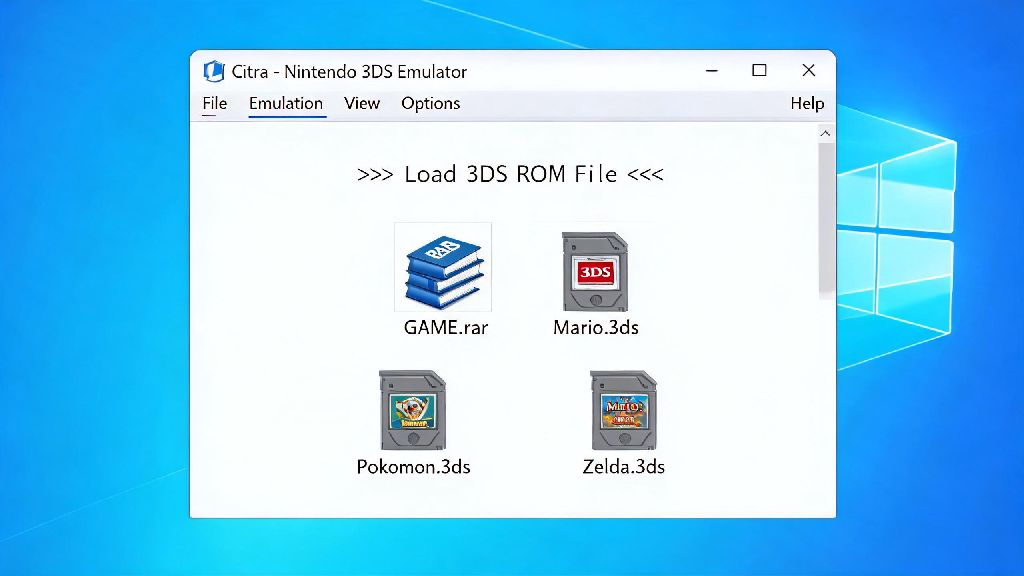
When extraction finishes, you’ll see one or more new files, including the actual 3DS ROM file. Supported formats for Citra include .3ds, .cci, .cia, and .cxi. Open Citra, select “Load File” from the main menu, and select the extracted ROM file. The game should launch immediately if the extraction was done correctly. Only download RAR files from sources you trust to avoid corrupted or malware-infected game files.
Common RAR Extraction Errors and How to Fix Them
Even if you follow every step correctly, you might run into errors during extraction, especially if you’re working with multi-part RARs from public sources. The most common error is the “missing part” notification, which pops up when your extraction tool can’t find all the segments of the archive. To fix this, go back to the source you downloaded the RAR from and make sure you grabbed every part listed. Rename any parts that have modified file names to match the base name of the first part, then try extracting again.
Another common issue is a CRC error, which means the RAR file is corrupted. This usually happens if the download was interrupted, or the original file was uploaded incorrectly. The only reliable fix for this is to re-download the RAR files, preferably from a different mirror if one is available. If you see a “password protected” error when you try to extract, you’re better off ditching that file entirely. Most password-protected RARs from public sources require you to complete sketchy surveys or download extra software to get the password, which is rarely worth the risk. Never download password extraction tools from popups or random links – they almost always contain malware.
If you get through extraction without errors but Citra still won’t recognize the file, double check what you extracted. Some creators double compress files to save extra space, so you might have extracted another archive instead of the actual ROM. If you see a .zip or .7z file after extracting your RAR, run the extraction process again on that second archive to get the playable game file.
Best Practices for Managing RAR Files for Citra
Good file management will save you hours of frustration sorting through corrupted archives and missing game files. We’ve tested dozens of workflows over the years, and these are the rules we follow for our own Citra libraries:
It’s also a good idea to avoid renaming RAR parts unless absolutely necessary. Extraction tools rely on the sequential naming of multi-part archives to pull data correctly, so changing the name of one part can break the entire extraction process. If you want to rename your files to make them easier to sort, wait until after you’ve extracted the playable ROM, then rename the uncompressed game file instead.
Avoid using online RAR extraction tools even if you don’t want to download a desktop extraction app. These tools almost always have strict file size limits, many steal data from uploaded files, and they frequently corrupt ROMs during extraction. Desktop and mobile extraction apps are free, lightweight, and far more reliable for this use case.
What to Do If Your Extracted ROM Won’t Load on Citra
Sometimes extraction goes perfectly, but the game still won’t run on Citra. This usually isn’t related to the RAR file itself, but there are a few quick checks you can run to fix the issue. First, make sure you’re running a recent build of Citra. Older versions of the emulator don’t support later 3DS game dumps, and they often have bugs that prevent valid ROMs from loading. Updating to the latest nightly or canary build will fix 90% of these load issues.
Next, verify that the ROM file you extracted is a valid dump. If the file size is significantly smaller than the expected size for that game, the original RAR was probably uploaded with a bad dump, and you’ll need to find a different source for the game. You can cross reference expected file sizes for 3DS games on community-run ROM databases if you’re not sure what size you should be looking for.
If you’re trying to load a .cia file, you’ll need to install it through Citra’s “Install CIA” menu instead of using the regular “Load File” option. A lot of new users mix up these two options and assume the ROM is broken when it just needs to be installed first. Only use ROMs of games you physically own to stay compliant with copyright laws in your region, and to avoid bad dumps that are common on unregulated file sharing sites.
Running compressed game files doesn’t have to be a confusing process, even if you’re new to using 3DS emulators. Once you get the hang of safe extraction and file management, you’ll be able to access your entire game library in minutes without dealing with unnecessary errors. Whether you’re playing on a desktop or mobile device, knowing how to run a rar on citra 3ds emulator will save you hours of frustration searching for uncompressed files or troubleshooting load issues. If you run into a problem we didn’t cover here, check the official Citra community forums for more tailored support for your specific setup.