Are you a Nintendo fan looking to enjoy your favorite games on your Android device? The Citra Emulator is the perfect solution for you. In this comprehensive guide, we will walk you through the process of using the Citra Emulator on Android, including settings, ROMs, updates, and troubleshooting tips.
Understanding the Citra Emulator
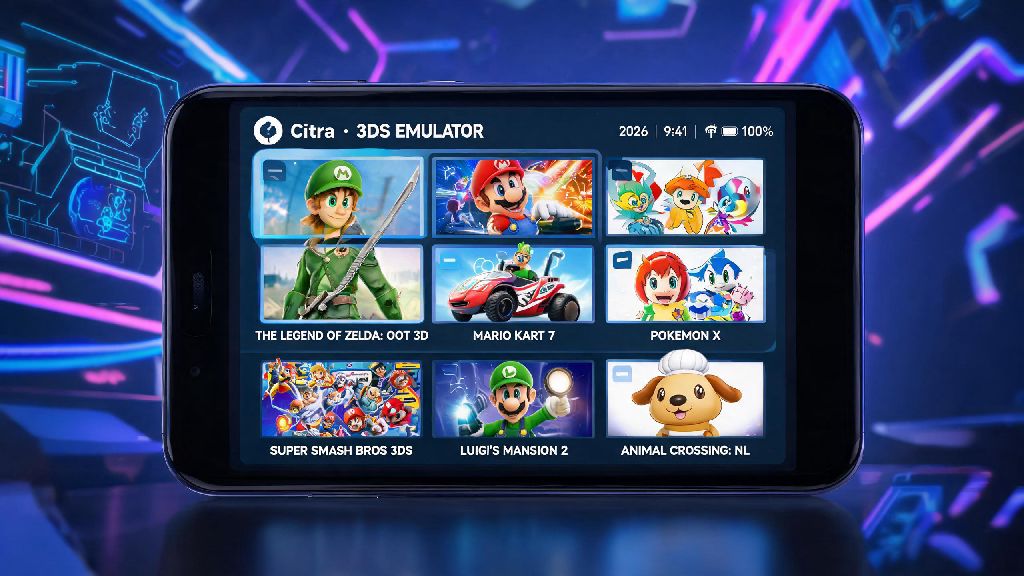
The Citra Emulator is an open-source emulator that allows you to play Nintendo 3DS games on various platforms, including Android. It has gained popularity due to its ability to run a wide range of games with decent performance.
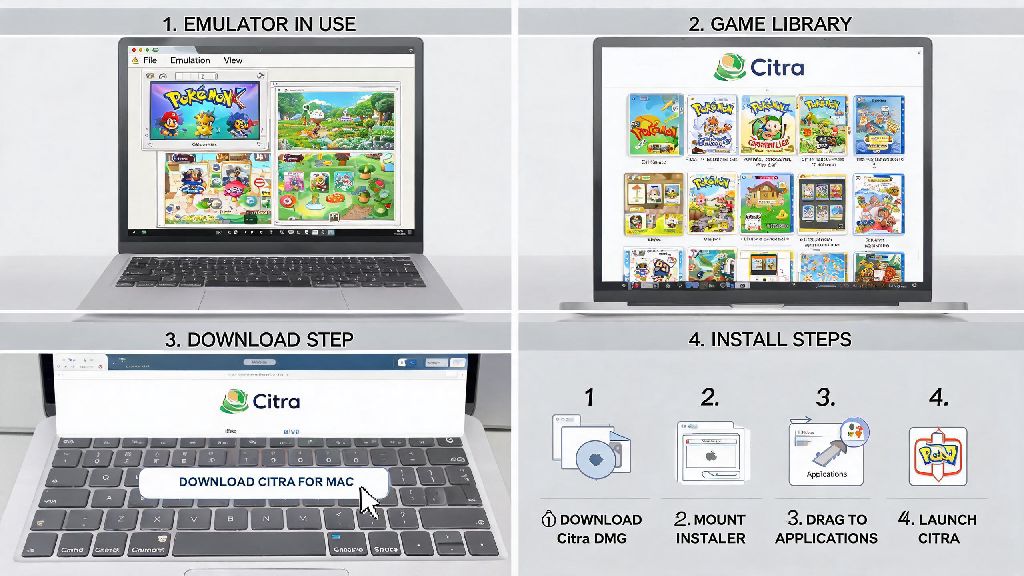
How to Install the Citra Emulator on Android
1. Download the Citra Emulator from the official website or a trusted source.
2. Enable "Unknown Sources" in your Android device's settings to allow installation from outside the Google Play Store.
3. Open the downloaded file and install the Citra Emulator.
4. Once installed, launch the Citra Emulator and you're ready to go.
Configuring the Citra Emulator Settings
1. Video Settings: Adjust the resolution, aspect ratio, and graphics settings to optimize performance and visual quality.
2. Audio Settings: Configure the sound output, sample rate, and audio device to ensure smooth sound during gameplay.
3. Control Settings: Map your Android device's buttons to the game controls or use a physical controller via Bluetooth.
Adding ROMs to the Citra Emulator
1. Download the ROM of the Nintendo 3DS game you want to play.
2. Place the ROM file in the "roms" folder of the Citra Emulator directory.
3. In the Citra Emulator, navigate to the game you just added, and it should appear in the list.
Updating the Citra Emulator
1. Keep an eye on the official Citra Emulator website for updates.
2. Download the latest version of the emulator and follow the installation steps to update.
3. Updating regularly ensures better compatibility and performance with new games.
Troubleshooting Common Issues
1. Performance Issues: If you experience lag or slow gameplay, try adjusting the graphics settings or closing other apps running in the background.
2. Game Crashes: Ensure that you are using the correct ROM file and update the Citra Emulator to the latest version.
3. Audio Issues: Check the audio settings and ensure that the audio device is properly configured.
Using the Citra Emulator on Android can provide you with a seamless gaming experience. By following this guide, you should be able to configure the emulator, add ROMs, and troubleshoot common issues. Happy gaming!