If you’ve ever wanted to revisit classic Nintendo 3DS titles like Pokémon X/Y or Animal Crossing: New Leaf without digging out your old handheld, you’re in the right spot. Learning how to use Citra emulator for PC opens up a whole new way to experience these games, with better graphics, save state support, and quality of life tweaks you can’t get on original hardware. I still remember spending 3 hours trying to get Citra to run Pokémon Sun when it first launched, so I know how frustrating wrong setup can be. I’ve been testing Citra on my mid-range laptop for two years now, and I’ve worked out all the kinks to make setup as painless as possible for new users. This guide will walk you through every step, from initial install to getting the smoothest performance no matter your PC specs.
Step-by-Step Initial Installation of Citra Emulator for PC
First, you’ll need to pick the right build of Citra for your needs. There are two main official builds: Nightly and Canary. Nightly is the stable release, tested thoroughly to minimize crashes and bugs, so it’s the best choice for first-time users. Canary has experimental features that get added before they make it to Nightly, but it can have unexpected glitches or compatibility breaks, so only use it if you want to test cutting-edge updates. You can install both builds on the same PC if you want to test both, but I recommend starting with Nightly until you’re comfortable with how the emulator works.
Once you’ve downloaded the correct installer for your operating system (Windows, Mac, and Linux are all supported), run the file and follow the on-screen prompts. Don’t change the default installation path unless you have a specific reason to, as custom paths can sometimes cause issues with automatic updates or save file storage. After installation, launch Citra once to let it generate all the necessary configuration files on your system, then close it down to adjust settings before you load any games.
Only download Citra from the official source to avoid malware or modified builds that steal your data or inject ads into your gameplay. Third-party sites that host pre-modded Citra builds are almost never safe, even if they claim to have pre-installed optimizations. The official build is completely free and takes less than two minutes to install properly.
Optimized Core Settings for Smooth Performance
The first thing you’ll want to do after your first launch is adjust your graphics settings to match your PC’s hardware. If you have a low-end PC or integrated graphics, set the internal resolution to 1x or 2x to avoid frame drops. Internal resolution is what controls how sharp the game looks, so 2x is a good middle ground that makes games look far better than the original 3DS without putting too much strain on your hardware. If you have a dedicated GPU from the last 5 years, you can crank it up to 4x for near-4K visuals that look incredible on large monitors.
Next, enable asynchronous shaders if you’re dealing with stutter when you first load new areas of a game. This feature preloads shader files in the background so you don’t get hit with random freezes the first time you see a new character or effect. For audio, stick with the default HLE audio backend for 99% of games – it’s far faster than LLE and has almost no noticeable difference in sound quality for most users.
Turn on "enable VSync" if you notice screen tearing, even if it lowers your frame rate slightly, it makes gameplay far more comfortable during long play sessions. You’ll also want to set up your controls at this point. Any Xbox or PlayStation controller will auto-map if you plug it in before you launch Citra, which is way better for platformers and action games than keyboard controls. I use a wired Xbox Series X controller with mine, and it works just like it did on the original 3DS, with no input lag to speak of. I use 2x internal resolution on my Intel Iris Xe integrated graphics laptop, and I get a steady 30fps for most first-party Nintendo games, which is exactly what the original 3DS runs at.
How to Load and Manage 3DS ROMs on Citra
Before you load any games, there’s an important legal note to keep in mind. You should only dump ROMs from 3DS games you already own, as downloading copyrighted game files you don’t own is illegal in most regions. Dumping your own games is a straightforward process if you have a modded 3DS, and there are official guides on the Citra site that walk you through that process step by step.
Citra supports three main ROM formats: .3ds, .cia, and .cxi, so make sure your dumped files are in one of those formats. To add your games to Citra’s library, go to the Games tab at the top of the window, select "Add Game Directory", and point it to the folder where you store your dumped ROMs. If you enable the built-in cover art scraper, Citra will automatically pull official box art for all your games so your library looks clean and organized, just like a digital game storefront.
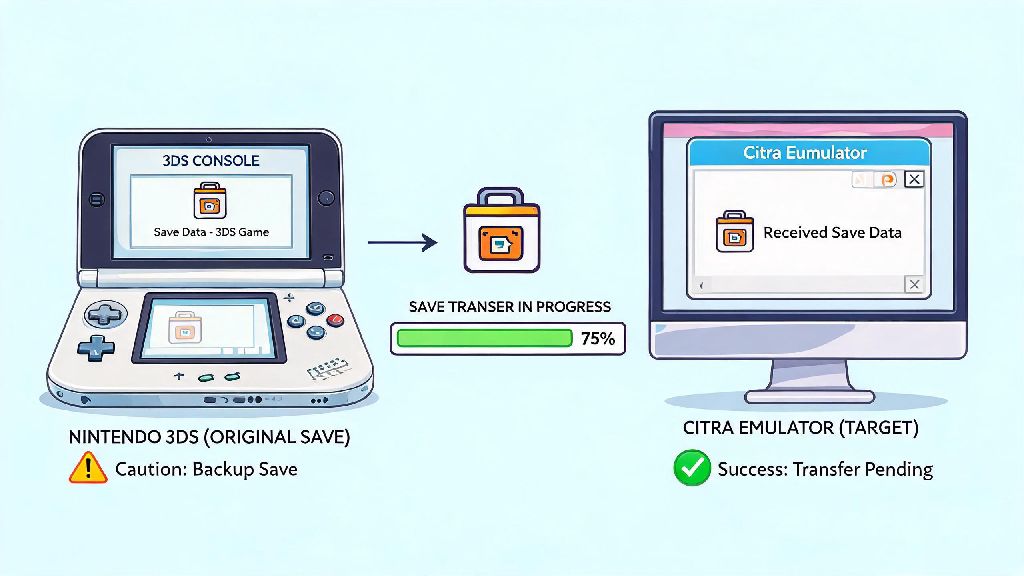
One of the best features of Citra is save state support, which lets you save your game at any point, even if the original game doesn’t have a manual save spot. I use this all the time for tough boss fights in Fire Emblem games, so I don’t have to replay 20 minutes of content if I lose. You can also transfer save files directly from your physical 3DS to Citra if you want to pick up where you left off on your handheld without restarting your playthrough.
Follow these simple best practices to keep your ROM library organized and safe:
- Name your ROM files clearly (e.g. "Animal Crossing New Leaf (USA).cia") to make them easier to sort and search for in your library
- Keep a separate backup folder for your ROMs and save files so you don’t lose progress if you need to reinstall Citra or reset your PC
- Avoid downloading pre-patched ROMs, as most translation patches or gameplay mods can be applied directly in Citra without modifying the original game file
Fixing Common Citra Emulator Issues for PC Users
Even with perfect setup, you might run into small issues every now and then, but most have super simple fixes. The most common issue is games crashing on launch, which is almost always caused by a corrupted ROM or an outdated version of Citra. First, try updating to the latest Nightly build, as developers push out compatibility fixes every week. If that doesn’t work, re-dump your game from your 3DS to make sure the ROM file isn’t damaged.
If you’re dealing with consistent frame drops, start by closing all background apps before you launch Citra. Close all background apps like Chrome or Discord while playing if you’re struggling with frame drops, as they take up valuable RAM and GPU resources that Citra needs to run smoothly. You can also turn off texture filtering and anti-aliasing in the graphics settings to free up more processing power for frame rate.
Audio crackling is another common issue, and it’s usually caused by your audio latency being set too low. Go to the audio settings tab and raise the latency slider to 30ms or higher until the crackling stops completely. It won’t make any noticeable difference to your gameplay experience, but it will eliminate that annoying static sound.
Some more obscure 3DS games aren’t fully compatible with Citra yet, so check the official compatibility list before you try to play a less popular title. The list tells you exactly what issues to expect, if any, for every game that’s been tested. If you run into a bug no one else has reported, you can submit a debug log to the Citra development team to help them fix it in future updates. The team is super active and regularly pushes out patches for newly reported bugs, so your feedback can help make the emulator better for everyone.
Once you work through these steps, learning how to use Citra emulator for PC is far simpler than most people assume, even if you have no prior experience with emulation. You can tweak settings as you go to find the perfect balance of performance and visual quality for your specific setup, and you’ll be replaying your favorite 3DS titles in no time. Don’t be afraid to experiment with different settings or ask for help in community forums if you run into a unique issue – the Citra user base is one of the most helpful emulation communities out there. I still fire up Citra every weekend to play through old 3DS RPGs I never finished as a kid, and I’m always impressed by how smooth it runs even on my old budget laptop.