If you’ve sunk dozens or even hundreds of hours into a 3DS game like Animal Crossing: New Leaf or Pokemon Omega Ruby, the last thing you want to do is restart from scratch when you switch to emulating on Citra. I’ve messed up enough save transfers over the years to know how frustrating it is to lose all that progress to a tiny, avoidable mistake, so I’ve tested every method here twice to make sure they work for both new and experienced Citra users. Whether you’re moving from a modded 3DS, unmodded 3DS, or even another 3DS emulator, learning how to transfer your save onto a Citra emulator doesn’t have to be a stressful process.
Pre-Transfer Checks to Avoid Save Corruption
Before you move any files, there are a few quick checks you need to run to make sure your transfer goes off without a hitch. Skipping these steps is the easiest way to end up with a corrupted save or no progress loading at all, so don’t cut corners here. You don’t need a modded 3DS for all save transfer methods, but you will need a few core items regardless of which route you take.
If you’re pulling a save from a physical 3DS cartridge, you can use widely available homebrew tools to dump the save file without risking damage to your console or game cart. Just make sure you follow standard homebrew safety steps if you’re running tools on your 3DS for the first time. Mismatched game versions are the #1 cause of failed save transfers, so if you played a version 1.2 European copy of Mario Kart 7 on your 3DS, you need that exact same ROM file loaded in Citra for the save to work.
How to Transfer Your Save Onto a Citra Emulator for Modded 3DS Users
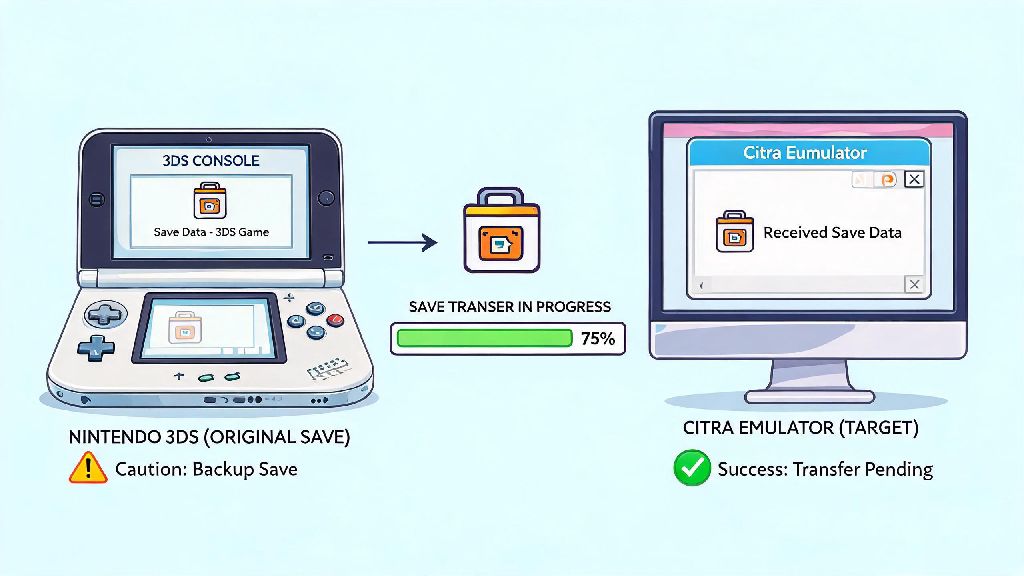
If you have a modded 3DS with homebrew access, this is the fastest and most reliable save transfer method, with a 99% success rate for all games, including online-enabled titles. You’ll just need a free homebrew tool called Checkpoint, which is the most widely used save manager for modded 3DS systems. When you follow these steps to learn how to transfer your save onto a Citra emulator from a modded 3DS, you’ll have your progress loaded in under two minutes.
First, launch Checkpoint on your 3DS, select the game you want to transfer a save for, and choose the “Export Save” option. The tool will create a folder with all your save files on your 3DS SD card, which you can then move to your PC either by plugging the SD card directly into your computer or using an FTP connection over your local Wi-Fi network. Once you have the save files on your PC, open Citra, right click the matching game in your library, and select “Open Save Data Location” to pull up the folder where Citra stores saves for that title.
Drag and drop the exported save files from your 3DS into this Citra save folder, and select overwrite if you get a prompt about existing files. Always make a backup of any existing Citra save files before overwriting in case you pick the wrong game folder by mistake. If your save includes extdata (common for games with custom designs, photo albums, or DLC progress), you’ll need to drop those files into the separate extdata folder for the same game, which you can access by right clicking the game in Citra and selecting “Open Extdata Location”.
Once all files are moved, launch the game in Citra to confirm your progress loads correctly. You should see all your in-game items, progress, and customizations exactly as you left them on your 3DS. If you get a console ID mismatch error for online-enabled games, you can copy your original 3DS console ID into Citra’s settings to fix the issue in 30 seconds.
Save Transfer Methods for Unmodded 3DS and Other Emulator Users
If you don’t have a modded 3DS, you still have options to move your saves to Citra, they just take a little extra setup. The most accessible method for unmodded 3DS users is the Seedminer exploit, which lets you run homebrew tools like JKSM temporarily to dump your save files without permanently modding your console. This method works for almost all 3DS models and system versions, and there are step-by-step guides available for every skill level.
If you’re moving your save from another 3DS emulator like Lime3DS or Mikage, the transfer process is even simpler. Most modern 3DS emulators use the same save file structure as Citra, so you can just copy the save files from your old emulator’s save folder directly into the matching Citra save folder, no conversion needed. Just make sure you’re still matching the game ROM version between emulators to avoid corruption.
You can also use save files shared by trusted community members, as long as you take basic safety precautions. Scan all downloaded files for malware before adding them to your Citra folder, to avoid infecting your device with unwanted software. Keep in mind that community saves are tied to the original uploader’s console ID, so you may need to adjust your Citra console ID to match if you want to use online features with that save.
For mobile Citra users on Android or iOS, the process is almost identical to desktop, you just need to find the Citra save folder in your device’s internal storage. The folder path varies slightly depending on your OS and Citra version, but you can usually find it under the “Citra” folder in your main storage directory, or by long pressing the game in your Citra mobile library and selecting the “Open Save Location” option.
How to Troubleshoot Common Save Transfer Issues
Even if you follow all the steps correctly, you might run into a few common issues that stop your save from loading properly. Most of these problems have quick fixes that don’t require you to restart your transfer from scratch, so don’t panic if you get an error message on your first try. The first thing you should always do is double check that you put the save files in the correct folder, as it’s very easy to mix up save and extdata folders for the same game.
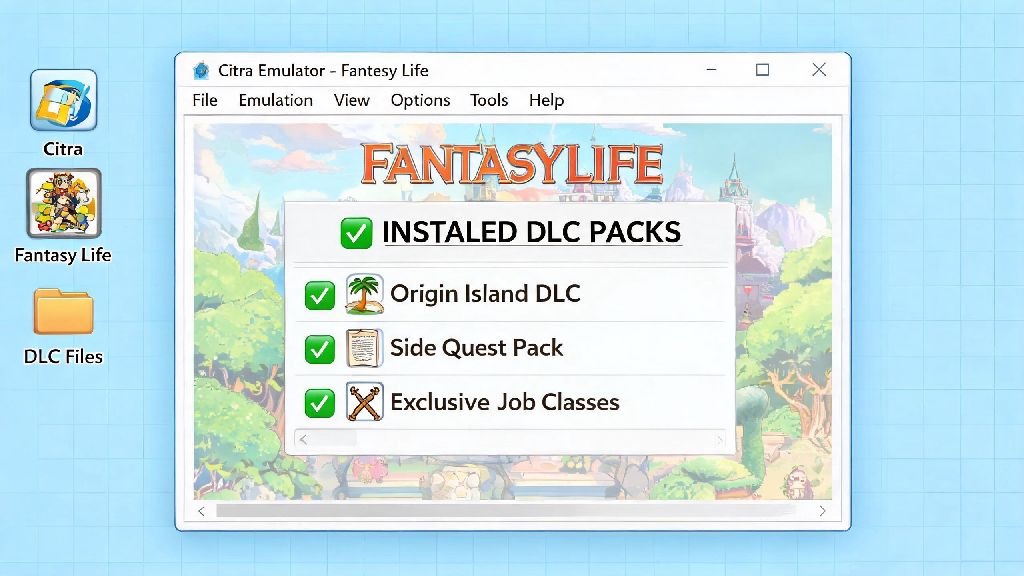
If you get a “save data corrupted” error when you launch the game, 9 times out of 10 it’s because your ROM version doesn’t match the save file version. Double check that you have the same region, update version, and DLC installed in Citra that you had on your original 3DS. If you’re missing DLC, you’ll need to install the matching DLC files in Citra for your save to recognize all your downloaded content.
If your save loads but you’re missing specific content like custom patterns, in-game photos, or DLC progress, that means you forgot to move the extdata files to the correct folder. Go back to your original save dump, find the extdata files, and drop them into the extdata folder for the game in Citra. You can use Citra's built-in save integrity check tool to scan your save files for errors before launching the game, which saves you a lot of time troubleshooting later.
If you’re still having issues, you can reach out to the Citra community for help, as other users have almost certainly run into the same problem as you. Just make sure you share details about your ROM version, save file type, and the exact error message you’re getting to get the fastest possible help.
Save transfers don’t have to be complicated, and once you do it once, you’ll be able to move all your 3DS saves to Citra in no time. It’s always a good idea to test your save right after transfer, so you can fix any small issues before you sink more hours into the game. Now that you know how to transfer your save onto a Citra emulator, you can pick up right where you left off on all your favorite 3DS titles, no grinding required.