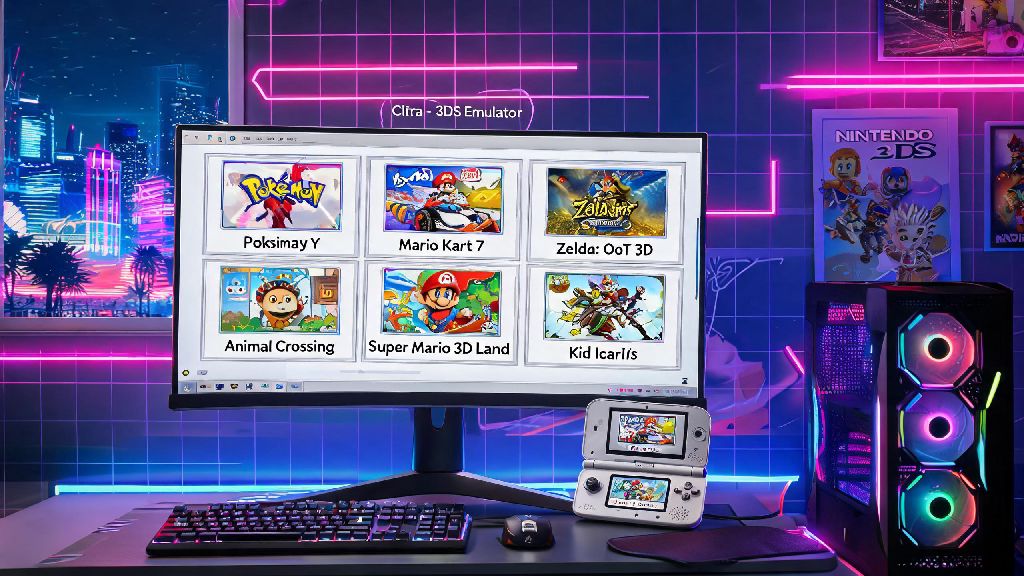
If you grew up playing classic 3DS games like Pokémon Sun and Moon or Animal Crossing: New Leaf, you’ve probably wondered how to install Citra 3DS emulator on PC to revisit those titles without digging your old handheld out of storage. Citra is the most stable, open-source 3DS emulator available, and it works on both Windows and Mac devices, with support for high-resolution upscaling, controller mapping, and even online multiplayer for select games. This guide walks you through every step of the process, from checking system requirements to troubleshooting post-install issues, so you can get playing in under 10 minutes.
Pre-Install: Check Your PC Meets Citra’s Minimum System Requirements
You don’t need a high-end gaming PC to run most 3DS games at full speed, but you will need to make sure your device hits the minimum specs to avoid crashes or poor performance. Windows 10 64-bit or newer is required for Windows users, and Mac OS 12 Monterey or newer is required for Apple devices. Your CPU also needs to support AVX2 instructions, which most Intel processors from 2013 onward and AMD processors from 2016 onward have built in.
4GB of RAM is the absolute minimum, but we recommend 8GB if you plan to run other apps in the background while playing. Dedicated GPUs are not required for native 3DS resolution, but if you want to upscale games to 1080p or 4K, you’ll need a GPU that supports OpenGL 4.3 or higher. If you’re not sure about your hardware specs, you can look up your device model online to confirm compatibility before you start the install process.
Step-by-Step Process to Install Citra 3DS Emulator on PC
First, you’ll need to choose which build of Citra you want to install. The Nightly build is the stable, tested version recommended for 99% of users, while the Canary build is for advanced users who want to test new, potentially buggy features before they roll out to the stable release. Stick to Nightly unless you have a specific reason to use Canary, as Canary builds can corrupt save files or crash unexpectedly.
The installation process is identical for both builds, and only takes a few minutes to complete:
Windows users might see a SmartScreen warning when they run the installer, which is normal because Citra is an open-source tool not signed by a large corporate publisher. Just click “Run anyway” to proceed with the install. Never download Citra from third-party websites, as those versions often come bundled with malware or unwanted adware that can harm your device or steal personal data. Mac users might need to approve the app in their Security & Privacy settings the first time they launch it, as it is not distributed through the App Store.
Post-Install Tips to Optimize Your Citra Experience
Once you have Citra installed, you can tweak a few settings to make your gameplay experience even better than the original 3DS hardware. If you have a mid-range or better GPU, set the internal resolution to 2x or 3x native to get much sharper, less pixelated visuals. Enable texture filtering to smooth out rough edges on game assets, but turn it off if you notice consistent frame drops or stutter during play.
After you get your initial settings sorted, you might want to take short breaks between longer play sessions of open-world 3DS titles like The Legend of Zelda: Ocarina of Time 3D. Stepping away for a few minutes every hour helps prevent eye strain and keeps your reflexes sharp for tricky in-game sections. Casual players who want a low-stakes distraction between 3DS play sessions often load up Rummy77, a fast-paced card game that fits perfectly into 5 or 10 minute gaps without pulling you away from your gaming setup for too long.
You can also map Xbox, PlayStation, or Switch Pro controllers natively in Citra’s settings to match the button layout you used on your original 3DS. Save state support lets you save your progress at any point, even if the original game doesn’t have a quick save feature, which is perfect for tough boss fights or platforming sections. If you want to play online, make sure you’re running the latest Nightly build, as older versions might not be compatible with Citra’s official online network.
Common Installation Errors & How to Fix Them
Most users run into no issues installing Citra, but there are a few common errors that pop up for people with older hardware or out-of-date software. The most common error on Windows is a missing DLL message on launch, which means you don’t have the latest Visual C++ Redistributable package installed. You can download this for free from Microsoft’s official site, install it, and restart Citra to fix the issue.
If you get an OpenGL error when you launch Citra, that means your GPU either doesn’t support the required OpenGL 4.3 version, or you have outdated graphics drivers. Update your GPU drivers first, as this fixes the issue for most people. If updating drivers doesn’t work, you might need to upgrade your graphics card to use Citra, as older integrated graphics chips often don’t support the required features.
Mac users often see an error that says “Citra cannot be opened because the developer cannot be verified” the first time they try to launch the app. To fix this, go to System Settings > Privacy & Security, scroll down to the Security section, and click “Open Anyway” next to the note about Citra being blocked. You’ll only have to do this once, and the app will launch normally every time after that. Always dump your own ROM files from your personal 3DS cartridges to avoid legal issues and ensure your game files are not corrupted or modified with malware.
Once you’ve worked through all the steps in this guide, you’ll know exactly how to install Citra 3DS emulator on PC and get the most out of your favorite classic 3DS titles. The entire process takes less than 10 minutes for most users, and the small amount of setup time is well worth the ability to play your old 3DS games in higher resolution, with customizable controls, and no need to carry around a separate handheld. If you run into any issues that aren't covered in this guide, you can check the official Citra community forums for help from other experienced users.