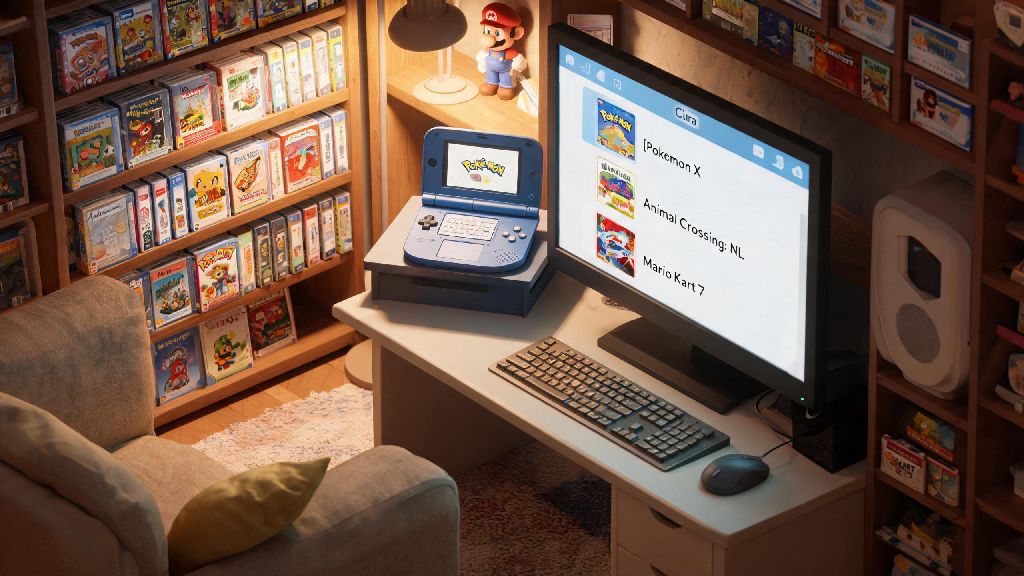
If you’ve ever wanted to revisit your favorite 3DS games on a bigger screen, with better frame rates or custom mods, Citra is the most reliable emulator out there for the job. But a lot of first-time users get stuck on the first big hurdle: figuring out how to load games on the citra emulator without running into crashes, missing file errors, or empty library screens. I’ve used Citra regularly for 4 years, and I’ve run into every possible loading error you can imagine, from missing cover art to random crashes mid-launch. This guide uses only tested, no-fluff steps to get you playing as fast as possible, with no unnecessary technical jargon.
What You Need Before Loading Games on Citra Emulator
You don’t need fancy hardware to run Citra, but there are a few non-negotiable prerequisites to avoid headaches later. First and foremost, Only use ROMs you have dumped from your own physical 3DS console. Distributing or downloading copyrighted game files you don’t own is illegal, and pre-downloaded ROMs from random sites are often encrypted, corrupted, or packed with malware. Dumping your own cartridges takes less than 10 minutes if you have a modded 3DS, and it guarantees your files are safe and compatible.
Next, make sure you have a valid Citra build installed. Most users will be fine with the stable Nightly build, but if you want early access to new features or compatibility fixes for rare games, you can opt for the Canary build instead. Both versions use the same game loading process, so you don’t have to adjust your steps based on which build you pick. Your device also needs to meet basic requirements: at least 4GB of RAM, a CPU released in the last 6 years, and support for OpenGL 3.3 or higher. Almost every modern laptop or desktop meets these specs, so you won’t have to upgrade just to play most 3DS games.
Finally, make sure all your game files are decrypted. Encrypted ROMs won’t show up in your Citra library at all, even if they’re in a supported format. When you dump games from your own 3DS, the dumping tool will automatically decrypt them using your console’s unique security keys, so you won’t have to do any extra work after the dump is finished.
Step-by-Step Process to Load Games on the Citra Emulator
Once you have all your prerequisites sorted, loading your games takes just a few clicks. First, organize all your dumped 3DS game files in a single dedicated folder on your device. Don’t scatter them across different drives or nested folders, because Citra will lose track of them if you move files later. Always keep your game files in one fixed folder to avoid missing game errors later.
Next, open your Citra emulator, head to the top menu bar, and select File > Add Game Directory. Navigate to the folder you created, select it, and confirm. You don’t have to add individual game files one by one; Citra will scan the entire folder and all its subfolders for valid game files automatically. Wait 10 to 30 seconds for the scan to finish, depending on how many games you have in the folder.
All valid, decrypted games will pop up in your main library with their official cover art if you have an active internet connection. If you want to launch a game, just double-click its title in the library. If you have a CIA file (usually for digital game copies, DLC, or game updates), you’ll need to install it first instead of adding it to your game folder. Just select File > Install CIA from the top menu, navigate to the CIA file, and wait for the installation to finish. The game will appear in your library automatically once the install is complete.
Citra supports a wide range of 3DS game file formats, so you don’t have to convert your files unless they’re in an unsupported type. The full list of supported formats includes:
If your game doesn’t show up after scanning, it’s almost always either encrypted, corrupted, or in an unsupported file format. Double check that you dumped the file correctly, and that it’s not a damaged download if you transferred it from your 3DS wirelessly.
Common Fixes for Games Not Loading on Citra
Even if you follow all the steps correctly, you might run into occasional loading issues, especially with more niche or newer 3DS games. The most common error is a “encrypted ROM” warning when you try to launch a game. This happens when your dump didn’t decrypt properly, or you downloaded a pre-encrypted file from an untrusted source. The only reliable fix is to re-dump the game from your own 3DS, making sure your dumping tool has access to your console’s security keys.
Another common issue is games that show up in your library but crash immediately when you launch them. Most of the time, this is caused by missing system archive files. Some games rely on shared system files from the 3DS operating system to run, and Citra doesn’t come with these files pre-installed for legal reasons. You can dump these files from your own 3DS and add them to Citra’s user folder to fix the issue. You can check if you have all required system files by going to Emulation > Verify System Files in the Citra menu. This tool will tell you exactly which files you’re missing, if any.
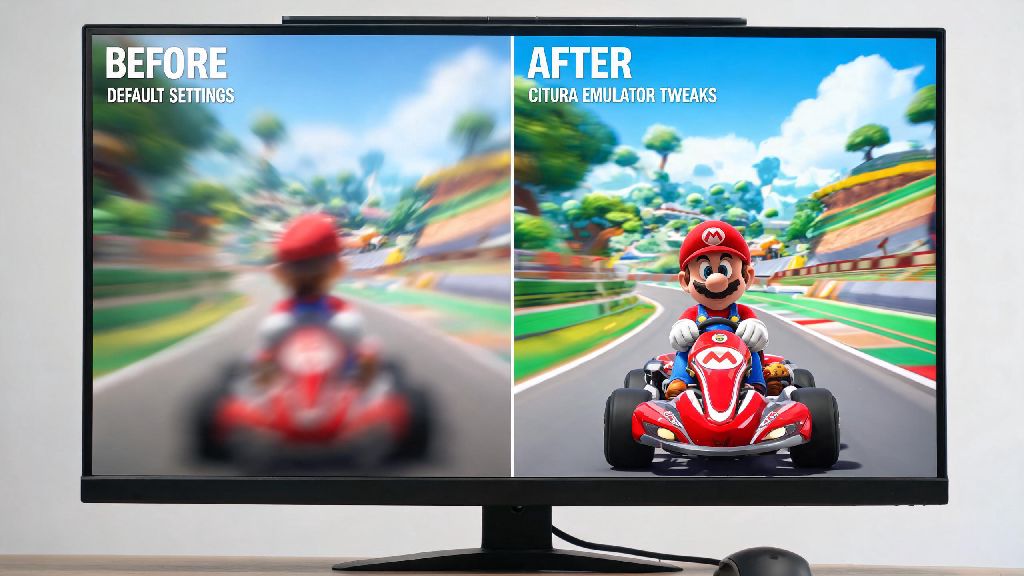
If your game loads but runs at unplayably low frame rates, that’s not a loading error, but it’s easy to fix. Try turning off V-Sync in your graphics settings, enabling asynchronous shader compilation, and lowering your internal resolution if you’re on a low-end laptop. You can also check the official Citra compatibility list to see if your game has known performance issues, and what settings other users recommend to run it smoothly.
Tips to Improve Your Game Loading Experience on Citra
Once you have your basic library set up, there are a few small tweaks you can make to make loading games even easier. First, you can add custom cover art for any game that doesn’t pull official art automatically. Just right-click the game entry in your library, select “Change Cover Art”, and upload a PNG or JPG file of the cover you want to use. This makes it much easier to browse your library if you have a lot of games installed.
You can also set up per-game settings so you don’t have to adjust your global settings every time you switch between games. For example, one game might run best at 2x internal resolution, while another needs 1x resolution and turned-off shaders to avoid stutter. Just right-click the game title, select Properties, and adjust the settings for that specific game only. These settings will load automatically every time you launch the game, so you don’t have to mess with them manually.
Back up your save files regularly, especially before updating your Citra build, to avoid losing progress if something goes wrong. You can access your save files by right-clicking the game and selecting “Open Save Data Directory”. Copy these files to a separate folder on your device or cloud storage every few weeks, so you won’t lose dozens of hours of progress if you run into a build error or corrupted file.
If you want to use mods, ROM hacks, or custom textures for your games, you don’t have to modify the original game file at all. Just right-click the game, select “Open Mods Directory”, and drop your mod files into the folder that pops up. Citra will load these mods automatically when you launch the game, and you can disable them any time by deleting the files from the mod folder.
At the end of the day, figuring out how to load games on the citra emulator doesn’t have to be a frustrating process if you follow the right steps and stick to legal, properly dumped files. Most loading errors are caused by easy-to-fix issues like encrypted files or missing system archives, so you won’t have to spend hours troubleshooting if you double check your setup first. Once your library is set up, you can enjoy all your old 3DS favorites with higher resolutions, custom mods, and even local or online multiplayer with other Citra users. Don’t be afraid to experiment with settings to find what works best for your device and the games you play most.