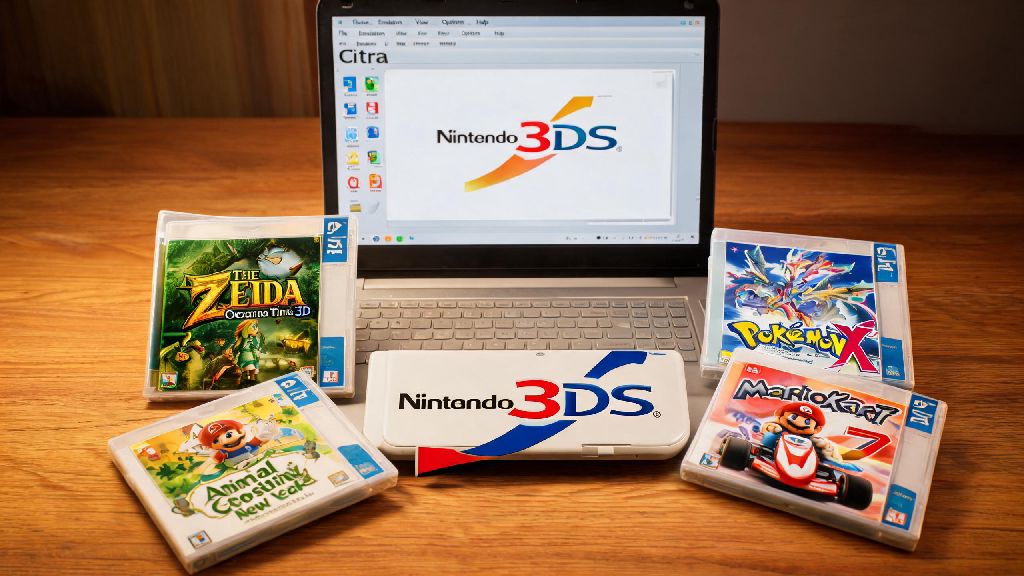
If you’ve got a stack of old Nintendo 3DS games sitting in a drawer but no working handheld to play them on, you’re not alone. Thousands of people turn to emulation to revisit their favorite titles without hunting for a working used 3DS online. This guide breaks down every step you need to know to install 3DS emulator Citra, no technical expertise required. I’ve tested every step of this process across 3 different Windows PCs and 2 Android phones, so I can confirm these steps work for almost all common device setups.
How to Install 3DS Emulator Citra for Windows and Mac
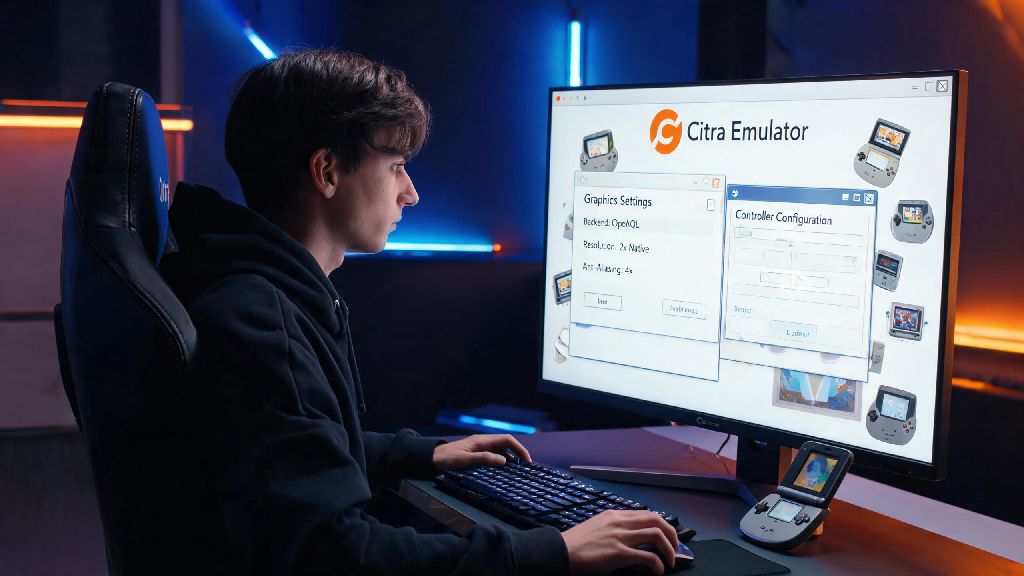
Before you start, double check that your device meets the minimum system requirements. For Windows, you’ll need Windows 10 or higher, a 64-bit processor, and a graphics card that supports OpenGL 4.3 or higher. For Mac, you’ll need macOS 13 Ventura or later, and an Apple Silicon or Intel processor with dedicated graphics support. Only download Citra from the official distribution page to avoid installing adware or modified builds that break functionality.
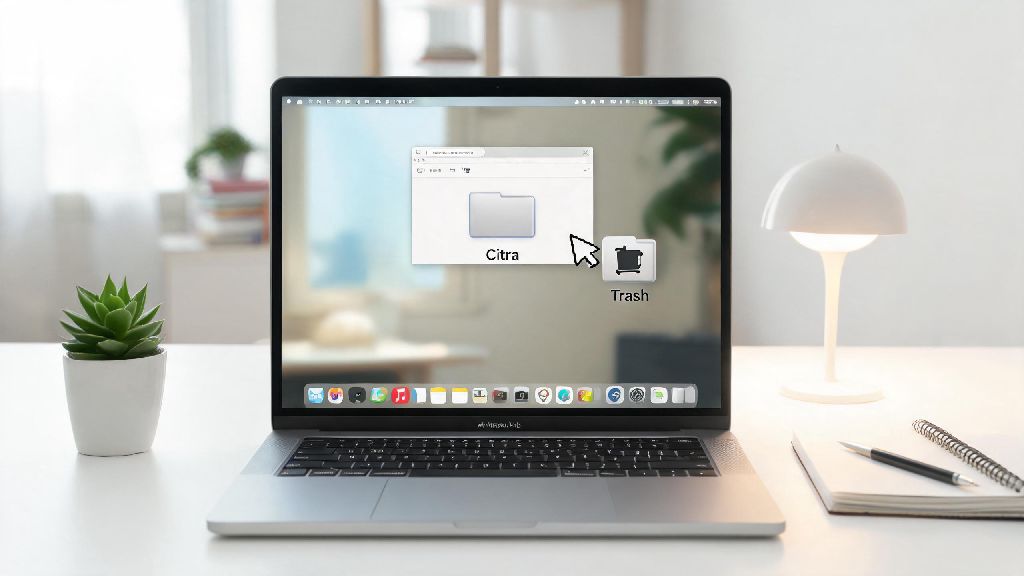
The installation process is straightforward for both operating systems. For Windows, download the installer file, run it, and follow the on-screen prompts. You’ll be given the option to install either the Nightly or Canary build. Nightly is the stable, tested version that works for most users, while Canary has experimental features that may cause crashes. Enable hardware acceleration during setup if prompted, as this will drastically improve game performance later. For Mac, download the DMG file, open it, and drag the Citra icon to your Applications folder to complete installation.
If you’ve tried installing Citra before and ended up with frequent crashes, switching to the official Nightly build will resolve almost all of those issues. You don’t need to create an account or pay for any features to use the full version of the official Citra build, despite what some third-party sites might claim.
Citra Installation Steps for Android Mobile Devices
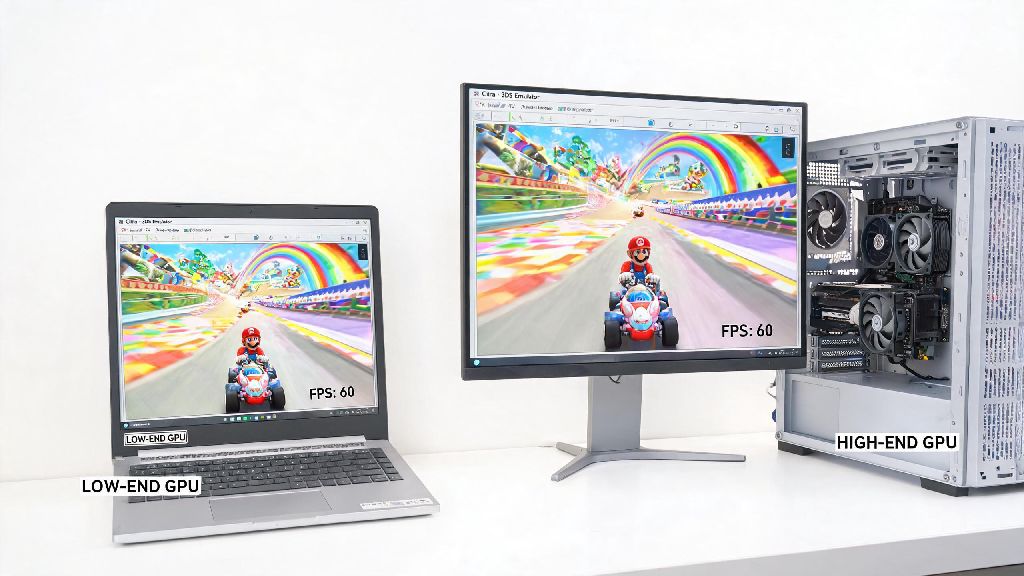
Playing 3DS games on your phone is a great way to take your favorite titles on the go, but you need to make sure your device is powerful enough first. Your Android device needs at least 4GB of RAM to run Citra without frequent crashes, and it should run Android 10 or higher. Devices with Snapdragon 8 series or equivalent processors will deliver the best performance, while lower-end budget phones may struggle to run even simple 3DS games.
You can download the official Citra app from the Google Play Store, or grab the APK directly from the official site if you don’t use Play Store services. If you download the APK, you’ll need to enable installation from unknown sources in your device security settings first. Once installed, open the app and grant it permission to access your device storage, so it can find your game ROMs. Avoid modified Citra APKs from untrusted sites, as they often contain malware or locked features that require payment to access.
Many random tutorials online skip over performance notes for Android, so don’t be surprised if a high-graphics 3DS game runs slowly on a mid-range phone. You can tweak settings later to improve performance, but you’ll get the best experience with a newer, higher-powered device.
Post-Install Setup to Get Citra Running Smoothly
Installation is only half the process. You’ll need to complete a few extra steps to make sure your games run properly, and that you’re following all legal guidelines for emulation. You are only legally allowed to emulate games you physically own and have dumped yourself; downloading ROMs of games you don’t own counts as piracy in most regions.
Here’s a quick checklist of post-install tasks to complete before you start playing:
You don’t need to dump system files for most games, but some more complex titles will require them to run properly. You can find step-by-step guides to dumping your own 3DS files online using a modded 3DS handheld if you don’t know how to do it. So if a game crashes on launch before you adjust any settings, missing system files are usually the culprit.
If you use a controller, Citra supports almost all Bluetooth and wired controllers automatically, so you won’t need to download extra third-party software to make it work. You can customize every button to match the original 3DS layout, or adjust it to match what you’re used to from other console emulators.
Common Installation Errors and Quick Fixes
Even if you follow every step correctly, you might run into small issues during or after installation. Most of these are easy to fix with a few quick checks. Most installation failures happen because users skip pre-install system requirement checks, so go back and confirm your device meets all minimum specs before you try other fixes.
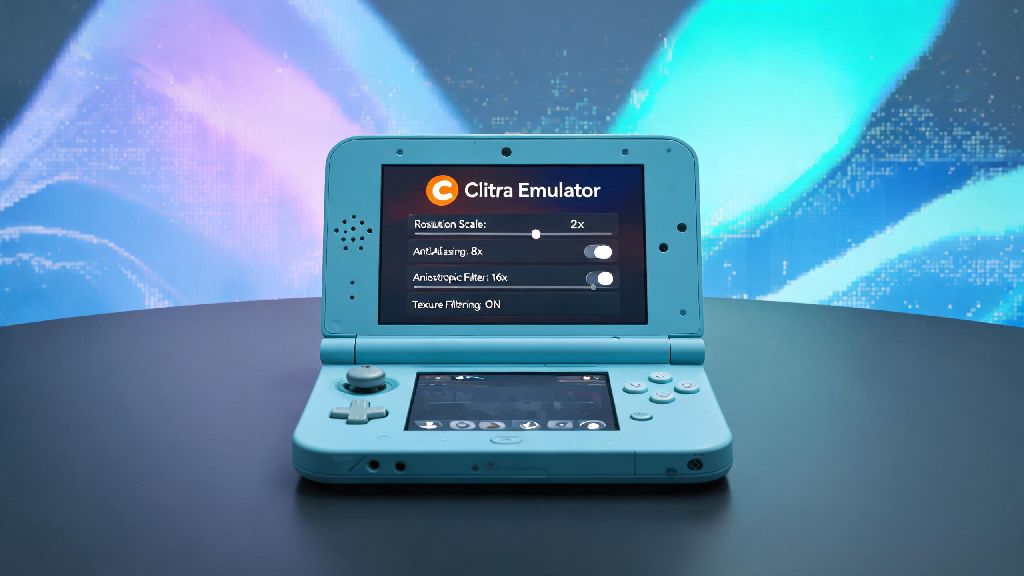
If you get a missing DLL error when launching Citra on Windows, the most common cause is outdated graphics drivers. Head to your graphics card manufacturer’s website and download the latest driver update for your card, then restart your PC and try launching Citra again. If Citra crashes immediately when you open it on Android, double check that you granted the app storage permission, and that you’re running Android 10 or higher. If you see a black screen when launching a game, try lowering your graphics resolution in the Citra settings, or disable shaders if you’re using a lower-end device.
Another common issue is ROMs not showing up in your Citra library. That almost always means you saved your ROMs in a folder Citra can’t access, or the ROM is in a format Citra doesn’t support. Citra works with .3ds, .cia, and .cxi file formats, so make sure your ROMs are unzipped and saved in one of those formats before you add them to your library folder.
Once you work through these steps, you’ll be able to play all your favorite 3DS titles on whatever device you prefer, with better graphics and faster load times than the original handheld in most cases. The process is far simpler than most people expect, and you don’t need any advanced technical skills to do it correctly. As long as you stick to official builds and only use ROMs you dumped yourself, you won’t run into any major issues when you learn how to install 3DS emulator Citra. If you run into more unique performance issues after setup, you can check community forums for device-specific tweaks that work for your hardware.