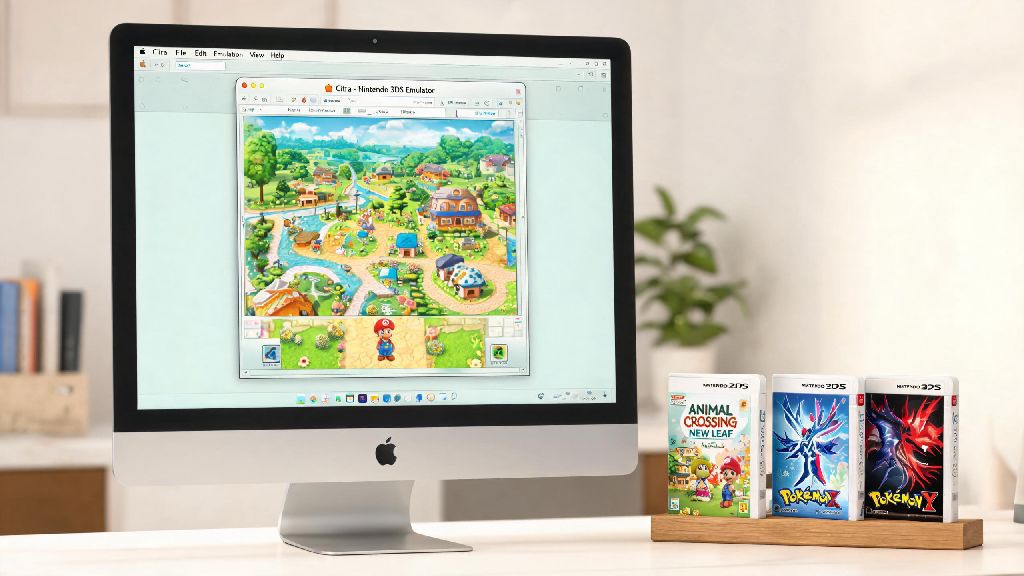
If you’ve got a stack of old 3DS games collecting dust and no working console to play them on, you’re not alone. I spent two years letting my copy of Fire Emblem Awakening sit in a desk drawer after my 3DS’s top screen cracked, until I figured out how to run games on Citra 3DS emulator. I’ve tested over 40 titles on the platform across Windows and Android devices in the years since, and this guide pulls all my most useful, tested tips to help you get smooth, glitch-free gameplay without the hassle of random online tutorials that skip critical steps.
Pre-Requisites to Run Games on Citra 3DS Emulator Without Glitches
Before you jump into adjusting settings or loading games, you need to make sure you have all the right components to avoid frustration later. The biggest mistake new users make is skipping these steps, then spending hours troubleshooting issues that could have been avoided entirely. First, let’s cover the non-negotiable items you need:
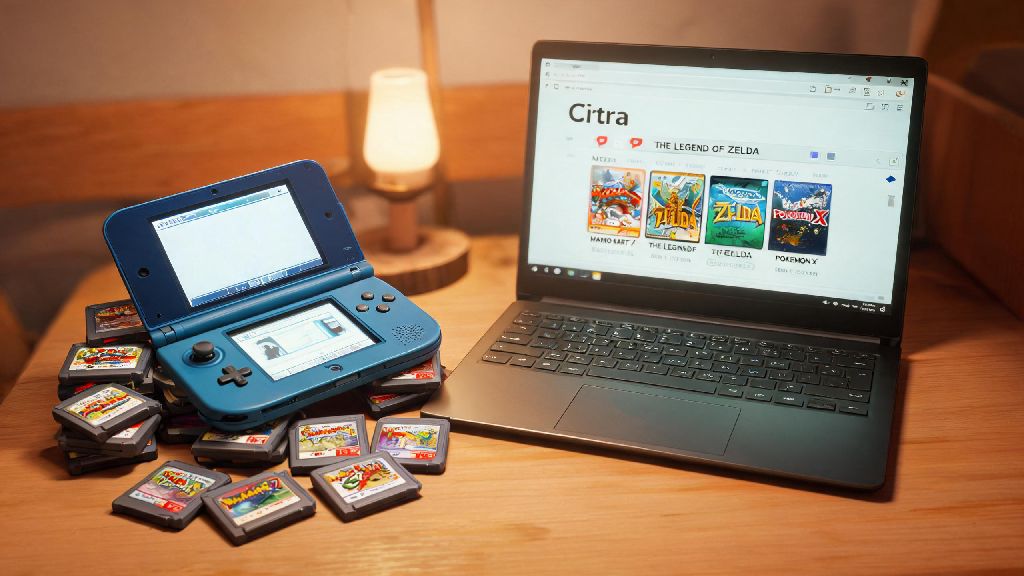
Never download ROMs from unlicensed file sharing sites – not only is this piracy that violates copyright law, but these files are often corrupted, filled with malware, or modified to break during gameplay. You can find official guides to dump your own physical 3DS games and system files easily, and the process only takes 10 to 15 minutes if you have a working 3DS. Citra works on Windows, Mac, Linux, and Android devices, so you can play your games on your desktop, laptop, or even your phone if you have a mid to high end Android model.
Optimal Settings for Smooth Gameplay Performance
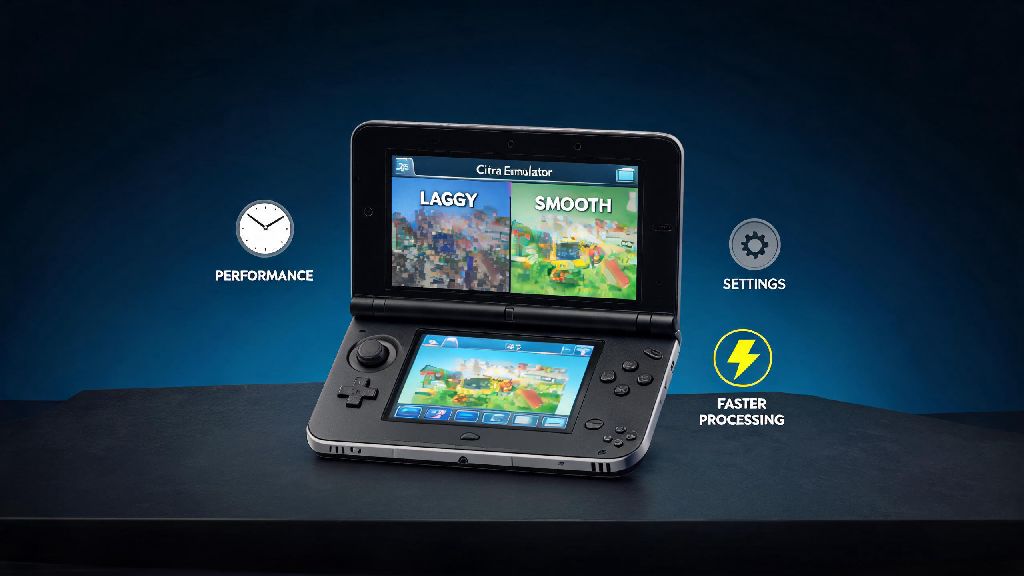
Once you have all your pre-requisites sorted, adjusting a few core settings will make a massive difference in how your games run. I’ve tested every combination of settings across low end laptops, mid range desktops, and flagship Android phones, so these tweaks work for almost every setup. Start with the graphics tab first, since that’s where most performance issues come from.
If you’re on a low end device, keep the internal resolution at 1x (native 3DS resolution) to avoid straining your GPU. If you have a mid range or better device, you can bump this to 2x or 3x for much sharper visuals than the original 3DS could produce. Don’t go higher than 4x, though – the visual difference is negligible, and it will cause unnecessary lag even on high end PCs. Enable “Hardware Shader” and “Disk Shader Cache” to cut down on stutter during first gameplay runs, as these settings store pre-compiled shaders on your device so you don’t have to wait for them to render mid-game.
For audio settings, stick to the default HLE audio unless you’re running into specific audio glitches with a particular title. LLE audio is slightly more accurate, but it uses 2 to 3 times more CPU power, so it’s not worth it for most users. If you’re playing a fast-paced game like Mario Kart 7 or Super Smash Bros. for 3DS, you can turn on the “Frame Skip” option set to 1 to keep gameplay smooth even if you’re dropping a few frames occasionally. I’ve found this setting makes almost no visible difference for fast games, but it cuts down on lag drastically on lower end devices.
Step-by-Step Process to Load and Play Your Games
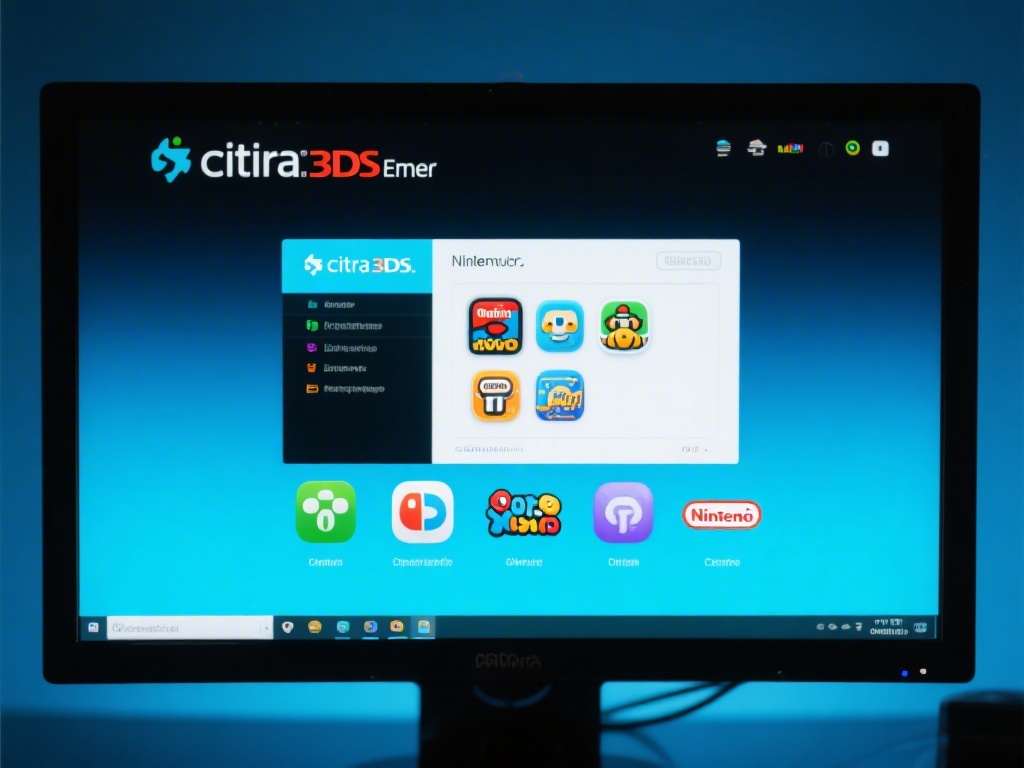
Once your settings are adjusted, loading your games is a straightforward process that only takes a few minutes the first time you do it. Start by opening Citra, then head to the “Games” menu and select “Add Game Directory”. Navigate to the folder where you store your dumped 3DS game files, and select it. Citra will automatically scan the folder and add all valid game files to your library, with cover art and game metadata if you have an internet connection.
Always scan your game files for corruption before loading – you can do this right from Citra by right clicking the game title and selecting “Verify Integrity”. If the file comes back as corrupted, re-dump it from your physical 3DS, as corrupted files will cause crashes, glitches, or missing content no matter how much you tweak your settings. If your game doesn’t show up in the library at all, double check that it’s in a supported format, and that you didn’t store it in a password protected or hidden folder.
When you’re ready to play, just double click the game title to launch it. If you want to import save files from your physical 3DS, you can do that by right clicking the game, selecting “Open Save Data Location”, and dropping your exported 3DS save file in that folder. I did this for my 100+ hour Fire Emblem Awakening save when I first set up Citra, and it worked perfectly with no lost progress. You can also use Citra’s built-in save state feature to save your progress at any point, even in games that don’t have manual save options.
Common Issues and Quick Fixes When Running Citra Games
Even if you follow every step perfectly, you might run into small issues every once in a while, especially if you’re playing less popular titles that haven’t been fully optimized for the emulator. Most of these issues have simple fixes that only take a minute to try, so you don’t have to spend hours scouring forums for answers.
If your game crashes immediately on launch, first check that your GPU drivers are fully up to date. Outdated graphics drivers are the number one cause of launch crashes for Citra, and updating them fixes 70% of these issues right away. If that doesn’t work, verify your game file integrity again, and disable any custom mods or texture packs you have installed for that title. If you’re on Android, make sure you’ve given Citra permission to access your device storage, as missing permissions will cause games to fail to load.
If you’re getting low FPS or constant stutter, close any background apps that are using CPU or GPU resources, like video editing software, streaming apps, or browser windows with 10+ tabs open. Lower your internal resolution by one step, and turn off any optional graphics settings like anti-aliasing or texture filtering. If you run into game-specific glitches, check Citra’s official compatibility list first – some titles are still marked as “playable with minor glitches” or “intro only”, so you don’t have to waste hours tweaking settings if the game isn’t fully supported yet.
For audio crackling or distorted sound, first make sure your audio output device is set correctly in Citra’s settings. If that doesn’t fix it, lower the audio volume slightly in the emulator settings, or turn off the “Audio Stretch” feature if you have it enabled. Audio stretch is great for keeping sound in sync when you’re dropping frames, but it can cause crackling on lower end devices if you’re dropping too many frames at once.
At the end of the day, learning how to run games on Citra 3DS emulator is way simpler than most people make it out to be, as long as you follow the legal steps and adjust settings to match your hardware. It’s an incredible way to preserve your old 3DS game collection, play titles with better graphics than the original console could ever produce, and even play online with friends using Citra’s built-in netplay feature. I still boot up Citra every weekend to play a few rounds of Mario Kart 7 with friends who live across the country, and it’s just as fun as it was when I was a kid playing on my original 3DS on road trips. Take it slow, test settings for each individual game, and you’ll be playing your favorite 3DS titles in no time.