Are you a fan of playing classic Nintendo games on your PC? Look no further! The Citra Emulator is a powerful tool that allows you to play a wide range of Nintendo 3DS games on your computer. In this comprehensive guide, we will walk you through everything you need to know about using the Citra Emulator on PC, including installation, settings, and troubleshooting.
1. Downloading and Installing Citra Emulator
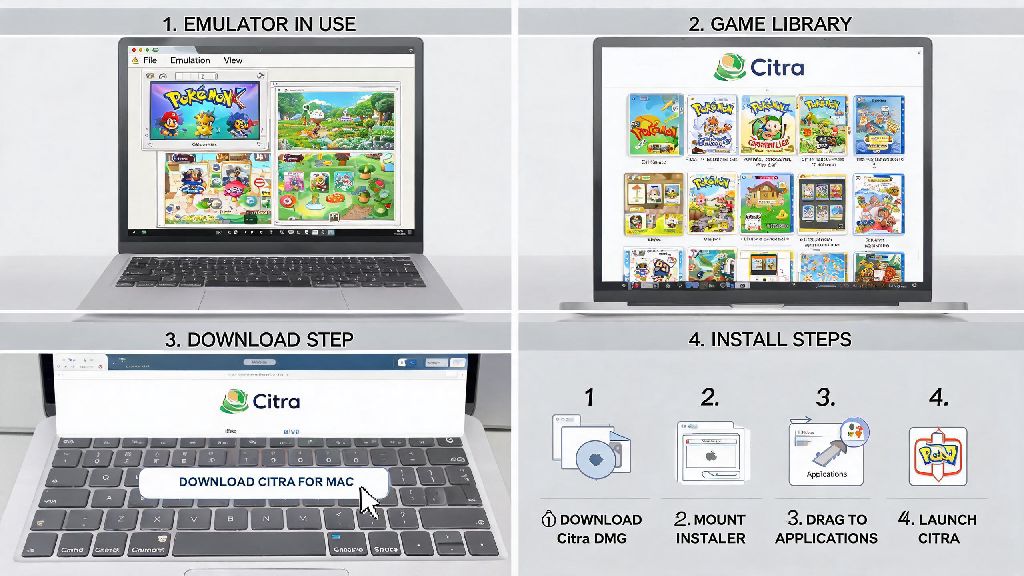
Before you can start using the Citra Emulator, you need to download and install it on your PC. Visit the official Citra website and download the latest version of the emulator. Follow the installation steps provided to set up the emulator on your computer.
2. Setting Up Your Citra Emulator
Once the emulator is installed, it's time to set it up. Here are some essential settings you should configure:
3. Adding ROMs to Citra Emulator
ROMs are the game files you'll need to play on the Citra Emulator. Here's how to add them:
4. Troubleshooting Common Issues
Even with the best settings, you might encounter issues while using the Citra Emulator. Here are some common problems and their solutions:
5. Joining the Citra Emulator Community
The Citra Emulator has a vibrant community of users who are always willing to help. Joining the community can provide you with valuable insights, tips, and support:
In conclusion, using the Citra Emulator on PC is a fantastic way to enjoy your favorite Nintendo 3DS games. By following this guide, you should be able to set up the emulator, add ROMs, and troubleshoot common issues. Happy gaming!