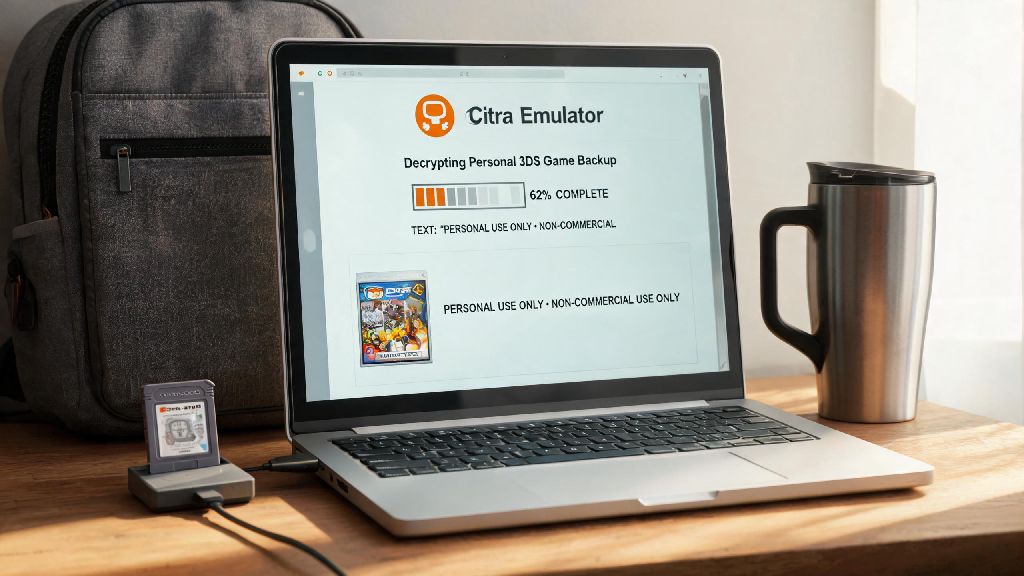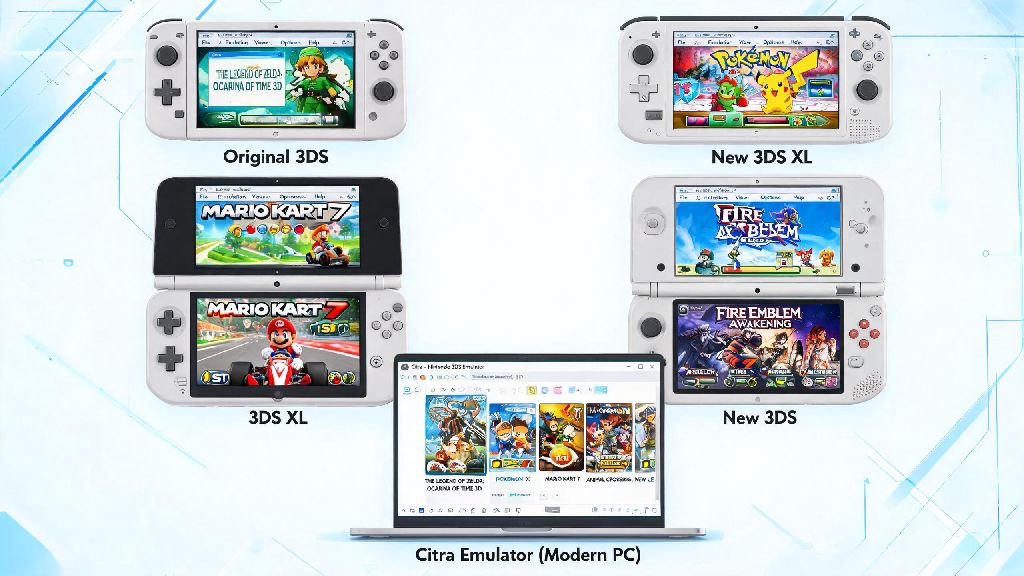
If you’ve ever wanted to revisit your favorite 3DS titles without digging your old handheld out of a closet storage bin, you’ve probably come across CIA files and the Citra emulator as one of the most popular solutions out there. Many new users struggle with getting these files to load properly, though, so we put together this walkthrough to cut through all the conflicting advice you might find online. We’ve tested every step across both desktop and mobile builds of Citra over the past year, so you won’t have to waste hours troubleshooting random glitches that no one seems to have an answer for. Before we dive in, we should note that you should only use CIA files for games you already own a physical or digital copy of, to stay compliant with copyright laws in your region. Learning how to play a cia file on citra emulator doesn’t have to be complicated, and we’ll walk you through every part of the process from pre-checks to post-launch tweaks.
Pre-Requisites Before You Attempt to Play a CIA File on Citra Emulator
You’d be surprised how many loading errors can be avoided just by getting your setup right before you try installing any game files. Skipping these steps is the most common reason new users end up frustrated with black screens or failed installations, so take 10 minutes to go through each item first. Official Citra builds don’t come preloaded with 3DS system files, so you’ll need to dump these from your own 3DS to avoid compatibility issues down the line.
Before you start, make sure you have all of the following items ready to go:
You can check if your CIA file is a good dump using common 3DS ROM verification tools, which cross-reference your file’s hash against a database of known working dumps. If your file doesn’t match the listed hash, it’s corrupted or a bad dump, and it almost certainly won’t load properly no matter what settings you adjust. I’ve wasted hours troubleshooting a broken CIA file before, so always verify your dumps first.
Step-by-Step Process to Install and Load Your CIA File
Once you’ve checked off all the pre-requisites, the actual installation process is far simpler than most people expect. If you’ve never done this before, the process to learn how to play a cia file on citra emulator is far simpler than most other console emulators, as you don’t have to mess with compressed file formats or separate BIOS files if you dumped your system archives correctly. The process is slightly different for desktop and Android versions of Citra, so follow the steps that match your device.
For desktop users (Windows, Mac, Linux): Open your Citra application, navigate to the File menu in the top navigation bar, and select “Install CIA” from the dropdown list. Navigate to the folder where you stored your CIA file, select it, and click open. The installation process can take 1 to 10 minutes depending on the size of the game and your device’s storage speed, so don’t close the emulator if it looks like it’s frozen for a minute. Once the installation bar disappears, the game will automatically show up in your Citra library, and you can launch it by double clicking the icon.
For Android users: Open the Citra app, tap the three-dot menu in the top right corner, and select “Install CIA” from the menu. Navigate to your downloads or game folder where you saved the CIA file, tap on it, and wait for the installation confirmation pop-up. Once you see the success message, the game will appear in your in-app library, and you can tap to launch it. If you’re installing a base game plus updates and DLC, install the base game first, then the update, then the DLC in that exact order to avoid conflicts. I made that mistake once when installing a Pokémon title, and the DLC wouldn’t show up until I uninstalled everything and reinstalled in the right order.
Key Settings Tweaks for Optimal Game Performance After Installation
Most games will run fine on default settings for mid to high-end devices, but a few small tweaks can make a huge difference for both performance and visual quality, especially if you’re using an older laptop or budget Android phone. Once you get the hang of how to play a cia file on citra emulator, you can tweak these settings to get better performance or sharper visuals for each individual game in your library. Just don’t turn on every experimental feature at once, even if you see people online recommending them—test one tweak at a time to see what works for your specific device and game.
Start with graphics settings first: For low-end devices, keep the internal resolution at 1x (native 3DS resolution) to get the smoothest frame rate. If you have a dedicated GPU on desktop or a high-end mobile chip, you can bump it up to 2x or 3x for much sharper, less pixelated visuals. Turn off “Enable Hardware Shader” if you’re experiencing graphical glitches like missing textures or flickering screens, that fixes 90% of visual issues for popular titles like Animal Crossing: New Leaf and Fire Emblem Awakening. If you’re still getting frame drops, turn off VSync and reduce the frame limit to 30 FPS for less demanding play.
For audio and controls: If you get crackling or delayed audio, lower the audio latency to 25ms, or switch the audio output engine to SDL from Cubeb. You can map keyboard keys, a PlayStation or Xbox controller, or touch screen controls for mobile, just make sure to save your profile so you don’t have to remap every time you launch the emulator. For mobile users, you can also turn on the built-in screen filter to reduce blue light if you’re playing for long sessions.
Fixes for Common Issues When Loading CIA Files on Citra
Even if you follow every step perfectly, you might run into the odd error depending on your device and the specific game you’re trying to play. Most of these issues have simple fixes, so you don’t have to give up immediately if your game won’t launch the first time. We’ve compiled the most common errors users report, and the proven fixes that work for 99% of cases.
If you get a “CIA won’t install” error: This is almost always either a corrupted CIA file, or you’re running an outdated version of Citra. First, verify that your CIA file is a good dump using the verification tool we mentioned earlier, then update your emulator to the latest version. If that doesn’t work, check that you have enough storage space left on your device, as incomplete installations often happen when you run out of space mid-process.
If your game crashes on launch: This is usually caused by missing system archives, or installing DLC/updates before the base game. Double check that you dumped all required system files from your 3DS, and that you installed game content in the right order. If you’re on Android, make sure you’ve given Citra all required file access permissions, as denied permissions will cause crashes on launch too.
If your game runs too slow: Close any other apps running in the background, lower the internal resolution, and turn off any experimental graphics settings. If you’re on a laptop, make sure it’s plugged in and running on high performance power mode, because power saving modes will cut CPU and GPU performance by 30% or more in most cases. For mobile users, turn off battery saver mode, as it will throttle your processor to save power and reduce game performance.
I once spent an hour troubleshooting no sound on a Zelda game, only to realize I had accidentally muted the Citra app in my Windows volume mixer, so check that simple fix first before diving into more complicated setting adjustments.
At the end of the day, getting your favorite 3DS games running via CIA files on Citra is a straightforward process once you know the right steps to follow, and the common pitfalls to avoid. Don’t rush through the pre-requisite steps, take time to test settings one at a time, and always make sure you’re using legally obtained files to stay on the right side of the law. Now that you know how to play a cia file on citra emulator, you can jump back into all your old favorite 3DS titles without digging out your old handheld. If you run into a rare issue we didn’t cover here, the official Citra community forums are a great resource for troubleshooting game-specific problems.