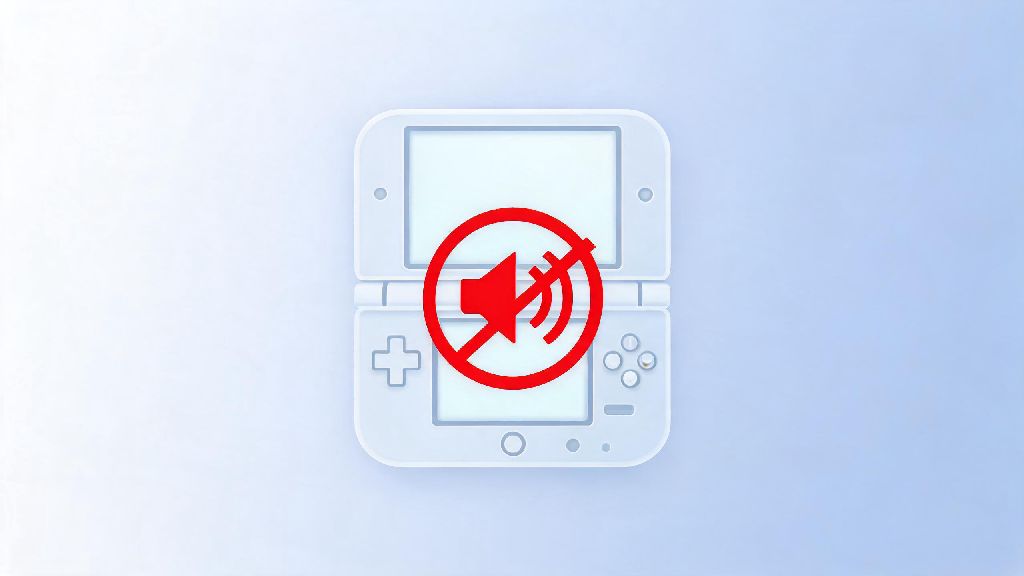
If you’ve ever tried to play 3DS games on Citra while attending a lecture, waiting in a public space, or streaming other content on your device, you already know how frustrating unexpected game audio can be. Knowing how to turn off the volume for Citra emulator saves you from awkward stares and lets you play on your own terms without disrupting people around you. Most new users struggle to find the right toggle, since Citra’s settings menu is packed with options for graphics, controls, and performance that can feel overwhelming at first glance. This guide walks you through every proven method, including quick temporary fixes and permanent settings adjustments, so you can mute audio in seconds whenever you need to.
How to Turn Off the Volume for Citra Emulator via In-App Audio Settings
The most reliable way to mute Citra’s volume long-term is through the emulator’s built-in audio settings, which apply to every game you load unless you change them back. First, open Citra and head to the top menu bar, then select Emulation from the dropdown list, followed by Configure. On the left-hand side of the configuration window, you’ll see an Audio tab – click that to pull up all sound-related options. You’ll see a volume slider at the top of the page; drag it all the way to the left to mute all game audio entirely, or adjust it to a low level if you only want to reduce sound instead of turning it off completely. Don’t forget to click Save at the bottom of the window to apply your changes before loading any ROMs. This method works for both the nightly and canary builds of Citra, so you don’t have to adjust anything if you switch between versions regularly.
Quick Temporary Mute Options for On-the-Go Play
If you only need to mute Citra for a few minutes, you don’t have to dig through the full settings menu every time. If you’re looking for a faster way to turn off the volume for Citra emulator without navigating the settings menu, your operating system’s built-in app volume controls are the best option. Most operating systems let you adjust individual app volume without changing system-wide sound levels, which is ideal for quick adjustments. On Windows, you can right-click the speaker icon in your system tray, select Open Volume Mixer, and drag the Citra slider all the way down to mute it separately from your browser, music player, or other apps. On Mac, open the Sound settings in System Preferences, go to the Output tab, and adjust the volume for Citra individually in the app volume list. For Android users, you can use your device’s physical volume buttons while Citra is open to lower game sound without affecting other notifications. Many users prefer this method when they take quick breaks from gaming to watch a short video or take a call, since you can turn sound back on with one click later.
If you’re taking a longer break from gaming and want to occupy yourself with something light that doesn’t require audio, you can try low-effort casual games that fit into short 5 to 10 minute gaps. A lot of Citra players who play in public opt for quick, low-stakes games to pass the time while waiting for public transit or between classes, and many enjoy Ind Slots for a quick, no-pressure distraction that doesn’t require sound to be fun. Just make sure you close any extra apps before loading back into Citra to avoid performance drops when you return to your game.
Fix Common Issues That Prevent Citra Volume From Turning Off
In some cases, you might adjust your settings and still hear audio coming from Citra, usually due to incorrect configuration or build-specific bugs. These issues are almost never serious, and the most common fixes take less than a minute to test:
How to Mute Sound for Individual Citra ROMs Only
Many users don’t know that you can adjust audio settings for individual games instead of applying the same mute setting to every ROM you load. This is really useful if you have one game with loud, annoying background music that you don’t want to hear, but you still want audio for other games you play regularly. To set per-game audio settings, right-click the ROM you want to adjust in your Citra game list, and select Properties from the dropdown menu. Head to the Audio tab in the properties window, and check the box that says “Override global audio settings”. From there, you can drag the volume slider to zero to mute just that specific game, or adjust it to a custom level that works better for that title. This setting saves automatically, so you don’t have to adjust it every time you load the game. You can always go back and uncheck the override box to revert to your global audio settings whenever you want.
Muting your Citra emulator doesn’t have to be a complicated process, whether you want to turn off sound permanently for all games, temporarily for a few minutes, or just for one specific ROM with annoying audio. You can pick the method that fits your current use case, and you won’t have to deal with unexpected loud game audio when you’re playing in public or multitasking on your device. Next time you need to play quietly, you’ll know exactly how to turn off the volume for Citra emulator in just a few clicks, no extra tools or complicated workarounds required.