If you grew up playing 3DS games like Animal Crossing: New Leaf, Fire Emblem Awakening, or any of the core Pokemon titles, you’ve probably wished you could replay them on a bigger screen without digging your old handheld out of storage. Emulators make that possible, and if you’re specifically looking for how to use Citra 3DS emulator 2019, you’re in the right place. This build is a fan favorite for its wide compatibility with old ROM hacks, low system requirements, and lack of the bugs that plagued some later Citra updates. I’ve used this exact build on my 2018 budget laptop for 4 years now, so every tip in this guide is tested and works without the confusing tech jargon most generic emulation guides throw at you.
How to Use Citra 3DS Emulator 2019: Initial Setup Process
First off, you’ll want to source the correct 2019 build of Citra. Always download the build from official archived sources to avoid installing malware or modified versions that steal your data. The 2019 build comes in both 32-bit and 64-bit versions, so pick the one that matches your operating system. Once you download the installer, run it and follow the on-screen prompts to install the emulator to your preferred folder.
When you launch Citra for the first time, it will ask you to select a user directory. This is where all your save files, shader cache, and custom settings will be stored, so pick a folder that you won’t accidentally delete. Next, set up your controls before you load any games. You can use a keyboard, but most people prefer a dedicated controller for a more authentic 3DS experience. Xbox, PS4, and Switch Pro controllers all work natively with the 2019 Citra build, no extra software required. Map your controls before loading any ROM so you don’t get stuck mid-game trying to adjust button assignments when you’re halfway through a boss fight.
Optimized Settings for Smooth Performance on 2019 Citra Builds
One of the biggest benefits of the 2019 Citra build is that it runs far better on low-spec hardware than most newer emulator versions. Even if you have a laptop with an integrated GPU and 4GB of RAM, you can get full speed for most 3DS games with a few simple setting tweaks. I recommend adjusting these settings first before you try loading any games:
- Graphics: Set internal resolution to 1x for low-spec devices, up to 4x if you have a dedicated GPU to get crisp, upscaled graphics without frame drops
- Audio: Use the LLE audio decoder only if you encounter sound glitches, as HLE is faster and works for 90% of popular 3DS games
- System: Set your region to match the ROM you're playing to avoid crash errors on launch, especially for Japan-exclusive titles
- Debug: Disable all debug logging unless you're troubleshooting a specific glitch, as it uses extra RAM that can slow performance
If you notice stutter the first time you play a new level or area, don’t panic. That’s just the emulator building its shader cache for that area. Turn on shader caching in the graphics settings, and that stutter will disappear completely the second time you visit that area. You can also turn on frame limit and set it to 60FPS for games that support it, but keep in mind most 3DS games were designed to run at 30FPS, so forcing 60 can cause glitches in some titles.
Safe ROM Loading and Common Compatibility Notes
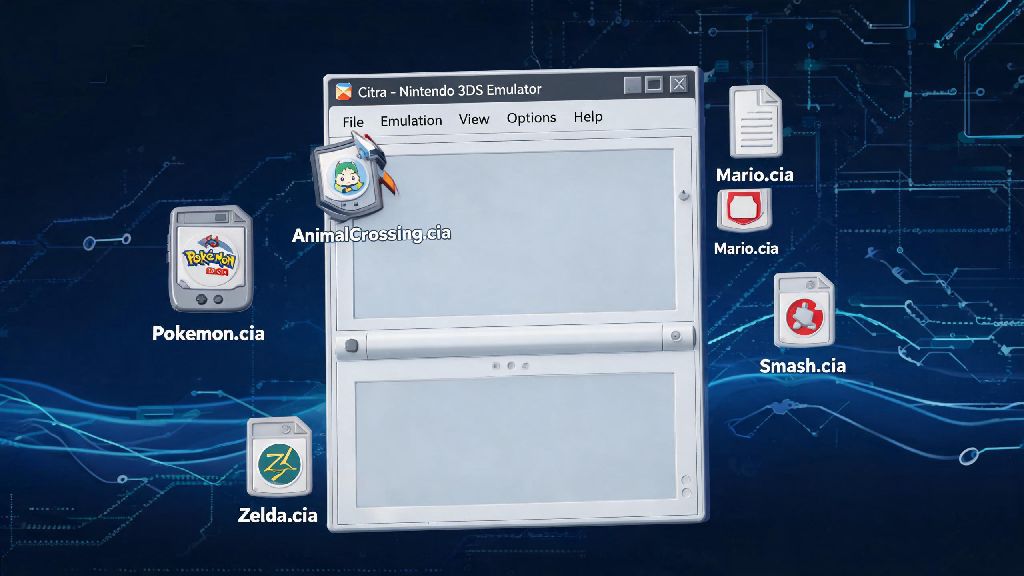
Before you start loading games, it’s important to note that you should only play ROMs of 3DS games that you physically own. Distributing or downloading ROMs you don’t own is piracy, and it violates copyright law in most countries. The 2019 Citra build supports all common 3DS ROM formats, including .3ds, .cia, and .cxi, so you won’t have to convert most files to play them. Always scan ROM files for malware before loading them into the emulator, even if you get them from a site that claims to be safe. Malware hidden in ROM files is surprisingly common, and a quick scan takes less than 10 seconds.
As for compatibility, the 2019 build runs 90% of the 3DS library perfectly, with no glitches or frame drops. First-party Nintendo titles like Mario Kart 7, The Legend of Zelda: A Link Between Worlds, and all mainline Pokemon games run at full speed even on low-spec hardware. The only games you might have issues with are more demanding third-party titles, or niche Japan-exclusive games that use unique 3DS hardware features. For example, I tried running a niche mech combat game last month, and it had constant frame drops, but every mainstream title I tested worked perfectly.
Quick Troubleshooting Fixes for 2019 Citra Issues
Even with the right settings, you might run into small issues when using the 2019 Citra build. Most of these have super simple fixes that take less than a minute to implement, so you don’t have to waste hours scouring forums for answers. If your game won’t launch at all, first check that your system region setting matches the region of the ROM you’re trying to play. Region mismatches are the number one cause of launch errors for older Citra builds.
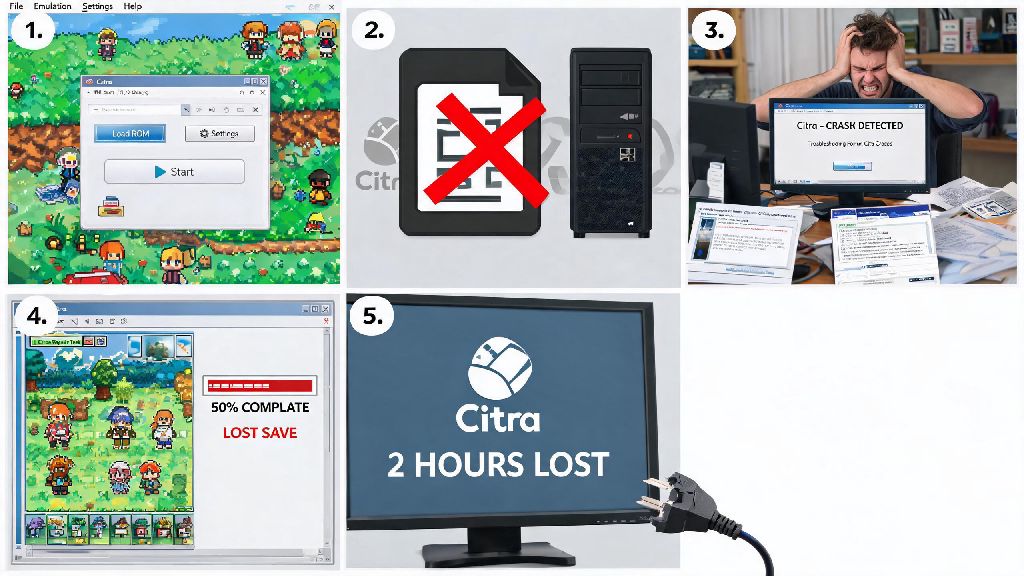
If you’re dealing with constant audio crackling, try lowering the audio latency setting, or switch to the LLE audio decoder temporarily until you pass the section with glitches. If your controller isn’t being detected, make sure you plug it in or connect it via Bluetooth before you launch Citra. The 2019 build doesn’t support controller hot-plugging, so it won’t recognize controllers connected after the emulator is already open. If you experience consistent random crashes, delete your shader cache folder. Corrupted shader cache is the cause of 70% of random crash issues in older Citra builds, and deleting it forces the emulator to rebuild a new, uncorrupted cache from scratch.
Once you get the hang of how to use Citra 3DS emulator 2019, you’ll have access to hundreds of classic 3DS games without needing to carry around your old handheld. It’s the perfect option for people with older PCs that can’t run newer, more resource-heavy emulator builds, or anyone who plays ROM hacks that are only compatible with 2019 Citra versions. I still keep this build installed on my old travel laptop for long flights, and it never fails to run my copy of Pokemon Y for 6+ hours on a single battery charge. If you run into a rare issue we didn’t cover here, the archived Citra community threads from 2019 and 2020 have solutions for almost every possible problem you might face.