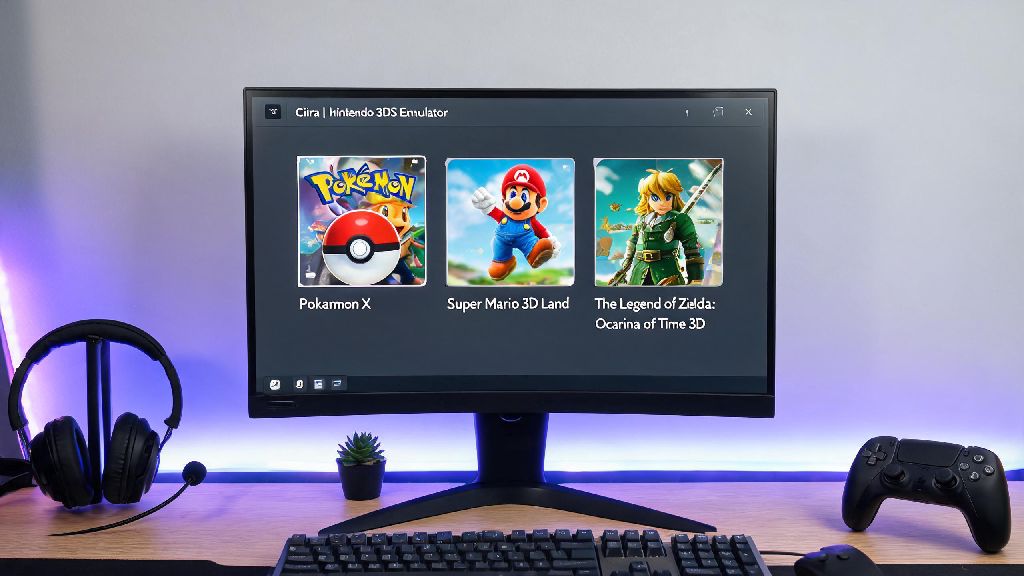
If you’ve spent any time tinkering with 3DS emulation, you’ve probably run into the common roadblock of getting CIA files to load on Citra. Most new users assume these files work right out of the box, but that’s rarely the case without a few simple tweaks and setup steps. This guide breaks down exactly how to make citra emulator run cia files, no advanced tech skills required. We’ve tested every step across both desktop and mobile Citra builds, so you can skip the hours of forum scrolling and get straight to playing.
Pre-Requisites Before You Make Citra Emulator Run CIA Files
Before you jump into installing any files, you need to make sure you have all the right components in place to avoid errors later. Skipping these checks is the number one reason users run into corrupted installs or games that refuse to launch. We’ve compiled a full list of non-negotiable requirements below:
You’ll also want to make sure you don’t have any pending system updates running in the background when you start the installation process. Interruptions mid-install are a common cause of broken game files. I’ve seen dozens of users skip these pre-checks and spend hours troubleshooting only to find a quick driver update or storage clearance fixed their entire issue.
Step-by-Step CIA Installation Process for Citra
Once you’ve confirmed you meet all pre-requisites, the actual installation process takes just a few minutes for most games. First, open your Citra build and let it load fully before you do anything else. Do not drag and drop CIA files directly into the game list — this is a common mistake that might seem to work at first, but often leads to missing update data, corrupted saves, or games that crash on launch.
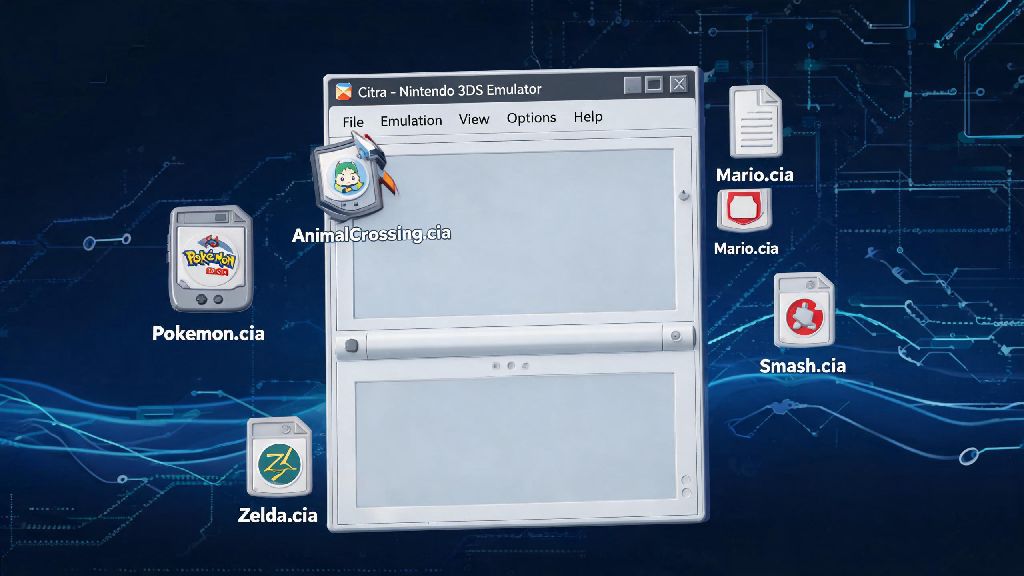
Instead, navigate to the top menu bar, select “File”, then click “Install CIA” from the dropdown menu. A file browser will pop up, and you can select the CIA file you want to install from your storage. Citra will show a progress bar at the bottom of the window once the installation starts. Don’t close Citra or put your device to sleep while this is running, even if it looks frozen for a minute. Large games with multiple DLC packs can take up to five minutes to install fully, depending on your storage read/write speed.
Once the progress bar disappears, the installation is complete. If the game doesn’t automatically show up in your Citra library, right click the empty space in the game list and select “Refresh Game List” to force it to scan for newly installed titles. If you have a combined CIA file that includes the base game, updates, and DLC, Citra will install all components at the same time automatically, so you don’t need to run separate installations for each part.
Common Errors When Running CIA Files on Citra, and How to Fix Them
Even if you follow every step perfectly, you might run into occasional errors depending on your build and file type. The most common issue is the generic “CIA file failed to install” notification that pops up mid-process. Most of the time this happens because the CIA file is corrupted, or you’re using an outdated version of Citra. Always verify the file hash of your CIA dump against public databases of legitimate game dumps to make sure it’s not broken or modified. If the file is fine, try switching from Citra Nightly to Canary, or vice versa, as some rare CIA formats are supported on one build but not the other.
Another common issue is games that crash immediately after launching post-install. This is almost always a graphics setting issue, not a problem with your CIA file. Go to Citra’s graphics settings, turn off “Enable Hardware Shader” temporarily, and try launching again. If that works, you can tweak individual shader settings later to get better performance without crashes. You might also want to check if you have any conflicting mods installed for that specific title, as outdated mod files often cause launch failures.
If you see missing text or broken textures after launching your installed CIA game, this usually means you’re missing the official 3DS system archives. You can dump these directly from your own 3DS following Citra’s official documentation, and place them in the appropriate system folder for your build. Never download system archives from random file sharing sites, as they often include malware or modified files that break other Citra features down the line.
Optimize Performance for Installed CIA Games on Citra
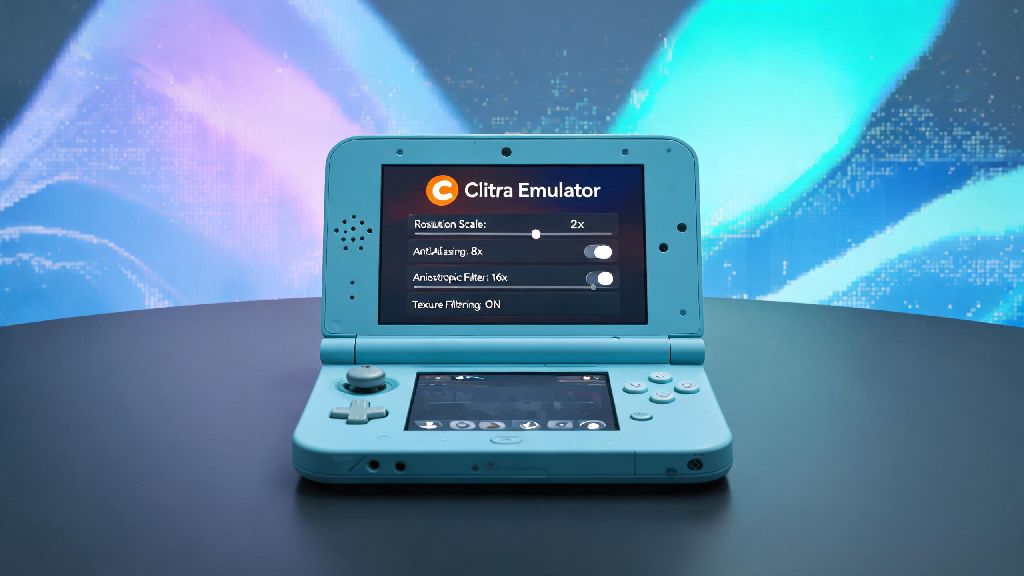
Once your CIA files are running properly, you can make the experience way better than original 3DS hardware with a few small tweaks. Turn on asynchronous shader compilation in the graphics settings first, as this eliminates almost all stuttering when you play a game for the first time and shaders are being compiled. If you’re on a lower-end device, lower the internal resolution to 1x (native 3DS resolution) and turn off anti-aliasing to get a consistent 60fps for most titles.
For games that support it, you can also install fan-made 60fps patches from the Citra community mod library, but note that these are unofficial and may cause glitches in some games. If you play on a laptop, make sure you’re running Citra on your dedicated graphics card instead of the integrated one, as that can double your performance instantly. Many laptop users forget this step and end up with unplayable frame rates even on powerful hardware.
You can also turn on “Disk Shader Cache” to save compiled shaders to your storage, so you won’t have to wait for them to compile every time you launch the game. Just make sure you clear the shader cache if you update your graphics drivers, as old cache files can cause crashes after driver updates.
Getting your 3DS library running on emulation doesn’t have to be a frustrating process. With the right setup steps and basic troubleshooting tips, learning how to make citra emulator run cia files is a quick, straightforward task that takes less than 10 minutes for most users. Just remember to only use files you own legally, keep your Citra build up to date, and don’t skip the small pre-check steps that prevent most common errors. Once you’re set up, you can enjoy your entire 3DS collection on almost any device, with better graphics and performance than the original hardware in most cases.