If you’ve ever fumbled with awkward stick aiming while playing The Legend of Zelda: Ocarina of Time 3D or Splatoon 3DS mods on Citra, you’re missing out on one of the emulator’s most underrated features. Motion controls were a core part of the 3DS experience for dozens of popular titles, and Citra has full native support for gyro inputs if you know where to look. This guide breaks down exactly how to toggle gyro in Citra emulator for both desktop and mobile devices, plus setup tips and fixes for common issues that pop up with motion controls.
How to Toggle Gyro in Citra Emulator for Desktop and Mobile
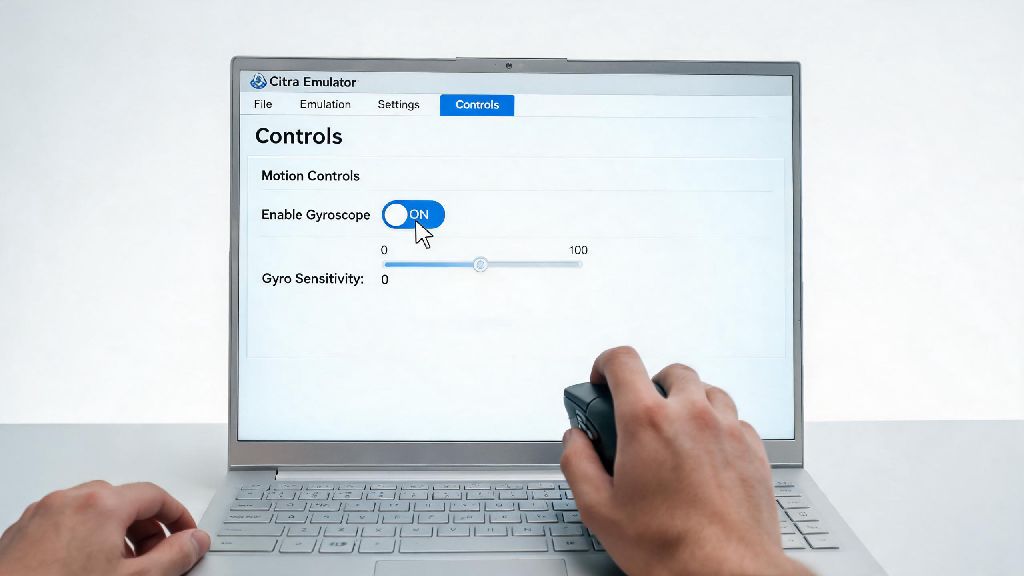
The process to turn gyro on or off varies slightly depending on whether you’re running Citra on a Windows/Mac/Linux desktop or an Android device, but both take less than a minute to complete. For desktop users, Open the Citra emulator app and head to the top menu bar to select “Preferences” or “Settings” depending on your OS. Navigate to the Controls tab in the settings window, and you’ll see a sub-section labeled Motion Controls near the bottom of the page. Check the “Enable Motion Controls” box to turn gyro on, or uncheck it to turn it off completely. You can also map your controller’s gyro axis on this page if Citra doesn’t automatically detect your device’s motion sensor.
For Android users, the steps are even simpler. Open the Citra app, tap the three dot menu in the top right corner, and select “Settings”. Scroll down to the “Controls” section, then tap “Motion Controls”. Toggle the “Enable Motion Controls” switch on or off depending on what you need. If you’re using your phone’s built-in gyro instead of a connected controller, make sure the “Use Device Gyro” box is checked too. That means you don’t even need an external controller to use gyro controls on mobile, as long as your phone has a working motion sensor.
One quick note here: If you’re using a third-party controller like a DualSense, Switch Pro Controller, or Joy-Cons, make sure it’s paired to your device before you adjust these settings. Citra won’t show gyro mapping options if no motion-enabled controller is detected, which can make it look like the feature is missing if you haven’t connected your hardware first.
Optimal Gyro Settings for Different Game Genres
Just turning gyro on isn’t enough to get the best experience, though. The right sensitivity, deadzone, and axis settings change a lot depending on what type of game you’re playing. I’ve tested dozens of 3DS titles with gyro enabled over the past two years, and these are the settings that work best for most play styles:
You can adjust these settings in the same Motion Controls menu where you toggle gyro on and off. I recommend testing your settings for 5-10 minutes in the game you’re playing, then tweaking sensitivity up or down by 5% until it feels natural. Don’t feel like you have to stick to these recommendations exactly, either: every player has different preferences for how responsive motion controls should feel.
Common Gyro Issues in Citra and How to Fix Them
Sometimes you’ll toggle gyro on and it still won’t work, or it will feel jittery, drift, or have bad input lag. Most of these issues have super simple fixes that take 30 seconds or less to try. First, Make sure your controller or device has native gyro support. Basic wired controllers without motion sensors won’t work with Citra’s gyro feature, even if you have motion controls enabled in settings. Popular supported controllers include DualShock 4, DualSense, Switch Pro Controller, Joy-Cons, and most 8BitDo controllers released after 2020.
If your controller does have gyro support but it’s not being detected, Update your Citra build to the latest nightly version. Older stable builds of Citra often have broken gyro support for newer controllers, and the nightly build team pushes fixes for input issues every couple of days. If you’re on mobile, make sure you’ve downloaded the latest version of the Citra app from the official source, as third-party builds often cut out gyro support to reduce file size.
Gyro drift or jitter is another common issue. If your camera is moving on its own even when you’re holding your controller still, first calibrate your controller’s gyro through your system settings before adjusting anything in Citra. On Windows, you can calibrate controllers through the Devices and Printers menu, and on Android you can calibrate your phone’s gyro through the Motion Sensors section of your system settings. Also, Disable other input mapping software like DS4Windows or reWASD while you’re using Citra, as these tools can override Citra’s native gyro detection and cause conflicting inputs.
When to Turn Gyro Off in Citra (and Why It Helps)
Gyro controls are a game-changer for compatible titles, but they’re not useful for every 3DS game. Toggling gyro off when you don’t need it can actually improve your overall play experience, and even boost performance on lower-end devices. Turn off gyro if you’re playing games with no official motion control support first. Titles like Fire Emblem Awakening, Pokemon X and Y, and most 2D 3DS games don’t use motion controls at all, so leaving gyro on just wastes system resources and can cause accidental inputs if you move your controller around while playing.
You should also turn gyro off if you’re streaming or recording gameplay. Even small movements of your controller can cause unexpected camera shifts that look jarring for viewers, and it’s much easier to use stick aiming for recorded footage that looks clean. If you’re using a controller without gyro support, turning the feature off entirely can also reduce input lag for your other controls, as Citra won’t waste processing power looking for a motion sensor that doesn’t exist.
One more scenario where gyro off is better: if you’re playing Citra on a laptop while traveling. Bumpy cars, trains, or planes can cause your laptop’s built-in motion sensor (if it has one) to pick up random movements, leading to unplayable camera drift that you can’t fix without turning gyro off entirely.
At the end of the day, learning how to toggle gyro in Citra emulator is a tiny adjustment that can make a huge difference in how you experience your favorite 3DS games. It takes less than a minute to turn on or off, and you can tweak the settings to match exactly what you need for the game you’re playing. If you run into issues, start with the simple fixes we covered: update your Citra build, check your controller compatibility, and calibrate your motion sensor before you mess with more advanced settings. I still remember the first time I tried gyro aiming in Majora’s Mask 3D on Citra, and I haven’t gone back to stick aiming for that game since. Give it a try, and you might be surprised how much more immersive your play sessions feel.