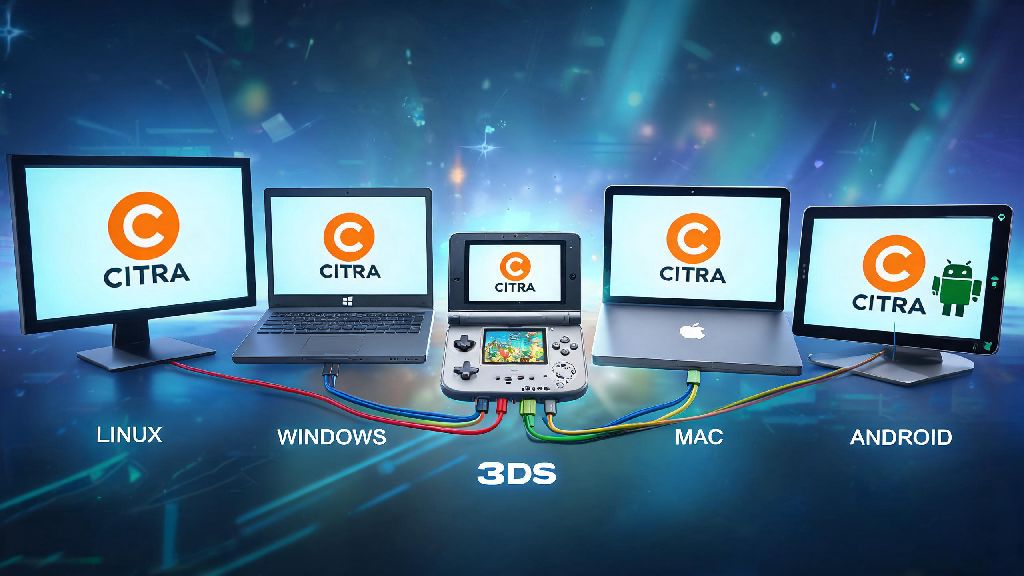
If you’ve ever wanted to revisit your favorite 3DS games without digging your old handheld out of storage, you’ve probably come across Citra, the most popular open-source 3DS emulator on the market. Learning how to run Citra 3DS emulator isn’t as complicated as you might think, even if you’ve never set up an emulator before. I’ve tested this setup across three different devices over the past two years, and I’ve trimmed out all the unnecessary steps so you can get to playing in 10 minutes or less. This guide works for Windows, Mac, Linux, and Android devices, so no matter what hardware you’re using, you’ll be covered.
How to Run Citra 3DS Emulator: Initial Download & Installation Steps
The first and most important step of setup is getting a safe, official copy of the emulator. A lot of third-party sites repackage old Citra builds with malware, adware, or broken features that will cause crashes before you even load a game. Only download Citra from the official project site to avoid bundled malware or outdated builds that crash constantly. You’ll see two main build options: Nightly, which is the stable tested release, and Canary, which has experimental features for advanced users. Stick to Nightly for your first install unless you specifically need a feature only available in Canary.
Before you install, double check that your device meets the minimum system requirements to avoid performance issues later. For desktop devices, you’ll need at least 4GB of RAM, an Intel i3 4th generation or equivalent AMD processor, and a GPU that supports OpenGL 3.3 or higher. For Android devices, you’ll need Android 8.0 or later, and a Snapdragon 660 or equivalent processor for playable framerates. The installation process is straightforward: run the installer for your OS, and don’t change the default file path unless you have a specific reason to, as custom paths can cause update errors later. Once you finish installation, you’re ready to tweak settings to fit your hardware.
Optimal First-Run Settings for Lag-Free Gameplay
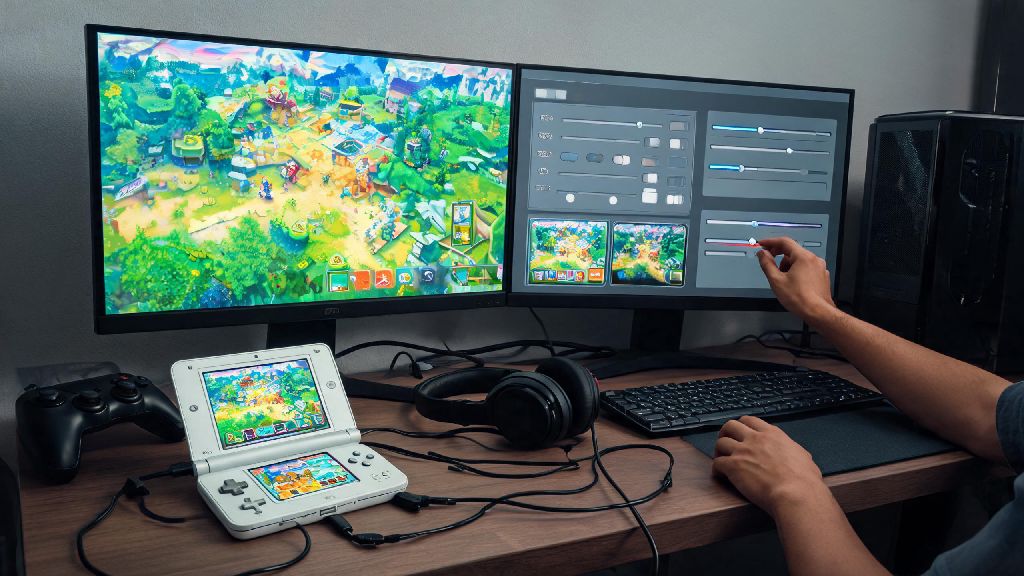
Default Citra settings work for most high-end devices, but a few small tweaks will drastically improve performance on mid or low-end hardware without sacrificing visual quality. Start with the graphics tab first, as that’s where most performance issues come from. Set the internal resolution to 1x if you’re on a low-end device, 2x for mid-range laptops or phones, and 3x or 4x if you have a high-end gaming PC or flagship phone. Higher resolutions make games look sharper than they ever did on the original 3DS, but they put more strain on your GPU.
Hardware shader acceleration is the most important setting to turn on, as it cuts down on random stutter during gameplay by offloading shader processing to your GPU instead of your CPU. If you notice screen tearing, you can turn on VSync, but keep it off if you’re chasing higher framerates. For audio settings, set the audio engine to Cubeb, which has the lowest latency for most devices, and turn on asynchronous audio if you notice crackling during cutscenes. I used to tweak every single advanced setting when I first started using Citra, and I ended up causing more crashes than I fixed. Stick to these basic settings first, and only adjust advanced options if you have a specific problem to solve. These small tweaks will make a huge difference in how smoothly your games run when you first learn how to run Citra 3DS emulator.
How to Load & Organize Games in Citra
Before you load any games, it’s important to note that you should only use ROMs dumped from 3DS cartridges you already own, as downloading ROMs of games you don’t own violates copyright law in most regions. Dumping games from your own modded 3DS is simple, and there are official guides on the Citra site that walk you through the process step by step.
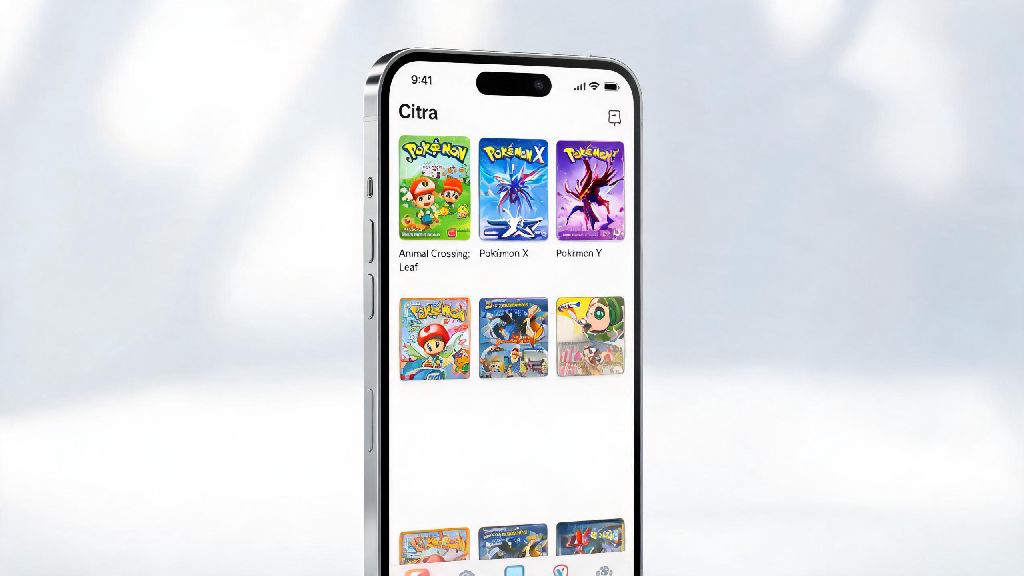
Citra supports both installed CIA files and playable 3DS ROM files, so you don't need to convert your dumped games unless they're in a compressed format like .zip or .rar. Once you have your game files ready, you can add a dedicated game folder to Citra so it displays all your games in a library with official cover art automatically. Follow these best practices to keep your library organized and error-free:
If you don’t see cover art after importing your games, you can right click any empty space in the Citra library and select “Download all missing cover art” to pull official artwork automatically. You can also add custom box art if you prefer, but the default download feature works for 99% of the 3DS library.
Common Citra Run Issues & Quick Fixes
Even with perfect setup, you might run into small issues when launching certain games, and most of them have simple fixes that take less than a minute to implement. The most common issue is games failing to launch entirely, and 90% of the time this is caused by outdated GPU drivers. Head to your GPU manufacturer’s site to download the latest drivers, restart your device, and try launching the game again. If that doesn’t work, your ROM file might be corrupted, so try re-dumping it from your original cartridge to fix the issue.
Constant stutter during gameplay is another common issue, especially on lower-end devices. Make sure hardware shaders are turned on, and turn off VSync if you have it enabled to free up GPU resources. If you’re on Android, close all background apps before launching Citra to free up extra RAM for the emulator. If you're getting a "shared font missing" error when launching games, you can dump the shared font file from your own 3DS or use the built-in font fallback option in Citra's settings to fix it in one click. Never download pre-made shared font files from random sites, as they often come bundled with adware or malware. If you run into a more specific issue that isn’t covered here, you can check the official Citra community forums for device and game-specific fixes, as most common problems have already been solved by other users.
Once you get the hang of the basic setup, learning how to run Citra 3DS emulator is a great way to experience classic 3DS games with better graphics, faster load times, and quality of life features like save states and controller support. You can always tweak settings later to get better performance for specific games, but the steps we covered here will get you up and running for 90% of the 3DS library without extra work. If you have a favorite game that you’re excited to replay, test it out first with the default tweaked settings we shared, and only make small adjustments if you run into issues. Don’t forget to follow the community guidelines for legal use of the emulator, and have fun revisiting your old favorite 3DS titles.