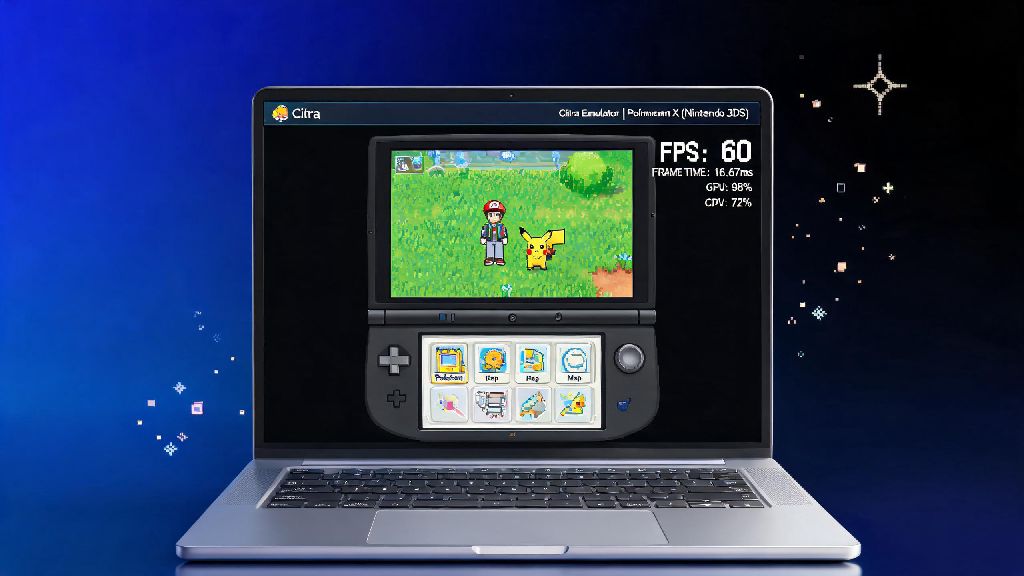
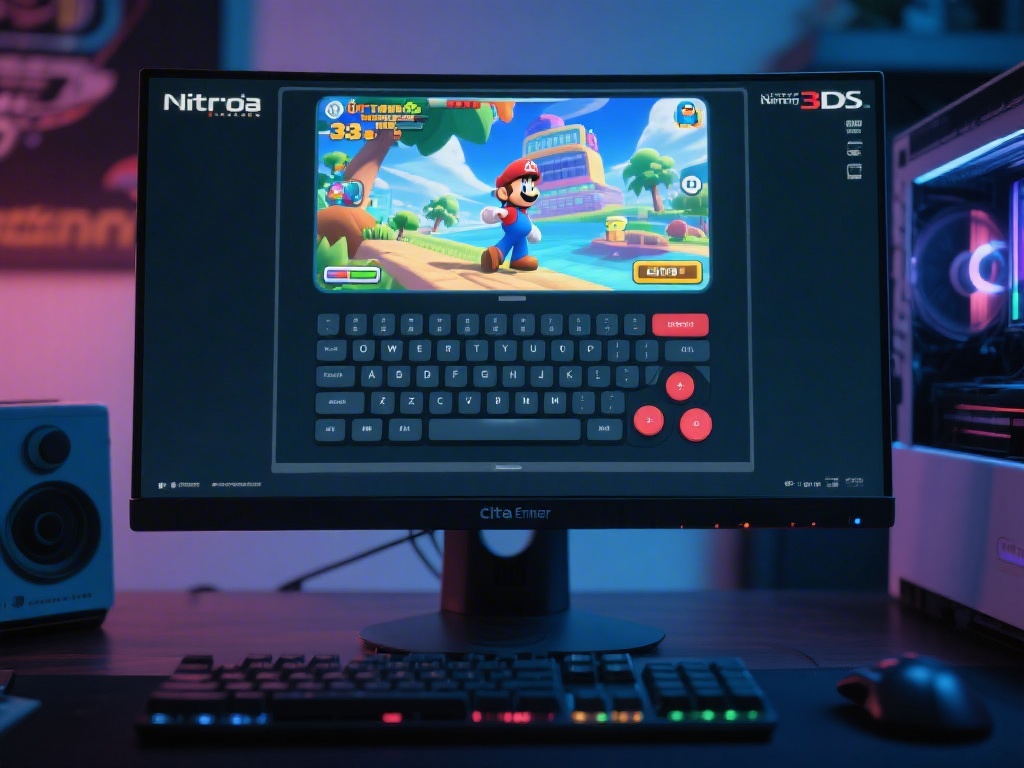
If you’ve ever tried to run your favorite 3DS games on a random old laptop only to be met with stutters, frozen screens, or 10fps gameplay, you’ve probably asked one common question: what pc is citra emulator recommended for. Citra is easily the most popular and stable 3DS emulator on the market, but it has very specific performance needs that don’t line up with what most people expect from gaming hardware. You don’t need a $2000 gaming rig to run it well, but buying the wrong parts will leave you wasting money on performance you’ll never use. This guide breaks down exactly what specs you need, how to build a budget Citra-ready PC, and how to tweak your existing setup if you don’t want to spend any money on upgrades.
What PC is Citra Emulator Recommended For: Minimum vs Optimal Specs
The first thing to understand about Citra is that it prioritizes different hardware than most modern PC games. Citra relies far more on single-core CPU performance than high-end graphics cards, because most of the work of emulating the 3DS’s custom hardware falls on your processor, not your GPU. That means a mid-range CPU paired with a cheap old GPU will almost always run Citra better than a high-end GPU paired with a weak CPU.
Minimum specs are for users who just want to play basic 3DS games at native 240p or 720p upscaling, with 30fps and no extra mods. Minimum specs will only support 720p upscaling at 30fps for most 3DS titles, so don’t expect to run high-res texture packs or 60fps patches with this setup. The minimum specs include a 4-core Intel i3 6th gen or AMD Ryzen 3 1200 CPU, 8GB of RAM, and any GPU that supports OpenGL 4.3, which is a requirement for Citra to run at all. If your GPU doesn’t support OpenGL 4.3, you won’t be able to launch the emulator, no matter how powerful the rest of your setup is.
Optimal specs are for users who want 4K upscaling, 60fps patches, high-resolution texture packs, and zero lag even for intensive 3D games like The Legend of Zelda: Ocarina of Time 3D or Monster Hunter 4 Ultimate. For this setup, you’ll want an Intel i5 10th gen or AMD Ryzen 5 3600 CPU or newer, 16GB of RAM, and an Nvidia GTX 1650 or AMD RX 570 GPU or newer. This setup will run every single Citra-compatible game at max settings without any issues, and it’s still far cheaper than most modern gaming builds.
Budget PC Builds That Work Perfectly for Citra Emulator
You don’t have to spend a fortune to get a PC that runs Citra perfectly. You can build a fully Citra-compatible PC for under $350 if you use refurbished parts, which is a great option if you only want a dedicated emulation rig and don’t plan to play new AAA PC games. Refurbished office PCs are a great starting point for these builds, since they usually come with a solid motherboard, power supply, and case for very little money, and you just need to upgrade the CPU and add a cheap GPU if it doesn’t have one already.
If you’re building a budget Citra PC from scratch, here’s the exact part list we recommend for most users:
- 4-core Intel i3 8th gen or AMD Ryzen 3 3100 CPU (or newer, for strong single-core performance)
- 8GB DDR4 RAM (16GB is recommended if you run mods or stream while playing)
- Nvidia GTX 1050 Ti / AMD RX 560 GPU or newer (supports OpenGL 4.3, which Citra requires)
- 256GB SSD (cuts game load times by 70% compared to a traditional HDD)
If you’re not sure if your existing PC is good enough for Citra, there’s a very simple way to check. A single-core Cinebench R23 score of 1800 or higher is the easiest way to confirm your PC can run Citra well. You can run this free benchmark in 2 minutes, and if your score is above 1800, you’ll be able to run most games at 1080p upscaling and 60fps without any issues. If your score is between 1500 and 1800, you can still run most games, but you’ll have to stick to 720p upscaling and turn off some advanced settings.
Common PC Spec Mistakes That Ruin Citra Emulator Performance
We’ve seen hundreds of users waste hundreds of dollars on parts that don’t help their Citra performance at all, and most of these mistakes come from assuming Citra runs like regular PC games. The most common mistake is buying a top-of-the-line GPU when your CPU is too weak to keep up. Spending $100 upgrading your CPU will give you far better Citra performance than spending $300 on a new GPU, so always prioritize your processor if you’re upgrading for emulation.
Another common mistake is using 4GB of RAM, or running Citra off a traditional HDD. 4GB of RAM will cause constant stutters when you switch between games, run texture packs, or have other apps open in the background, and HDDs make load times so long that many games will crash before they even finish booting. Swapping to an SSD is one of the cheapest and most impactful upgrades you can make for Citra, even if you leave the rest of your hardware the same.
If you’re using a laptop, one of the most common mistakes is accidentally running Citra on your integrated Intel graphics instead of your dedicated GPU. Most laptops switch between integrated and dedicated graphics automatically to save battery, but Citra often doesn’t trigger the dedicated GPU switch on its own. You can fix this by going into your GPU control panel and setting Citra to always run on your dedicated graphics card, which can double your performance overnight with no cost.
How to Optimize Your Existing PC for Citra If You Don’t Want to Upgrade
If your PC is close to the minimum specs and you don’t want to spend money on upgrades, there are a few simple tweaks that can make a huge difference in your performance. First, go into Citra’s graphics settings and enable asynchronous shader compilation, which eliminates almost all stutter when you’re playing a game for the first time. You can also turn off accurate multiplication if you’re playing less intensive games, which gives you a 20-30% performance boost with almost no noticeable drop in graphical quality.
You should also close all unnecessary background apps before you launch Citra, especially Chrome, Discord, and streaming software. These apps use a lot of single-core CPU performance, which is exactly what Citra needs to run well. Even closing 10 extra Chrome tabs can give you a 10fps boost in intensive games, which is enough to push a laggy game to smooth 30fps playback.
If you’re comfortable with small tweaks, you can also overclock your CPU slightly if your cooling system is good enough. Even a 10% overclock can give you a big enough single-core performance boost to run games you couldn’t run before, just make sure you don’t push your CPU past its safe temperature limits. For most users, sticking to 2x upscaling instead of 4x or higher is the easiest way to get smooth performance without any other changes, and most people can’t tell the difference between 2x and 4x upscaling on a 1080p screen anyway.
At the end of the day, you don’t need a fancy high-end gaming rig to enjoy all of Citra’s features, and what pc is citra emulator recommended for ultimately depends on what you want to get out of the emulator. If you only play casual 2D games like Pokemon or Animal Crossing, a $200 refurbished office PC will work perfectly. If you want to play intensive 3D games with 4K upscaling and 60fps patches, you can build a dedicated rig for less than $500, which is far cheaper than most gaming setups. Test your existing PC first with the Cinebench benchmark we mentioned earlier before you spend any money, you might be surprised how well your current setup runs with just a few small setting tweaks.