If you’re a retro game fan who’s held onto a stack of 3DS cartridges but no longer owns the handheld, or you just want to play classic titles on a bigger screen, you’re in the right place. We’re breaking down exactly how to use Citra 3DS emulator on Mac, with tips that work for both Apple Silicon and Intel Mac models. You don’t need any advanced tech skills to follow this guide, and most users can get their first game up and running in less than 15 minutes. We’ll also cover common pitfalls to avoid so you don’t waste time troubleshooting avoidable issues.
Step 1: How to Use Citra 3DS Emulator on Mac – Initial Setup and Installation
First, you’ll need to download the correct Citra build for your Mac. The official Citra site offers two main versions: Nightly and Canary. Nightly is the stable, thoroughly tested build that we recommend for 90% of users, while Canary includes experimental features for users who want to test upcoming performance upgrades. Once the download finishes, drag the Citra app file to your Applications folder, just like you would with any other Mac app.
When you launch Citra for the first time, you’ll likely get a Gatekeeper warning saying the app can’t be opened because it’s from an unidentified developer. To fix this, open System Settings > Privacy & Security, scroll down to the Security section, and click “Open Anyway” next to the Citra warning. You’ll only need to do this once, and the app will open normally every time after that.
Important legal note: You should only use Citra to play ROMs of 3DS games that you physically own. Distributing or downloading copyrighted game files you don’t own violates intellectual property laws in most regions, and we don’t endorse or encourage that practice.
Optimal Citra Settings for Lag-Free Gameplay on Mac
Out of the box, Citra works fine for most casual use, but a few small setting tweaks will drastically improve your gameplay experience, especially if you have an older Intel Mac. We recommend adjusting these settings before you load your first game, as changing them mid-play can sometimes cause temporary frame drops or crashes. You can access all settings from the Citra menu bar at the top of your screen.
- Graphics settings: Set internal resolution to 2x native for most Macs, or 3x if you have a 2020 or newer Apple Silicon model. Turn on linear texture filtering for smoother visuals, and disable VSync if you notice screen tearing during fast-paced gameplay.
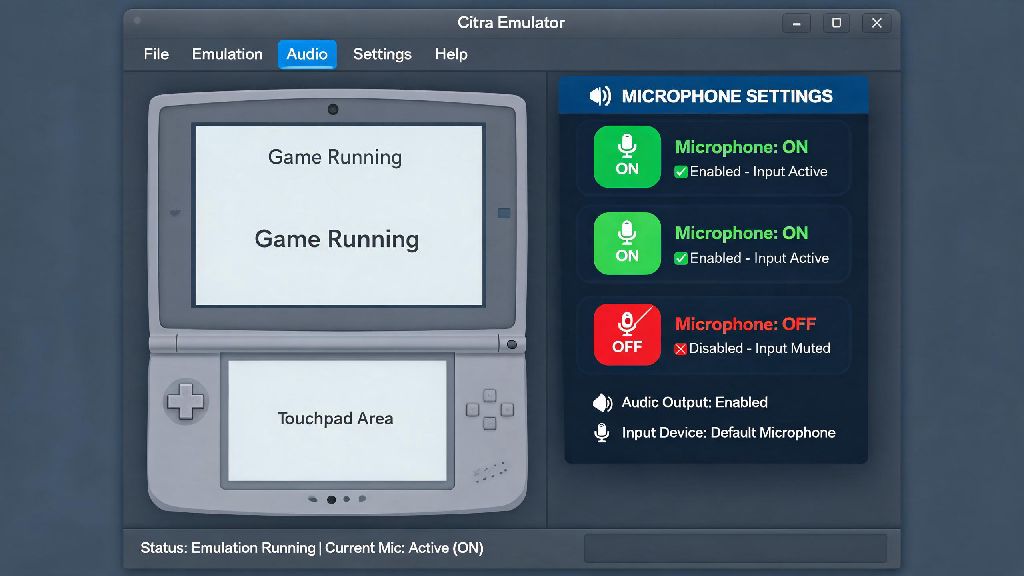
- Audio settings: Use the Cubeb audio backend for the most consistent sound quality, and turn on audio stretching to avoid crackling when your frame rate drops below 60fps. If you still have audio issues, you can lower the audio latency slider by 10-20ms until the crackling stops.
- Controller settings: Map your preferred controller (Xbox, PS5, Switch Pro, and even 8BitDo controllers all work natively) before you launch a game. You can also map keyboard controls if you don’t have a controller, but we recommend a handheld controller for the most authentic 3DS experience.
Keep in mind that some games run better with custom settings. For example, open-world titles like The Legend of Zelda: A Link Between Worlds might run smoother on older Macs if you lower the resolution to 1x native, while smaller 2D games can handle 4x resolution with no issues. You can save custom per-game settings by right-clicking a game in your library and selecting “Properties”.
How to Load and Manage Games on Citra for Mac
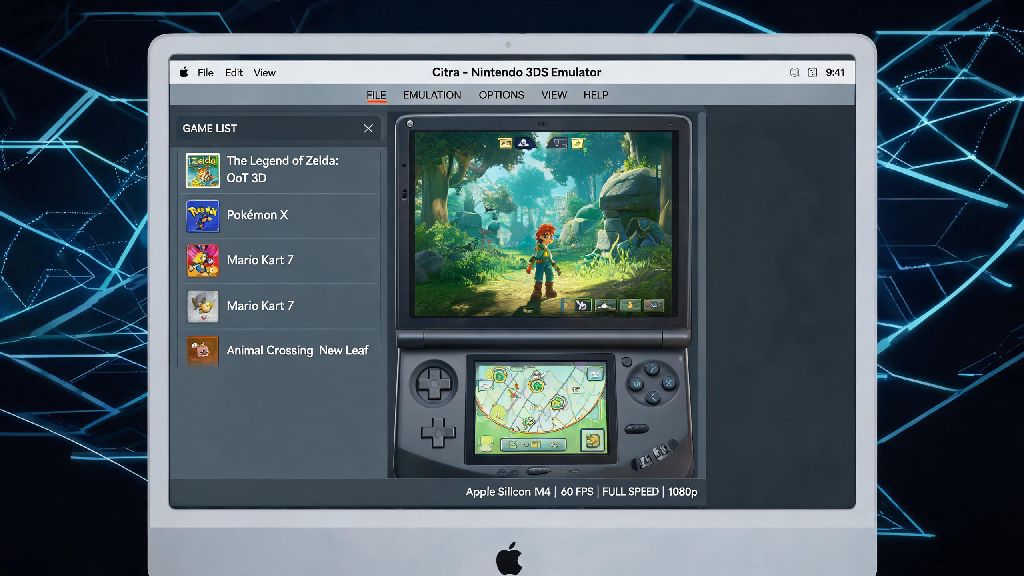
Once your settings are adjusted, you’ll need to add your ROM library to Citra. First, organize all your 3DS ROM files in a single dedicated folder on your Mac, so you can easily find them later. Then, in Citra, click File > Add Game Directory, and select the folder you created. All compatible games will automatically populate in your Citra library, with cover art and game metadata if you’re connected to the internet.
If you’re waiting for large ROM files to transfer to your Mac, or you just want a 10-minute break from a long 3DS RPG playthrough, there are plenty of casual activities you can jump into without closing Citra entirely. If you’re looking for a quick, low-stakes option to fill those short gaps, you can check out IND BET, a casual pick that runs seamlessly on Mac without taking up extra storage space or requiring extra downloads.
Citra supports both standard in-game saves and emulator save states. Save states let you pause your game at any point and pick up right where you left off, even if the game doesn’t have a built-in save spot nearby. Never rely solely on save states for long-term saves, though, as they can become corrupted if you update Citra or change game settings. Always make a regular in-game save every hour or so to avoid losing progress.
You can also install custom texture packs for popular games to upgrade their visuals for modern high-resolution Mac displays. Just make sure the texture pack you download is compatible with your version of Citra, and follow the installation instructions provided by the pack creator.
Common Citra on Mac Issues and Quick Fixes
Even with the right setup, you might run into small issues from time to time, most of which have simple fixes. The first thing to try for almost any issue is restarting Citra, as temporary glitches often resolve with a quick reboot. If that doesn’t work, try one of these targeted fixes for the most common problems.
If a game crashes immediately when you launch it, first check that you’re using a compatible ROM file, and that the file isn’t corrupted. You can also lower the internal resolution, disable any custom texture packs you have enabled, and try launching the game again. If you have a very old Intel Mac, some newer high-demand 3DS games might not run at all, so check the official Citra compatibility list to confirm the game is supported.
If your controller won’t connect, first unpair it from any other devices it’s connected to, then re-pair it to your Mac via Bluetooth. Open Citra’s controller settings and re-map the buttons, as sometimes controller profiles get reset after Citra updates. Avoid using third-party controller mapping apps, as they often conflict with Citra’s native controller support.
Always update Citra to the latest build every 2-3 weeks, as the development team releases regular performance patches and bug fixes specifically for Mac devices. Updates take less than a minute to install, and they often resolve common lag and crash issues without any extra work on your end.
With a few simple setup steps and minor setting tweaks, learning how to use Citra 3DS emulator on Mac is far simpler than most people expect, and it lets you revisit hundreds of classic 3DS titles without digging out your old handheld. Don’t be afraid to adjust settings to fit your specific Mac model and gaming preferences, and always stick to legal, trusted sources for your game files. Whether you’re replaying your favorite Pokemon title or trying a 3DS game you missed when it first launched, Citra makes it easy to enjoy the full 3DS library on your Mac.