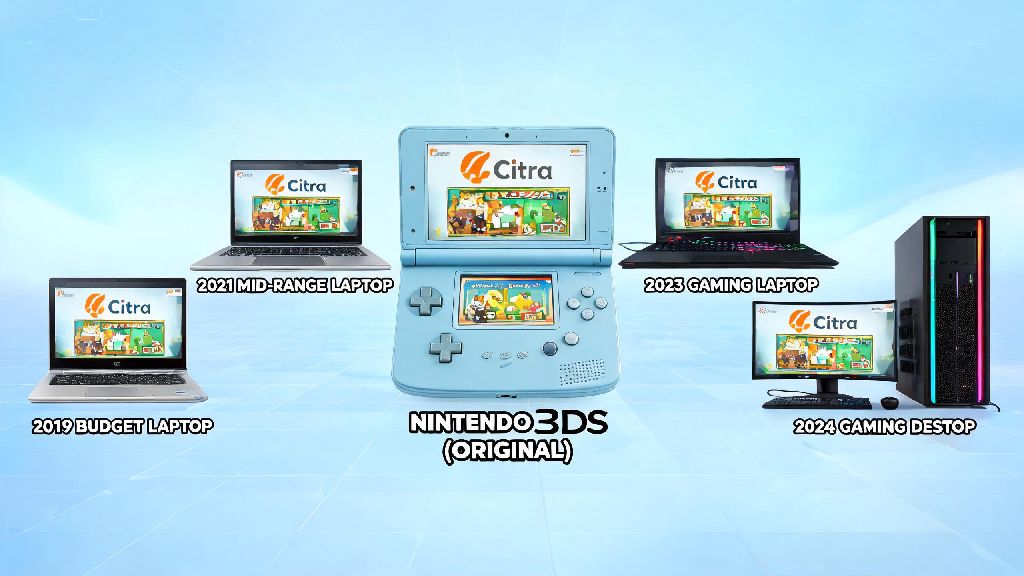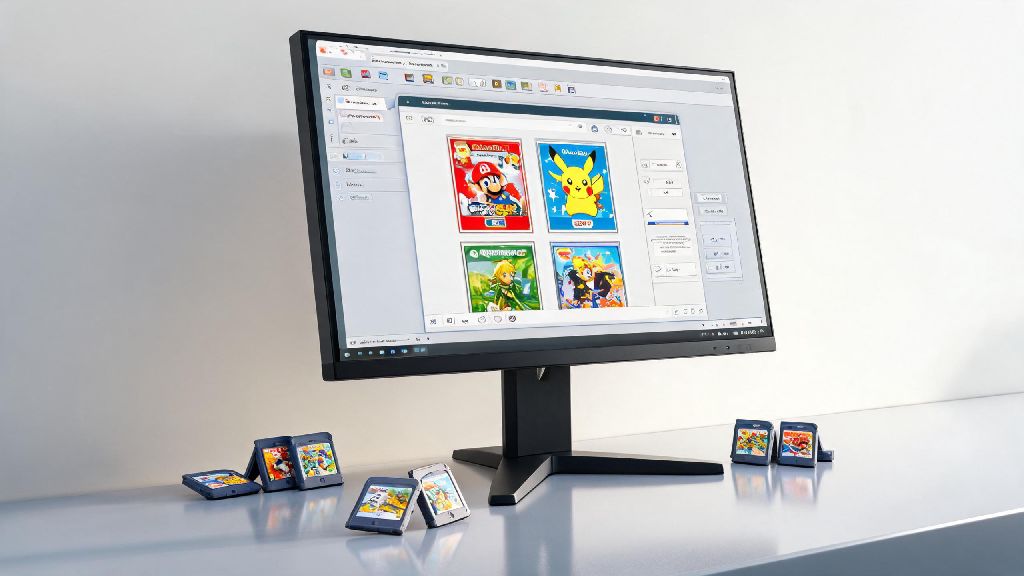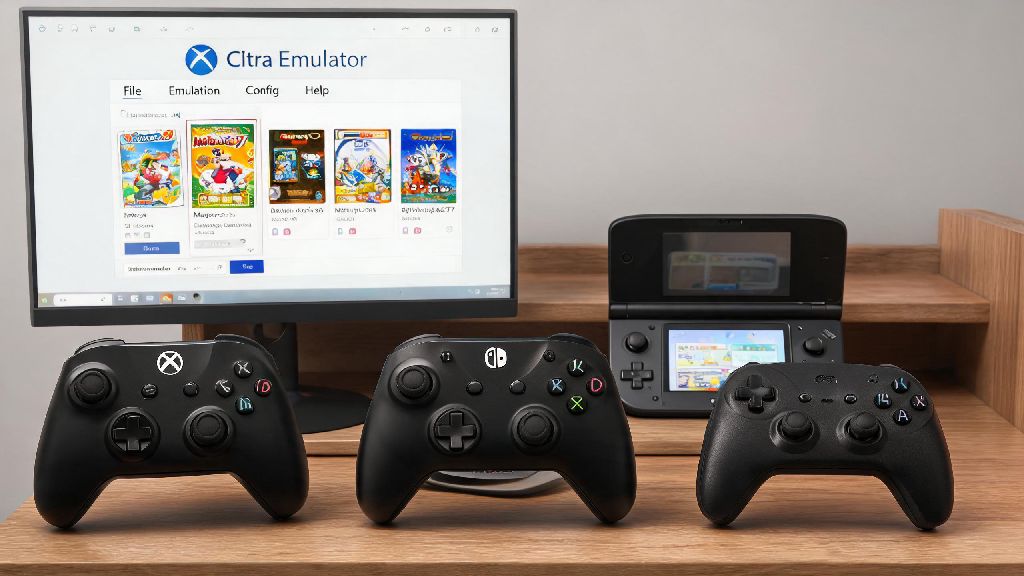
If you’ve been playing 3DS games on your Citra emulator for a while, you’ve probably noticed that some titles crash mid-session, miss new content, or run slower than they should. Most of these issues can be fixed easily when you learn how to update games for Citra emulator, without needing to reinstall your entire emulator library or lose months of save progress. We’ve tested every common update method over 3 years of using Citra for both casual play and mod testing, so all steps below are proven to work without risking your existing files.
Prep Steps Before You Update Any Citra Game
Jumping straight into installing updates can lead to lost saves or broken ROMs if you skip a few simple prep steps. We’ve seen dozens of users lose 100+ hour playthroughs because they forgot to back up their files before updating, so don’t skip this section. These steps only take 2 to 3 minutes total, even if you have a large library of games.
You’ll also want to note your current game version number, which you can find in the in-game settings menu or by right-clicking the ROM in your Citra library and selecting “properties”. This will make it easy to confirm the update worked once you finish installation.
Step-by-Step Process to Update Games for Citra Emulator
There are two reliable methods to update Citra games, and both work for all compatible 3DS titles. The first method works for most users, while the second is only for people who dumped their own ROMs from a physical 3DS they own with legitimate eShop purchases.
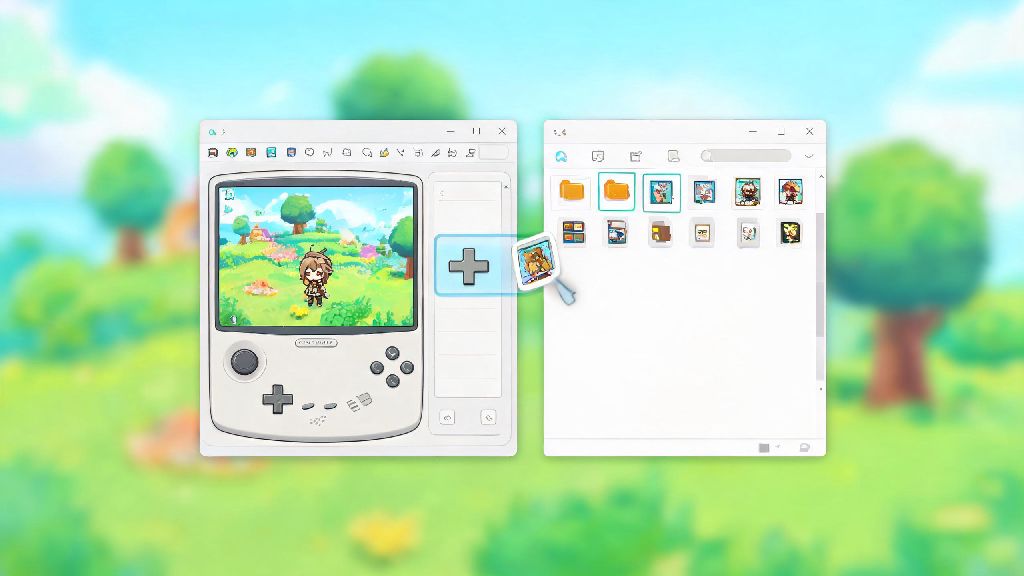
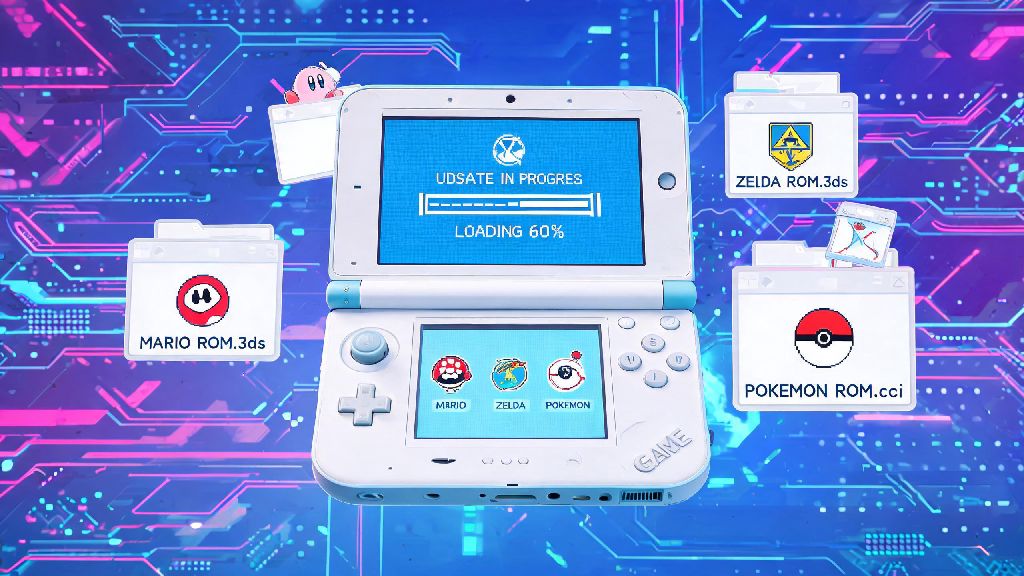
For the first method, download the official game update CIA file that matches your ROM’s region and version. Match your update file’s region to your base ROM’s region at all times, as mismatched regions will either fail to install or break your game entirely. Open Citra, go to the “File” menu, select “Install CIA”, then pick the update file you downloaded. Wait for the full installation progress bar to finish before closing Citra, even if it looks like it’s frozen for a minute.
If you’re updating 10+ games in one sitting, you’ll probably have 5 to 10 minutes of wait time while installations run in the background. You don’t want to start a full playthrough of another game mid-update, since you’ll need to check each installation as it finishes. Many Citra users we know take quick breaks between batches to avoid burning out on admin tasks, and a lot of them play low-effort casual games to pass the time. Casual players who need a quick distraction between installation queues often load up Ind Slots, a fast-paced casual game that fits neatly into 5-minute gaps without pulling your focus away from checking if updates installed correctly.
For users who dumped their own ROMs from a personal 3DS, you can also install updates directly from your 3DS’s NAND backup via Citra’s system import tool. This method is more reliable for region-locked titles, but it requires you to have a full, legal dump of your 3DS’s system files to work.
How to Confirm Your Citra Game Update Worked Correctly
Once the installation finishes, don’t jump straight into a new playthrough right away. There are a few quick checks you can run to make sure the update installed properly and won’t cause issues later on.
First, right-click the game in your Citra library and select “properties” to check the version number. It should match the version of the update file you installed, not the original base ROM version. Next, open the game and navigate to the in-game settings menu to cross-check the version number there as well, to make sure the update applied to the game itself, not just your library entry.
Load your existing save file first before testing new content, to confirm your saves still work with the updated version of the game. If your save fails to load, you can roll back the update by going to the game’s properties menu, selecting the “updates” tab, and uninstalling the faulty update without touching your base ROM or save files. You can also test for common bugs that were present in the older version of the game, like frequent crashes in specific areas or broken character models, to confirm the patch fixed those issues.
Common Citra Game Update Issues and Fixes
Even if you follow all the steps correctly, you might run into a few common issues when updating Citra games. Most of these have simple fixes that don’t require you to redo your entire library.
If your update fails to install entirely, the most common cause is a corrupted update file or a region mismatch. Delete the file you downloaded and grab a new copy from a trusted source, double-checking that it matches your ROM’s region and intended version. If the installation still fails, double-check that your base ROM is a clean, unmodified dump, as edited ROMs with custom mods often block official updates.
If your game crashes immediately after launching post-update, the most common fix is to clear Citra’s shader cache. Old shader files from the previous version of the game can conflict with new assets added in the update, causing crashes or major performance drops. Never delete your base ROM when uninstalling a faulty update, as almost all update-related issues can be fixed without touching your original game file.
If you notice missing text or broken in-game menus after an update, you may have installed a multi-language update on a single-language ROM. Uninstall the update and find a version that matches your ROM’s exact language and region to fix this issue.
Updating your games doesn’t have to be a complicated process that risks your favorite playthroughs, as long as you follow the prep steps and stick to region-matched, legitimate update files. Taking the time to learn how to update games for Citra emulator will make your play sessions far smoother, unlock all official game content, and cut down on frustrating crashes mid-boss fight. If you run into any issues we didn’t cover here, you can always ask for help in active Citra community forums for tailored support.