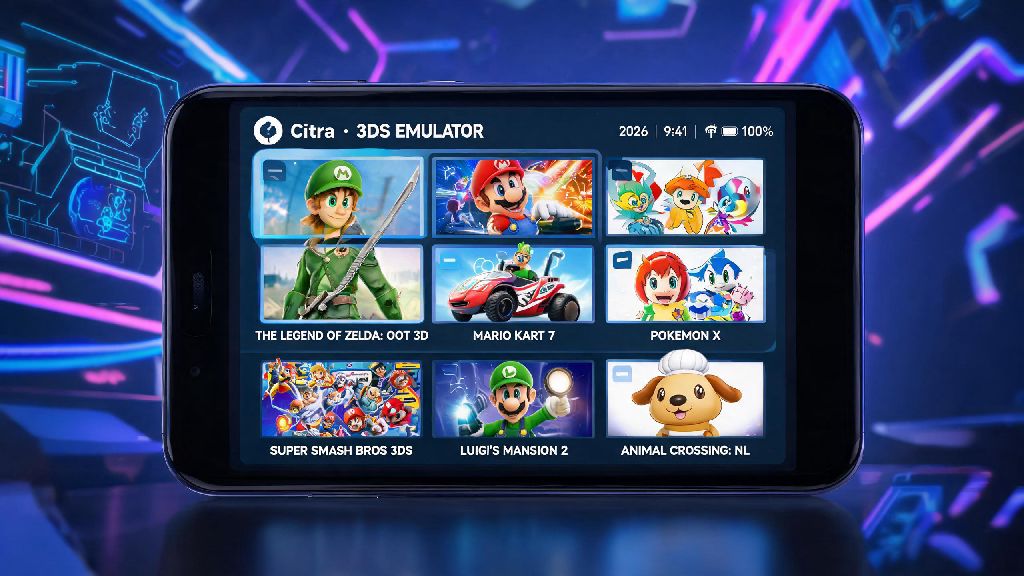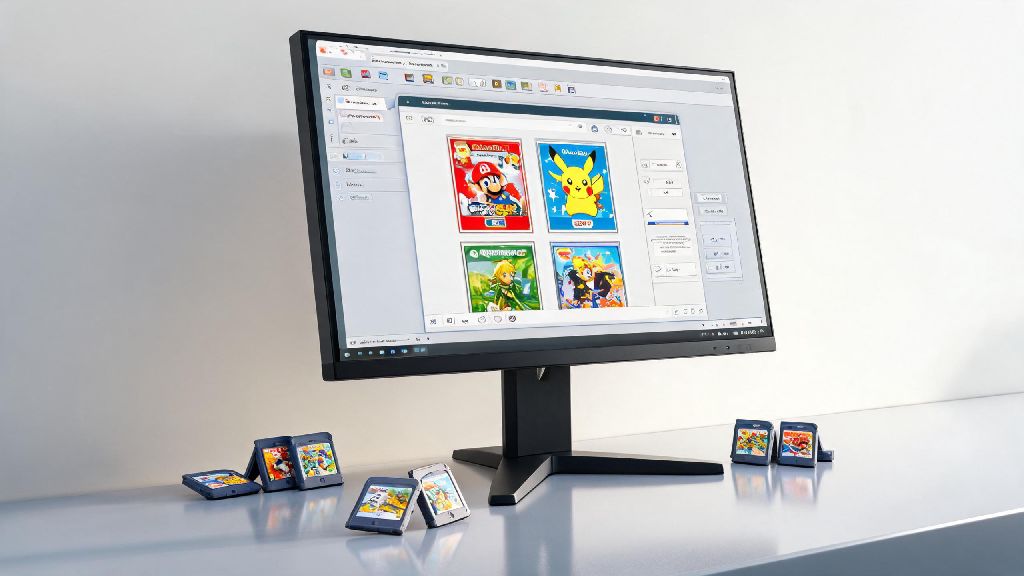
If you’ve got a stack of old 3DS game cartridges sitting in a drawer or digital copies tied to your old console, you don’t have to dig out your dusty handheld to relive your favorite titles. Citra, the most popular open-source 3DS emulator, lets you play those games on your PC, phone, or even handheld PC with better graphics and quality of life upgrades you never got on the original hardware. We’re breaking down every step you need to follow to learn how to play Citra 3DS emulator safely, legally, and with the smoothest performance possible, no advanced tech skills required. We’ll also cover common pitfalls new users run into, so you can skip the frustration and jump straight into gameplay.
Step-by-Step Basics: How to Play Citra 3DS Emulator Legally
The first and most important rule of using any emulator is to stick to legal practices to avoid copyright issues or malware. You are only allowed to play games that you personally own, either as a physical cartridge or digital purchase tied to your own 3DS account. Downloading pre-uploaded ROMs from random file sharing sites is not just illegal in most countries, it also puts you at risk of downloading malware, spyware, or corrupted game files that will break your setup.
Once you have your own dumped game files and system files, download the official Citra build from the project’s official site. You can choose between the Nightly build, which is tested for stability, or the Canary build, which gets the latest experimental features for users who want early access to updates. Install the build as you would any other program, then point the emulator to the folder where you stored your dumped game files to load your library. Copyright law varies by location, but downloading ROMs of games you do not own is almost always illegal, and puts you at risk of fines or malware infections.
Optimal Settings for Lag-Free Citra Gameplay
One of the best parts of playing 3DS games on Citra is that you can tweak performance and visual quality far beyond what the original handheld was capable of. The right settings will depend on your hardware, but there are a few universal tweaks that work for most users, whether you’re on a high-end gaming PC or a budget Android phone. Internal resolution is the biggest setting for visual quality: set it to 2x or 3x for 1080p displays, 4x for 4K screens, drop to 1x if you’re getting frame drops on older hardware.
Enable asynchronous shader compilation to eliminate the stutter that often happens when new in-game effects load for the first time. This feature pre-loads shader files in the background so you don’t get hit with freezes mid-gameplay. For audio, stick to the HLE audio backend for most cases, it’s far lighter on performance than the LLE backend, only switch if you run into specific audio glitches with individual games. You can map controls to any keyboard, mouse, Xbox/PlayStation controller, or touchscreen, and you can even map gyroscope controls if you play motion-enabled titles like Mario Kart 7 or Splatoon. Always test settings per game, as some titles run better with specific tweaks, and you can save custom profiles for each game you play to avoid re-adjusting every time.
Common Citra Issues and Quick Fixes
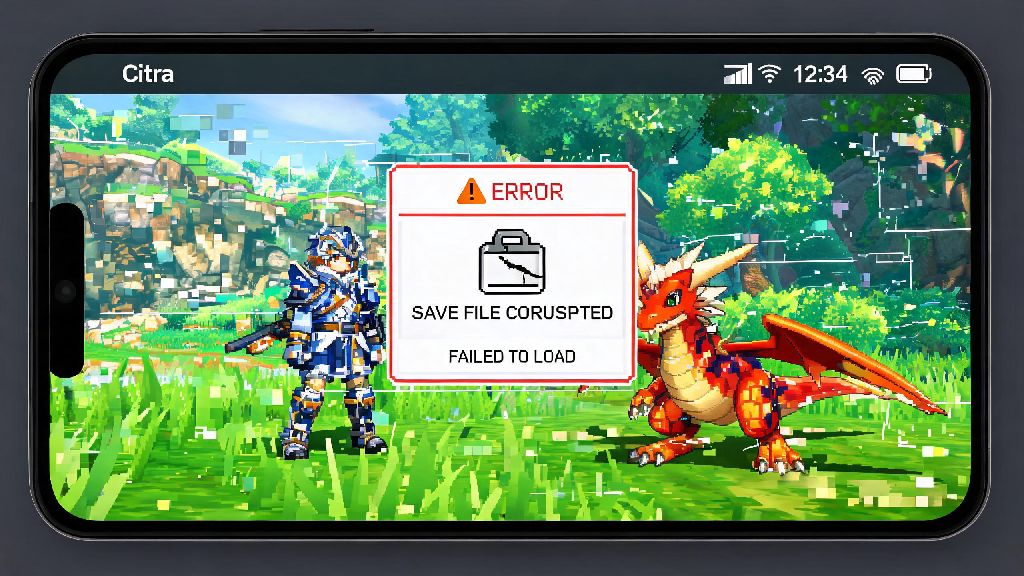
Even with the right setup, you might run into small issues when you first start using Citra, most of which have simple fixes that take less than a minute to apply. The most common problem new users face is games crashing on launch, which almost always comes down to one of three issues: missing system files, a corrupted game dump, or an outdated Citra build. First, double check that you added your dumped 3DS system files to the correct folder in Citra’s settings, then verify that your game dump works on a physical 3DS to rule out corruption, then update to the latest Citra build if you’re running an older version.
If you’re getting constant frame drops, check if you have background apps running that are eating up CPU or RAM, especially browser windows with lots of open tabs or streaming apps. If you’re on a gaming laptop, make sure Citra is set to run on your dedicated GPU instead of the integrated Intel graphics, which is a common default setting that kills performance. For distorted or missing audio, switch between the HLE and LLE audio backends, and make sure your device’s audio drivers are up to date. If you run into a problem you can’t fix, check the official Citra compatibility database first, as thousands of users have already documented fixes for almost every popular 3DS title. I once spent an hour troubleshooting a Pokémon X crash only to realize my ROM dump was corrupted, so testing your dump on a physical 3DS first can save you a lot of wasted time.
Quality of Life Upgrades to Enhance Your Citra Experience
Once you have your basic setup running smoothly, you can take advantage of tons of Citra-exclusive features that make playing 3DS games better than the original hardware ever was. The most popular feature is save states, which let you save your progress at any point in any game, even if the title doesn’t have a manual save function. This is perfect for hard platformers where you don’t want to restart an entire level, or RPGs where you don’t want to lose progress if you have to step away from your device unexpectedly.
You can also add custom cheat codes for most popular games, as long as you get them from trusted community sources to avoid breaking your save files. If you have a 3D monitor, you can enable high-resolution stereoscopic 3D support that looks far clearer than the blurry 3D effect on the original 3DS screen, a game-changer for titles like The Legend of Zelda: A Link Between Worlds. Citra also supports both local and online multiplayer for most compatible titles, so you can play with friends even if they don’t have a 3DS, as long as they also own their own copy of the game. Save states are not a replacement for in-game saves, as they can break if you update Citra or change game settings, so always make a regular in-game save every few hours to avoid losing progress. You can also use custom texture packs for many popular games to replace low-resolution original textures with high-definition fan-made versions, making decades-old titles look brand new.
At the end of the day, Citra is a powerful tool that lets you revisit your favorite 3DS games without being tied to an old handheld. By following the steps we’ve laid out, you’ll be able to enjoy smoother graphics, better performance, and tons of quality of life features the original console never offered. Learning how to play Citra 3DS emulator doesn’t have to be complicated, as long as you stick to legal practices, tweak your settings for your hardware, and use community resources to fix any small issues that pop up. Grab your old 3DS cartridges, dump your games, and get ready to replay all your favorite titles in a whole new way.