If you’re like most retro gaming fans, you probably hate switching between a dozen different emulator apps just to play games from different consoles. Retroarch solves that problem by putting all your favorite emulators in one unified interface, complete with custom controller mapping, playlist support, and cross-device sync. If you’ve been wanting to add Nintendo 3DS games to your Retroarch library, you’re in the right place. This guide will walk you through exactly how to get Citra emulator on Retroarch, plus all the settings and fixes you need to run games smoothly.
Pre-Requisites for Running the Citra Core on Retroarch
Before you start the installation process, there are a few non-negotiable requirements you need to check first to avoid wasting time on broken setups. I skipped these steps once when I was testing on an old 2017 laptop, and I spent an hour troubleshooting before I realized the hardware was too weak to run the core at all. Up-to-date Retroarch installation is first on the list; older versions of Retroarch often don’t have support for the latest Citra core builds, so you’ll want to update to the most recent stable version first.
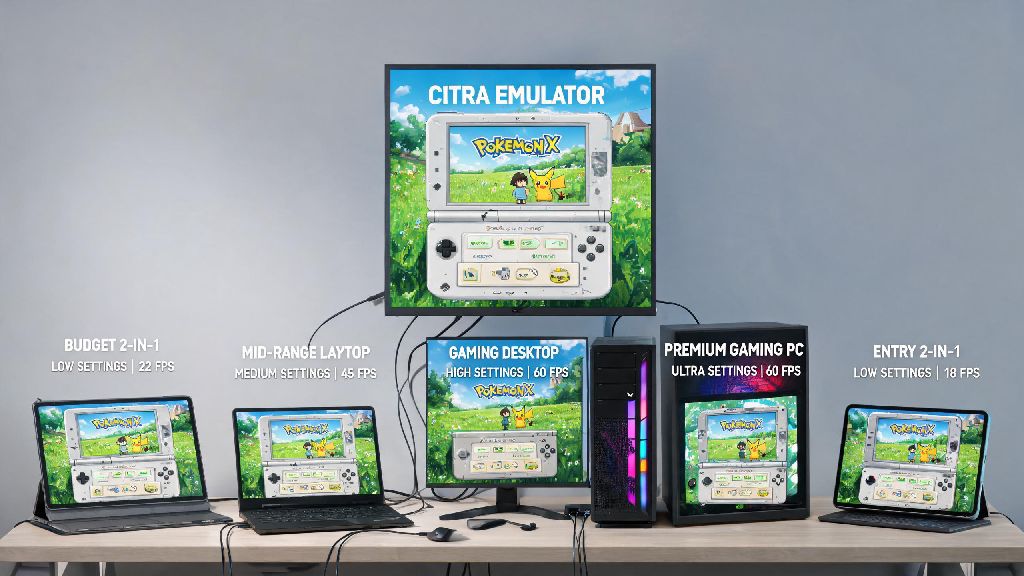
Next, you need a 64-bit operating system, no exceptions. Citra is built to leverage 64-bit processing power to emulate the 3DS’s dual-core ARM CPU, so 32-bit Windows, Mac, Linux, or Android systems simply can’t handle the workload. For hardware, you’ll need at least 4GB of RAM, a CPU with 4 physical cores (Intel i5 8th gen or AMD Ryzen 3 equivalent minimum), and a GPU that supports OpenGL 4.3 or Vulkan 1.0. Android users will need a 64-bit device running Android 9 or higher, with a Snapdragon 845 or equivalent processor for playable frame rates.
You’ll also need legally dumped ROM files of the 3DS games you own, plus optional system files dumped from your own 3DS console for maximum compatibility. Distributing or downloading pirated ROMs is illegal, and we don’t support that practice here. Dumping your own games from your physical console is the only legal way to use the Citra core.
Step-by-Step Process to Get Citra Emulator on Retroarch
Once you’ve confirmed your system meets the requirements, the actual installation process only takes a few minutes, even if you’re new to Retroarch. Start by opening Retroarch and navigating to the Main Menu, then select Load Core, followed by Download Core. This will bring up Retroarch’s official library of supported emulator cores, all vetted for safety and compatibility.
Scroll down the list until you find the Nintendo 3DS section, and you’ll see two Citra core options: Citra and Citra (Canary). The regular Citra core is the stable build, tested for compatibility with most popular 3DS games, and it’s the best choice for most users. Citra (Canary) is the experimental nightly build, with new features added daily that may improve performance for some games, but it also has a higher risk of bugs or crashes. Always download cores directly from Retroarch's official core downloader; third-party core files found on random forums can have malware or broken code that will mess up your entire Retroarch setup.
Click the core you want to install, and wait 10 to 30 seconds for the download to complete. You’ll get a notification in the bottom left corner of the screen when the installation is done. Next, you’ll want to add your 3DS games to your Retroarch library by going back to the Main Menu, selecting Import Content, then Scan Directory. Choose the folder where you store your legally dumped 3DS ROMs, and Retroarch will scan the folder, add matching games to your library, and pull in box art and game details if you have online metadata enabled. Android users will follow the exact same process, just make sure you’ve given Retroarch permission to access your device’s storage first.
Essential Post-Installation Settings for Smooth Citra Performance
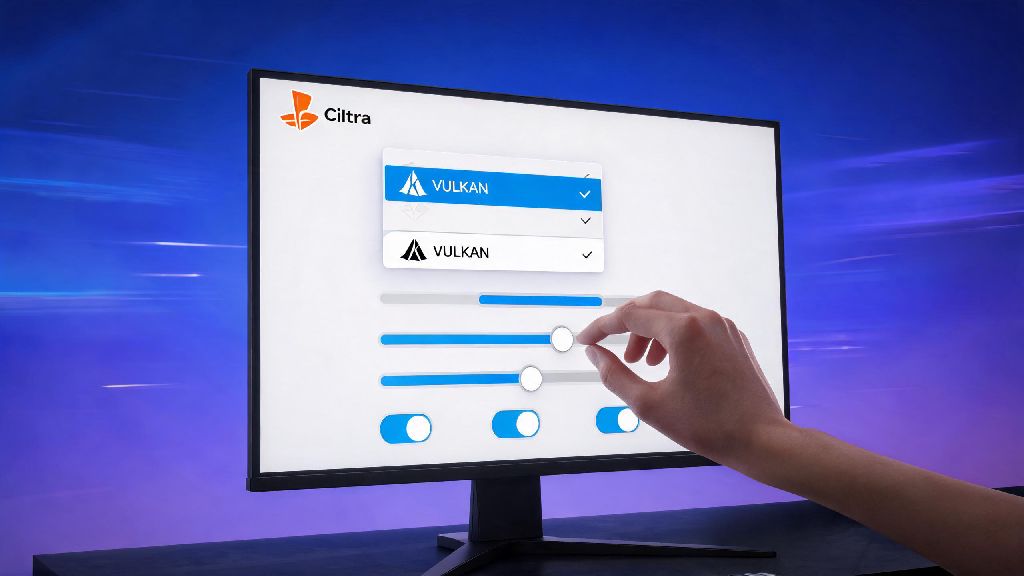
The default Citra core settings will work for most basic setups, but a few quick tweaks can drastically improve performance and visual quality, even on mid-range hardware. First, load the Citra core, then go to the Core Options menu to adjust core-specific settings. Set the graphics backend to Vulkan first; it’s significantly faster than OpenGL for most NVIDIA and AMD GPUs, and I saw a 20fps boost in Pokémon X when I switched from OpenGL to Vulkan on my old RX 580 graphics card. If you run into visual glitches or crashes with Vulkan, switch back to OpenGL, as it’s more widely compatible with older hardware.
Next, adjust the resolution scale setting. The native resolution of the 3DS is 240p, so you can scale this up to 2x or 3x on 1080p screens, or 4x on 4K screens, to make games look much sharper without a big performance hit. Don’t go higher than 4x, even on high-end rigs, as you’ll start seeing diminishing returns and frequent frame drops. You can also adjust the audio driver in the main Retroarch settings: use XAudio2 on Windows, PulseAudio on Linux, and CoreAudio on Mac to reduce audio lag and distortion.
There are a few smaller tweaks you can make to get the best possible experience, depending on your setup:
Common Citra Core Issues and How to Fix Them
Even if you follow all the steps perfectly, you might run into a few common issues when first using the Citra core on Retroarch. The most common issue is the Citra core failing to download. If this happens, first check your internet connection, then make sure Retroarch has permission to access the internet through your firewall. If it still fails, update Retroarch to the latest stable version, as older versions often have issues connecting to the core download server.
Another common issue is games crashing immediately on launch. First, confirm that your ROM file is not corrupted; if you dumped it yourself, try dumping the game again from your 3DS to rule out file errors. Never use pre-patched ROMs for Citra; they often have modified code that causes compatibility issues with the Retroarch core, even if they work fine on the standalone Citra emulator. If the ROM is fine, try switching between the stable and Canary Citra cores, as some games run better on one or the other.
If you’re getting low frame rates or stuttering during gameplay, first lower the resolution scale by one level, then close any background apps that are using up RAM or CPU power. Make sure your GPU drivers are fully up to date, as outdated drivers often cause performance issues with emulators. If you’re having issues with the 3DS touch screen, you can map your mouse or a controller analog stick to the touch screen input in the Retroarch input settings. For games that rely heavily on the touch screen, like Animal Crossing: New Leaf, using a mouse is actually more precise than the original 3DS’s resistive touch screen.
Once you get Citra emulator on Retroarch, you’ll wonder how you ever went back and forth between standalone emulators before. Having all your 3DS games right next to your SNES, PS1, and Game Boy titles in one library makes it so much easier to jump between your favorite retro games without closing and opening half a dozen apps. Don’t be afraid to mess around with core settings a little to find what works best for your hardware and the games you play most. If you run into a problem that’s not covered in this guide, the official Citra and Retroarch communities are full of people who have probably dealt with the same issue and can help you fix it fast.