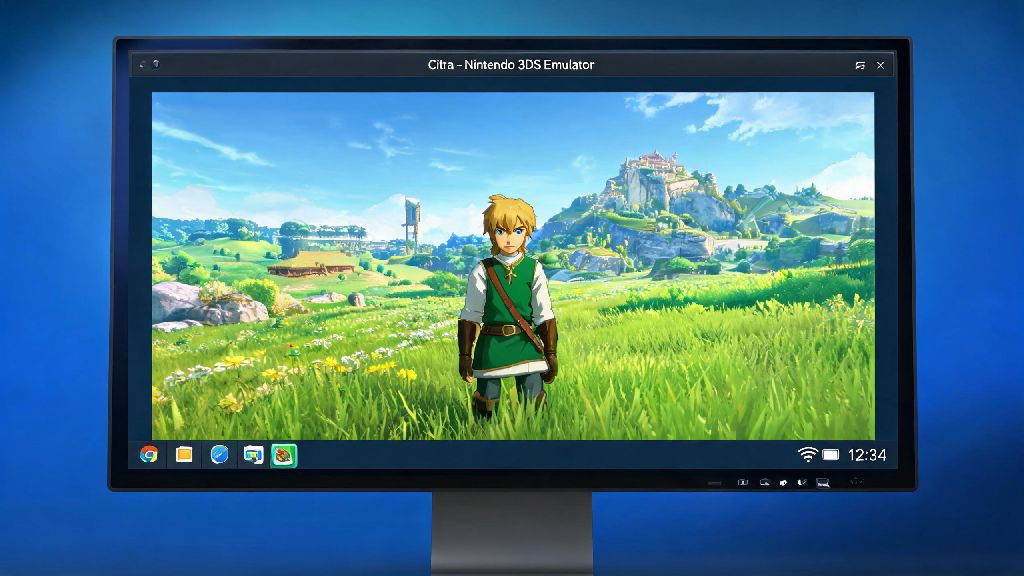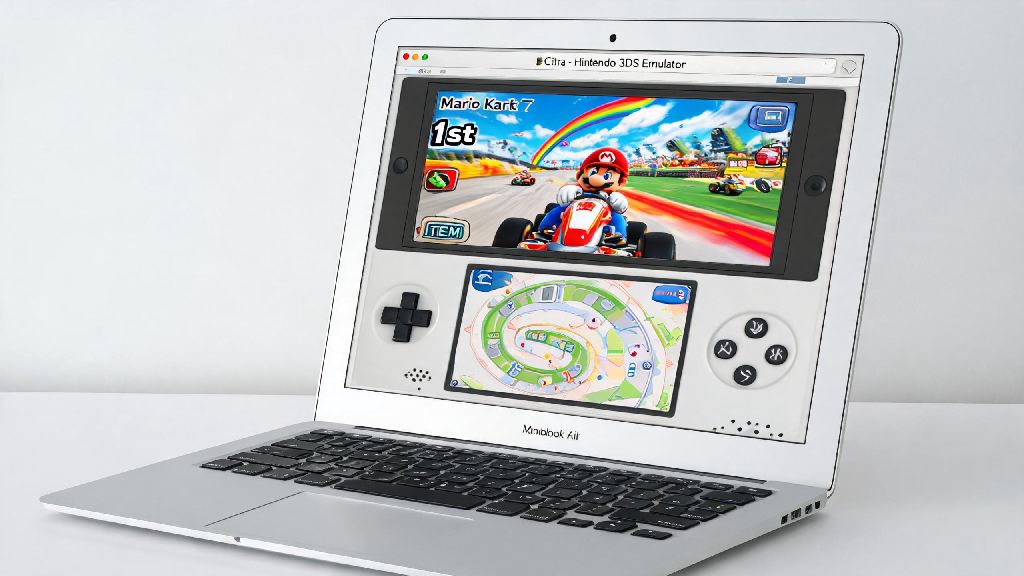
If you’ve ever wanted to revisit classic Nintendo 3DS titles like Pokémon Sun and Moon or Animal Crossing: New Leaf without digging your old handheld out of storage, you’ve probably heard of Citra. This open-source emulator is one of the most reliable ways to play 3DS games on a larger screen, with better performance and customization options than the original hardware. We’ve tested dozens of installation paths to put together this no-fluff guide for how to install Citra emulator on PC, so you won’t waste time troubleshooting broken installs or missing files.
Pre-Install Checks to Complete Before You Install Citra Emulator on PC
Before you download any files, take 2 minutes to confirm your system is ready to run Citra, so you don’t run into errors halfway through setup. Most modern devices meet the minimum requirements, but it’s always better to check first instead of having to backtrack later. The key pre-install checks you need to run are:
Most mid-range laptops and desktops built in the last 5 years will meet these requirements with no issues, but if you’re running older hardware, you can check Citra’s official compatibility page to see if your device is supported. You don’t need to jailbreak any hardware or download suspicious third-party tools to use Citra, unlike some other emulators on the market. That means you won’t risk bricking any of your existing devices just to play old 3DS games.
Step-by-Step Installation Process for Citra Emulator
First, head to the official Citra download page and pick the build that matches your operating system. Most casual users should stick to the Nightly build, as it’s tested for stability and won’t have unpatched bugs that break game performance. If you want to test new experimental features like upscaling to 4K or advanced shader caching, you can download the Canary build instead, but be prepared for occasional crashes or glitches. We recommend starting with Nightly unless you have a specific reason to use the experimental build.
Run the installer once it finishes downloading, and follow the on-screen prompts. You can choose the default installation location unless you want to store Citra on a separate drive with more space for game files. Make sure to uncheck any boxes that ask to install additional browser toolbars or ad-supported software — these are often bundled with third-party download sites, so we recommend only downloading Citra from the official source to avoid bloatware or malware.
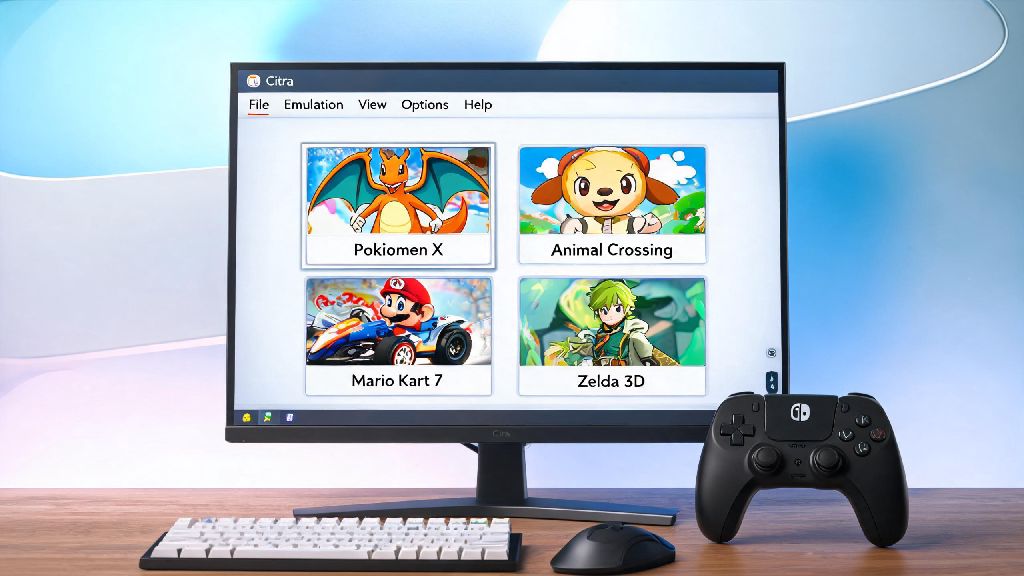
Once installation is complete, launch Citra once to make sure it opens correctly. You’ll see a blank library screen at first, which is completely normal. You don’t need to change any settings right away, but we’ll cover basic optimizations later in this guide that will make your gameplay experience much smoother.
Post-Install Setup to Get the Best Performance
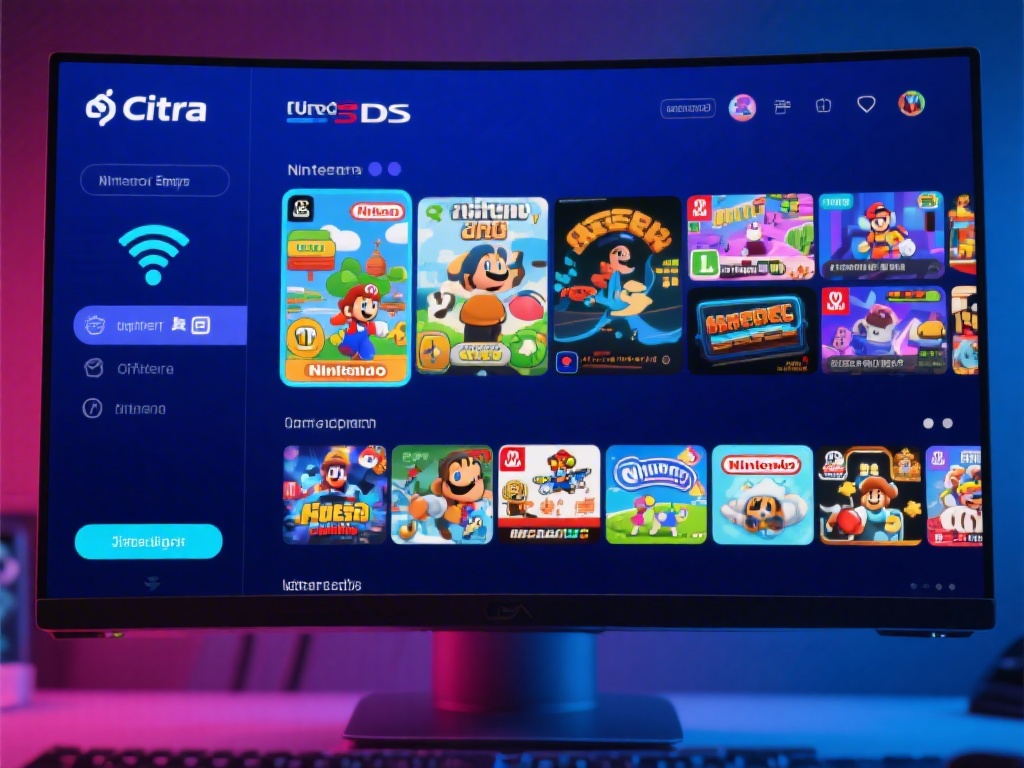
After you install Citra, the first thing you’ll want to do is add your game library to the emulator. Click on the “Add Game Directory” button on the home screen, and select the folder where you store your legally dumped 3DS ROMs. Citra will automatically scan the folder and add all compatible games to your library, with cover art and game metadata if you have an internet connection. You can sort your library by name, release date, or play time to find your favorite games faster.
We recommend enabling shader caching before you play any games, as this will drastically reduce stuttering during gameplay. Shader caching saves pre-rendered graphics files to your hard drive, so Citra doesn’t have to generate them from scratch every time a new visual effect loads. You can turn this on in the Graphics tab of the settings menu, under the Advanced submenu. The first time you launch a game, you might see a short loading screen while shaders compile, but subsequent launches will be much faster.
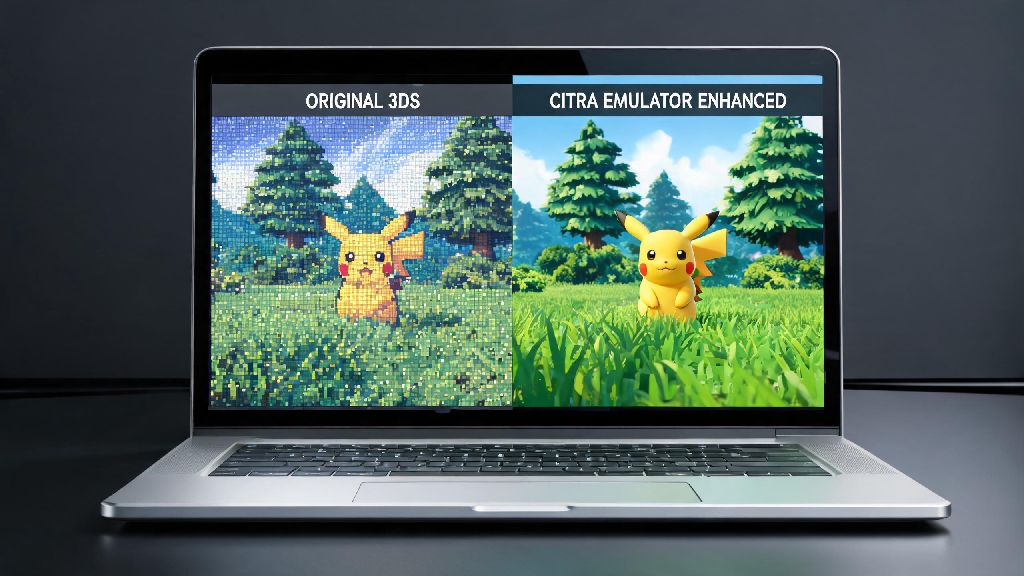
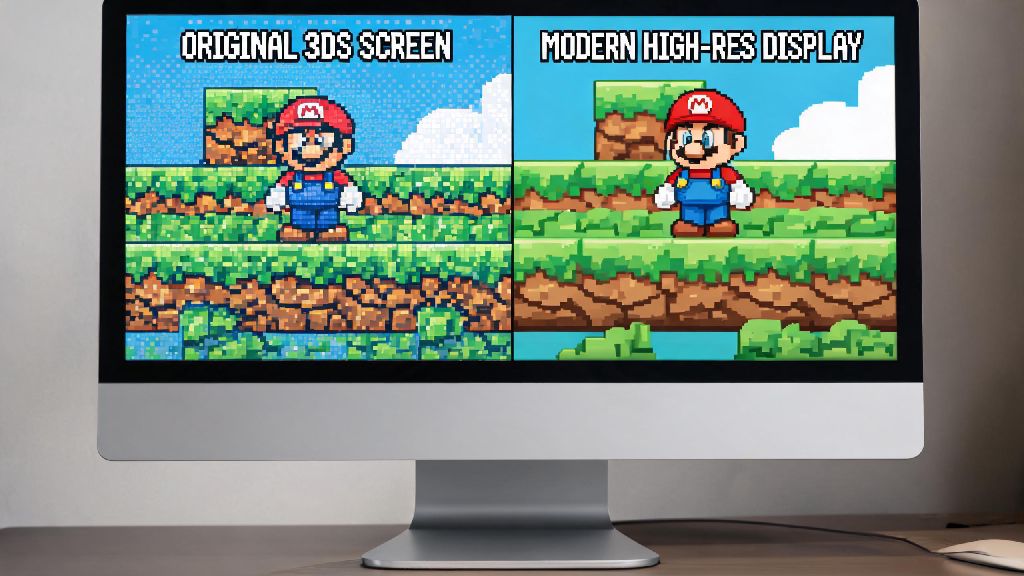
If you have a controller, you can map it in the Controls tab of the settings menu. Citra supports all popular Xbox, PlayStation, and Nintendo Switch Pro controllers out of the box, so you won’t need to download additional drivers for most devices. You can also customize touch screen controls if you’re using a 2-in-1 laptop or tablet, though most users prefer using a physical controller for 3DS games. If you have a high-end GPU, you can crank the internal resolution up to 3x or 4x to make games look far sharper than they ever did on the original 3DS’ small 240p screen.
Common Installation Issues and Quick Fixes
Even if you follow every step perfectly, you might run into small issues during or after installation. The most common problem we see is Citra failing to launch after installation, which is almost always caused by outdated graphics drivers. Head to your GPU manufacturer’s website to download the latest drivers for your card, and try launching Citra again. This fix solves 90% of launch errors we’ve seen in our testing, so it’s always the first thing you should try.
Another common issue is games failing to load, which usually happens if you’re using a corrupted ROM or a file that’s not properly dumped from your original 3DS. Never download ROMs from untrusted file sharing sites, as these often contain malware or corrupted files that won’t work with Citra, and they violate copyright laws in most regions. If your ROM won’t load, try re-dumping it from your own 3DS to make sure the file is intact. You can find official guides for dumping your own 3DS games on Citra’s support site.
If you’re experiencing lag or low frame rates, try switching from OpenGL to Vulkan in the graphics settings. Vulkan usually performs better on AMD and NVIDIA GPUs, while OpenGL works best for Intel integrated graphics and macOS devices. You can also lower the internal resolution to 1x (the original 3DS resolution) if you’re running on very low-end hardware, to boost performance without breaking game functionality. If you get a “missing DLL” error when launching Citra on Windows, you just need to download the latest free Visual C++ Redistributable package from Microsoft’s official site, which takes less than a minute to install.
If you’re transferring Citra files from an old device, make sure to copy your entire user folder to keep your save files, shader cache, and custom settings intact. The user folder is stored in the Citra installation directory by default, but you can find its exact location by going to File > Open User Folder in the Citra menu. This saves you from having to re-set all your preferences and recompile shaders for every game you own.
At the end of the day, setting up Citra is a lot simpler than most people think, even if you have no prior experience with emulators. Once you learn how to install Citra emulator on PC, you’ll have access to hundreds of classic 3DS games, with better graphics, faster load times, and more customization than the original handheld ever offered. Just make sure to only use games you own, keep your drivers updated, and tweak the settings to match your hardware, and you’ll be playing your favorite 3DS titles in no time.