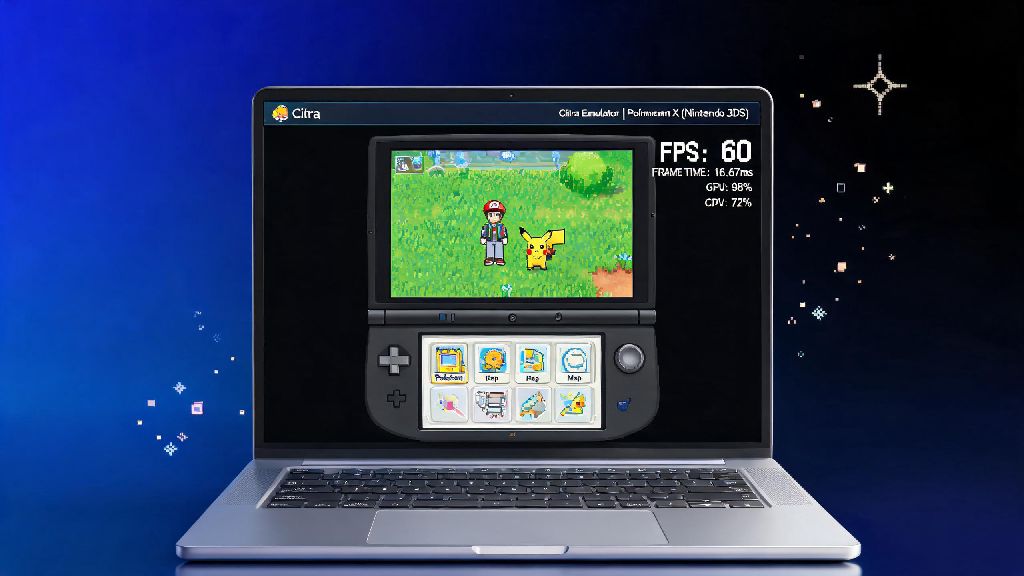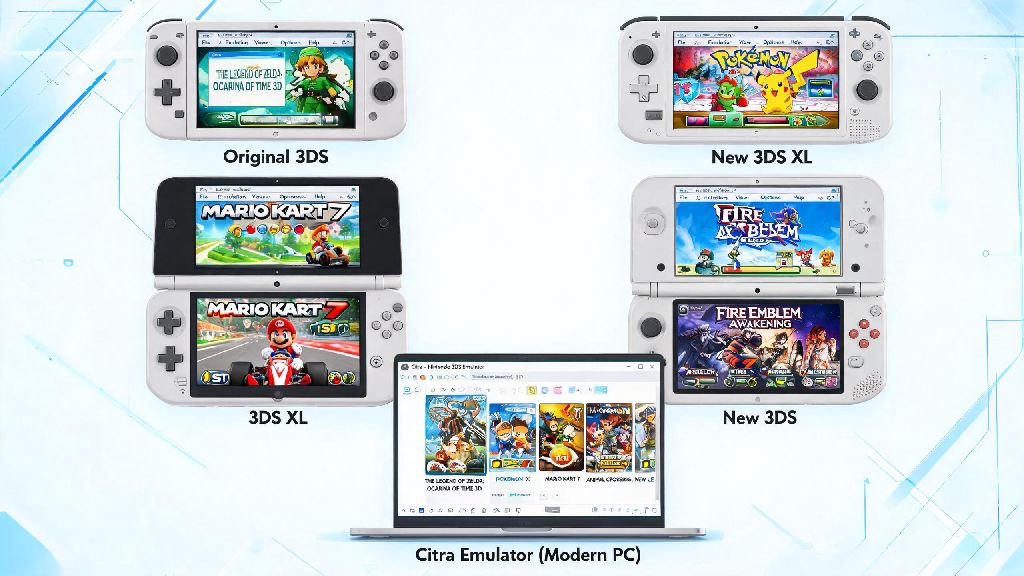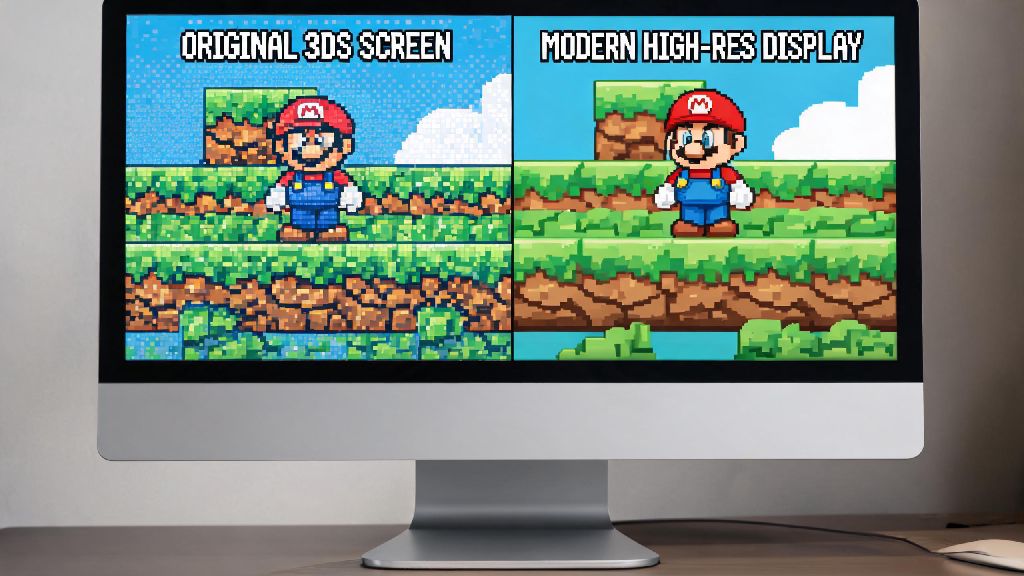
There’s nothing more disappointing than loading up your favorite 3DS game on Citra, only to be met with blocky, jagged pixels that ruin the nostalgic vibe you were chasing. A lot of new users assume this means their hardware is too weak, or their ROM is corrupted, but 90% of the time it’s just default Citra settings that aren’t optimized for modern displays. This guide will walk you through exactly how to take away pixels on citra emulator, with tested tweaks that work for both low-end and high-end PCs. I’ve been using Citra for over 3 years, testing these settings across 15+ popular titles, so you don’t have to waste hours messing with options that don’t work.
Common Causes of Pixelated Visuals on Citra Emulator
Before you jump into changing settings, it helps to understand why pixelation happens on Citra in the first place. The original Nintendo 3DS has a native resolution of just 400x240, which is tiny compared to the 1080p or 4K displays most people use today. When you stretch that small native image to fill a large screen, you’re going to see blocky edges by default unless you adjust Citra’s settings to upscale the output.
Most pixelation issues don’t come from your ROM or hardware – they’re just default Citra settings that aren’t optimized for large displays. Other common triggers include disabled texture filtering, outdated Citra builds, corrupted custom texture packs, or stretched aspect ratios that distort in-game assets. For example, I used to think my old budget laptop was the problem until I realized I’d left the internal resolution setting on 1x for six months of playing Citra. Once I bumped it up, all that pixelation vanished overnight.
How to Take Away Pixels on Citra Emulator: Core Settings Tweaks
These basic adjustments fix 90% of pixelation issues, and they only take a couple of minutes to apply. First, open Citra, click “Emulation” in the top menu, then select “Configure” and navigate to the “Graphics” tab. From there, work through these changes one by one:
Always test one setting change at a time so you can pinpoint what works best for your specific hardware and game library. I once changed four different graphics settings at once and couldn’t figure out why my game was crashing for an hour, so trust me on this small time-saving tip. If you notice frame drops after a change, just dial that setting back one notch to find the right balance.
Advanced Fixes for Stubborn Pixelation That Won’t Go Away
If you tried the core tweaks and still see noticeable pixelation, there are a few less common issues to check for. First, make sure you’re running the latest version of Citra, either the Nightly or Canary build. The Citra team pushes weekly updates that fix visual glitches and improve upscaling performance, so if you haven’t updated your build in more than two months, that’s likely part of the problem.
Next, check if you have any corrupted custom textures or shader mods installed. Sometimes a bad texture pack or outdated shader will make visuals more pixelated instead of improving them, so disable all custom assets temporarily to test if that fixes the issue. You should also double check your aspect ratio settings: if you’re stretching the game to fit a 16:9 monitor instead of using the native 4:3 or 16:10 3DS aspect ratio, it can distort pixels and make visuals look blocky. Switch back to the default aspect ratio to see if that clears up the distortion.
What to Do If You Notice Performance Drops After Fixing Pixelation
It’s common to see frame rate drops after upping internal resolution or enabling anti-aliasing, especially if you’re using an older laptop or budget desktop. The good news is you don’t have to choose between pixel-free visuals and playable frame rates. Start by dialing back the internal resolution one notch – if you were running 4x, try 3x, and see if that brings your frame rate back to 30fps or higher without bringing back noticeable pixelation.
You don’t need 4x resolution to get great, pixel-free visuals on Citra. 2x resolution is more than enough for most 1080p monitors, and it uses 75% less GPU power than 4x. You can also turn off anti-aliasing if you need an extra performance boost, as the upscaled resolution alone will eliminate most pixelation. For 2D games that use pixel art intentionally, you can even turn texture filtering back off if you prefer the crisp, retro look, that’s totally up to personal preference.
At the end of the day, learning how to take away pixels on citra emulator doesn’t require any advanced tech skills, just a few quick adjustments that take less than five minutes to complete. Don’t stress if your first setup isn’t perfect – every game and every PC has slightly different needs, so a little trial and error is normal. If you run into game-specific visual glitches that these tweaks don’t fix, you can always look up community-created settings profiles for that exact title. Once you’re done tweaking, you’ll be able to enjoy your 3DS library with crisp, clean visuals that look even better than they did on the original hardware.