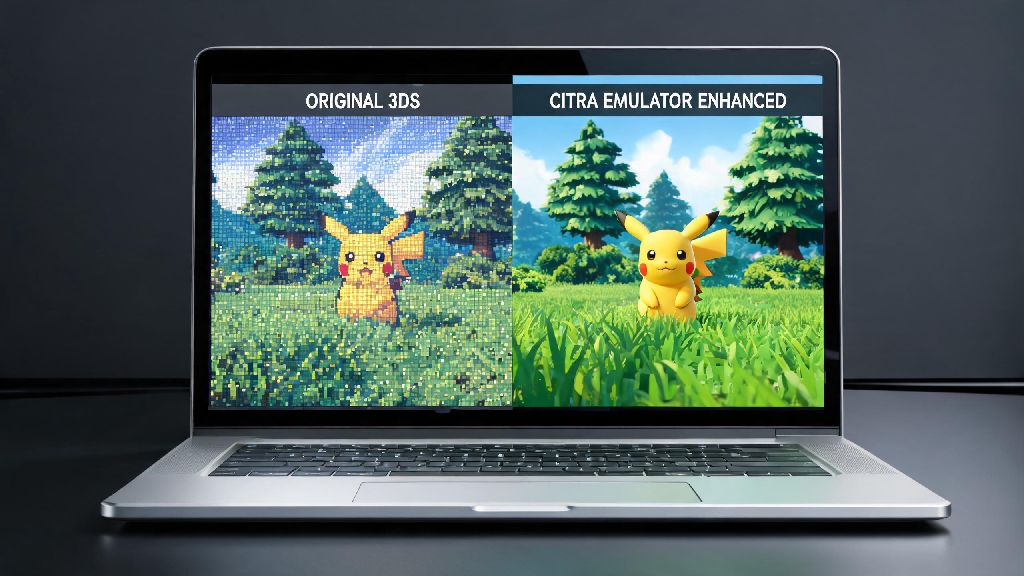
If you’ve ever booted up a 3DS game on Citra and felt like the visuals look fuzzy, like you’re playing through a smudged handheld screen, you’re not alone. Most default Citra settings are built for broad device compatibility, not top-tier visual quality, so a few small adjustments go a very long way. If you’re wondering how to make Citra emulator look nicer without lagging out your laptop or PC, the tweaks we cover here work for both low-end budget devices and high-end gaming rigs.
Core Display Tweaks to Make Citra Emulator Look Nicer Right Away
The first set of changes you can make take less than two minutes, and don’t require any extra downloads or mods. Internal resolution scaling is the single biggest upgrade you can apply, as the 3DS’s native resolution is only 400x240, which looks extremely grainy on modern monitors. You can scale this up to 2x, 3x, or even 4x depending on your GPU power, but don’t go higher than your monitor’s native resolution, as you won’t see any visual difference and will waste valuable performance.
Next, adjust your texture filter setting to match the type of game you’re playing. xBRZ filters work best for pixel art or 2D games, as they smooth out jagged edges without making sprites look blurry, while bicubic filtering is a better fit for 3D titles that use more complex textures. You should also turn on aspect ratio correction to avoid stretched visuals, as default 16:9 settings will warp many older 3DS games that were built for 4:3 displays. If the game you’re playing supports wide screen, you can enable the built-in wide screen hack to fill more of your monitor without distortion.
Finally, enable VSync to eliminate screen tearing, which happens when your GPU outputs frames faster than your monitor can display them. Even if your resolution and textures look perfect, screen tearing can make the whole experience feel choppy and unpleasant, so this small toggle makes a huge difference for overall visual quality.
Upgrade Visuals With Custom Texture Packs and Mods
Once you’ve adjusted your core display settings, custom texture packs and mods can take your visuals to the next level by replacing low-resolution 3DS assets with upscaled, community-made versions. You should always dump your own game textures first to comply with copyright rules, and never download pre-dumped texture packs for games you don’t own a physical or digital copy of.
When you have your texture pack set up, enable BC3 texture compression in Citra’s settings if you have a mid-range or better GPU. This compression cuts down texture memory usage by up to 70% with almost no noticeable visual loss, so you can run 4K texture packs without eating up all your system RAM. Many texture packs also come with optional shader mods that add color correction, anti-aliasing, and even ambient occlusion to make 3DS games look like they were built for modern consoles, not a 2011 handheld.
There are hundreds of high-quality texture packs available for popular 3DS titles, but some of the most polished options include:
Most texture packs come with simple installation instructions, and you only need to set them up once before they load automatically every time you boot up the game. It’s worth checking for community updates for your favorite game’s packs regularly, as modders often fix small visual bugs or add new improved assets over time.
Fix Common Visual Bugs That Ruin Your Game Experience
Even with perfect settings and high-quality texture packs, small visual bugs can make your game look worse than it would on original hardware. The most common issue people run into is texture pop-in, where low-resolution textures load in right in front of you mid-game. This almost always happens when you have custom texture preloading turned off, so enable preload custom textures if you have 8GB or more of system RAM to fix this issue entirely.
Screen flickering is another common problem, and it’s usually caused by a corrupted shader cache. You can fix this by clearing your existing shader cache in Citra’s settings and letting it recompile shaders as you play, or enabling asynchronous shader building to reduce both flickering and in-game stutter. If you’re seeing black bars on the sides of your screen or stretched visuals, double check your aspect ratio setting and disable the wide screen hack if the game you’re playing doesn’t officially support it.
Some games also have specific known visual issues that require small, targeted fixes. For example, Fire Emblem Fates requires a specific linear texture filter setting to avoid blurry character portraits, while Super Smash Bros for 3DS needs anti-aliasing turned off to prevent UI distortion. You can usually find game-specific fix threads in community forums if you run into an issue that general tweaks don’t fix.
Balance Visual Quality and Performance for Smooth Gameplay
There’s no one-size-fits-all setting for Citra visuals, as what works for a high-end gaming PC will cause serious lag on a budget laptop. The biggest performance hog by far is internal resolution scaling, so if you’re getting less than 30 FPS after adjusting your settings, drop your resolution one level first before changing anything else. You’ll still get a big visual upgrade over default settings even at 2x resolution, and most low-end GPUs can handle that easily.
You should also disable any shader mods you don’t notice a difference from to save GPU power. Ambient occlusion and advanced color grading mods look great, but if you can barely tell the difference between the modded and unmodded version, turn them off to free up resources for higher resolution or texture packs. Set your frame limit to 100% to avoid unnecessary GPU usage and screen tearing, and plug in your laptop if you’re playing on a portable device, as most laptops throttle GPU performance by 30% or more when running on battery to save power.
If you have an AMD GPU, switch your backend from OpenGL to Vulkan for an immediate 20-30% performance boost with no loss in visual quality. Nvidia GPU users will usually get better performance with OpenGL, but it’s worth testing both backends to see what works best for your specific hardware and the games you play most often.
You don’t need a top-of-the-line gaming PC to get great visuals from your 3DS games on Citra. Even a few small adjustments to your resolution, texture filters, and a custom texture pack for your favorite title can make the game feel completely different from how it ran on original hardware. It’s worth taking 10 minutes to test these tweaks one at a time to find the right balance of visual quality and performance for your device, so you can get the most out of every play session. If you’ve been looking for how to make Citra emulator look nicer, these simple changes will give you crisp, vibrant visuals that make the classic 3DS library feel brand new.