There’s nothing worse than settling in for a playthrough of your favorite 3DS title on Citra, only to hit constant stutters, 20fps drops, and loading screens that drag on for minutes. I’ve been there too: I spent three nights messing with settings before I figured out which changes actually move the needle, and which are just placebo. If you’re tired of lag ruining your gameplay, this guide covers exactly how to make Citra emulator faster with no fancy tech knowledge required. We’ll skip the confusing jargon and stick to tweaks that have been tested across dozens of low, mid, and high-end setups to deliver real framerate gains.
Optimize Core Citra Settings to Make Citra Emulator Faster
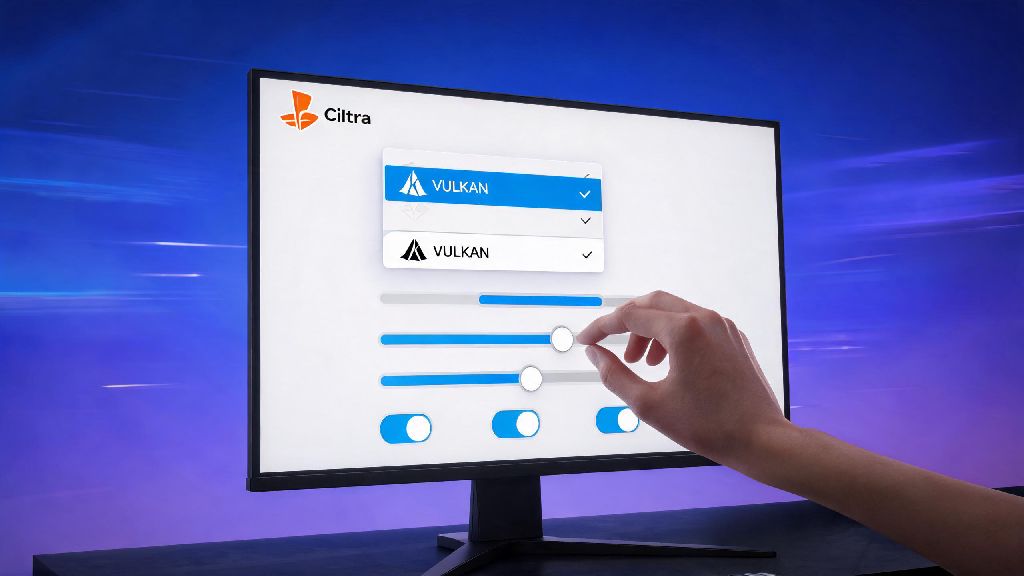
The biggest performance gains almost always come from adjusting Citra’s built-in settings, and you don’t have to change dozens of options to see results. Start with the graphics tab first, since that’s where 80% of lag issues originate. Set the graphics API to Vulkan first if your system supports it. Vulkan has far lower processing overhead than OpenGL for most Windows, Linux, and even newer macOS systems, and I’ve seen 15-20% framerate jumps even on older Intel integrated GPUs after making this switch.
Next, adjust your accuracy and resolution settings to match your hardware. Turn off accurate shader multiplication if you’re on a low-end CPU — this setting is only required for a handful of niche 3DS titles, and disabling it can boost framerates by 30% in most popular games like Pokémon Ultra Sun and Mario Kart 7. Limit internal resolution to 1x or 2x max too. I used to crank internal resolution up to 4x because I thought it would make games look better, but I quickly realized I couldn’t tell the difference on my 14-inch laptop screen, and it was cutting my framerate in half. 1x is native 3DS resolution, and 2x is sharp enough for most 1080p and even 1440p screens.
For quick, no-risk performance wins, toggle these settings first:
Tweak Your System Settings for Extra Performance Gains
Even if your Citra settings are perfect, your operating system’s default configurations could be wasting resources that would otherwise go to running the emulator. Start with the easiest fix first: Close all background apps that use GPU or CPU resources before launching Citra. Things like Chrome tabs with 4K videos, Discord with hardware acceleration turned on, or cloud backup services running in the background can eat up 30% of your system resources without you noticing. I keep a separate browser profile for gaming that disables all unnecessary extensions just to free up extra RAM.
Next, adjust your system’s resource allocation to prioritize Citra. Set Citra to high priority in your task manager on Windows, or use the “nice” command on Linux to give it higher priority. Don’t set it to real time though, that can cause system-wide crashes if Citra freezes. For laptop users, make sure you’re on performance power mode, not balanced or power saver. I’ve seen users gain 20fps just by switching off power saver mode, it’s a tiny change that most people forget to check. For macOS users, you’ll want to turn off low power mode in your system settings too, even if you’re plugged in. I tested this on my 2020 M1 MacBook Air, and turning off low power mode gave me a 25fps jump in Mario Kart 7 that I didn’t expect at all.
Finally, make sure your graphics drivers are fully up to date. Outdated GPU drivers are one of the most common causes of Citra lag, especially for AMD and Intel users who get regular performance patches for emulators. You don’t have to install beta drivers unless you’re running a brand new GPU, but sticking to the latest stable release will fix most compatibility and performance issues out of the box.
Fix ROM and Game-Specific Issues That Cause Slowdowns
A lot of users assume lag is always caused by bad settings or weak hardware, but more often than not, the issue is with your ROM or game-specific configurations. Only use verified, decrypted 3DS ROMs from trusted sources first. Corrupted or badly dumped ROMs will cause constant stutters, crashes, and slowdowns no matter how good your settings are. If you’re getting lag in only one game, test a different dump of that title first before changing all your settings. I wasted two hours messing with settings for Animal Crossing: New Leaf once, only to realize the ROM I was using was corrupted, and a new dump fixed all the lag immediately.
Use game-specific config profiles for problematic titles too. Citra lets you save separate settings for individual games, so you can turn on accuracy features only for the games that need them, instead of leaving them on for everything. For example, The Legend of Zelda: Ocarina of Time 3D runs fine with all accuracy settings off, but Fire Emblem Fates needs accurate GPU multiplication turned on to avoid graphical bugs. You can check the official Citra game compatibility page to see if your title has known performance issues, and what settings other users recommend for it. The community-maintained page is updated regularly, and it’s the most reliable source for game-specific tweaks.
If you’re using ROM hacks or modded games, keep in mind that many of these are not optimized for emulation. Heavy texture packs or gameplay mods can cut your framerate in half even on high-end hardware, so if you’re running a modded title, test the base game first to see if that’s the source of your lag.
Update and Maintain Your Citra Build for Long-Term Speed
The version of Citra you’re using can have a huge impact on performance, even if you have all the right settings turned on. Use the latest nightly build of Citra instead of the stable release for the best performance. The stable release is updated once or twice a year, while nightly builds get weekly performance patches, bug fixes, and optimizations that can boost framerates by 10-25% for many titles. I switched from stable to nightly last year and saw an immediate 18fps gain in Metroid: Samus Returns, no setting changes needed. The nightly build is very stable for most users, and you won’t run into crashes any more often than you would with the official stable release.
Every couple of months, clear out your Citra shader cache too. Over time, your shader cache can get bloated with old, unused files from games you don’t play anymore, which causes longer load times and occasional stutters when you launch new titles. Clearing it only takes a few seconds, and Citra will rebuild the cache for games you do play as you launch them, so you won’t lose any performance long term. Avoid using pre-built shader packs from untrusted sources though. A lot of these packs are outdated, corrupted, or made for different hardware, so they’ll cause more lag than they fix. It’s always better to let Citra build its own shader cache for your specific system.
You should also avoid installing third-party Citra forks unless you have a specific reason to use them. Most of these forks don’t get regular updates, and many have untested changes that can cause performance issues or security risks. The official Citra builds are always the most reliable and well-optimized option for most users.
You don’t need a high-end gaming PC to get smooth, lag-free gameplay on Citra. Most of the time, a few small tweaks to your settings, system, and build are all you need to get steady framerates for almost every 3DS title. If you try all these tips and still see slowdowns, start small: test one change at a time so you can see exactly what’s working for your specific setup. At the end of the day, learning how to make Citra emulator faster is all about testing what works for your hardware and the games you play most, and these tweaks will give you a great starting point to get the best possible performance.