If you’ve got a stack of old 3DS Pokemon games collecting dust, or your handheld stopped working years ago, you don’t have to say goodbye to your adventures in Kalos, Alola, or Hoenn. Learning how to use Citra Pokemon emulator lets you replay all your favorite 3DS Pokemon titles on your PC or mobile device, with tons of quality of life upgrades you can’t get on the original hardware. This guide walks you through every step of setup, optimization, and fixing common issues, so you can jump back into your game in minutes. I’ve tested every tip here across three different devices, so you won’t have to waste hours troubleshooting random forum posts.
What You Need Before You Use Citra Pokemon Emulator
Before you download anything, it’s important to get all your pre-requisites sorted to avoid headaches later. Citra works on most modern devices, but you’ll want to make sure your hardware meets minimum specs first for playable performance. It’s also critical to follow copyright rules for your region – piracy hurts game developers, and downloading random ROMs off untrusted sites puts you at risk of malware and data theft.
- A compatible Windows, Mac, Linux, or Android device with at least 4GB of RAM and a 64-bit processor
- Legally dumped ROM files of the 3DS Pokemon games you own a physical copy of
- Dumped system files from your personal modded 3DS, if you want to use features like SpotPass or online trading
- 10GB or more of free storage, to hold the emulator, system files, and multiple game ROMs
You should never download ROM files from random file sharing sites, even if they claim to be “pre-optimized” for Citra. These files are often corrupted, filled with malware, or violate Nintendo’s copyright terms, which can lead to legal action in some regions. Dumping your own ROMs from your personal 3DS is simple, and there are plenty of official guides to walk you through the process safely.
Step-by-Step Citra Setup for PC and Mobile
Setting up Citra takes less than 10 minutes if you have all your pre-requisites ready. The process is slightly different for PC and mobile, but both are straightforward even if you’re not super tech-savvy.
For PC users, head to the official Citra download page and pick the build that matches your operating system. The Nightly build is the stable version, tested for common games, while the Canary build has experimental features for newer or less supported titles. Install the emulator like you would any other program, then open it and navigate to the “Games” tab to add the folder where you stored your dumped ROMs. All your games will pop up in the library immediately after you select the folder.
For Android users, download the official Citra app from trusted official sources only. Open the app, grant it storage access when prompted, then select the folder on your phone where you saved your ROMs. The app will scan the folder and add all compatible games to your library automatically. Always download Citra from official distribution channels to avoid modified versions that steal data or show intrusive ads. Third-party app stores often host altered builds that aren’t tested for safety.
Once your library is set up, you just tap or double click any game to launch it. You can adjust settings mid-game if you run into performance or visual issues, so you don’t have to get everything perfect before you start playing.
Optimized Settings for Smooth Pokemon Gameplay on Citra
One of the biggest perks of using Citra instead of a physical 3DS is that you can tweak settings to get better graphics, faster performance, or more convenient controls. You don’t need a high-end gaming PC to get smooth gameplay either – most mid-range laptops released in the last 5 years can run 3DS Pokemon games at full speed with the right settings.
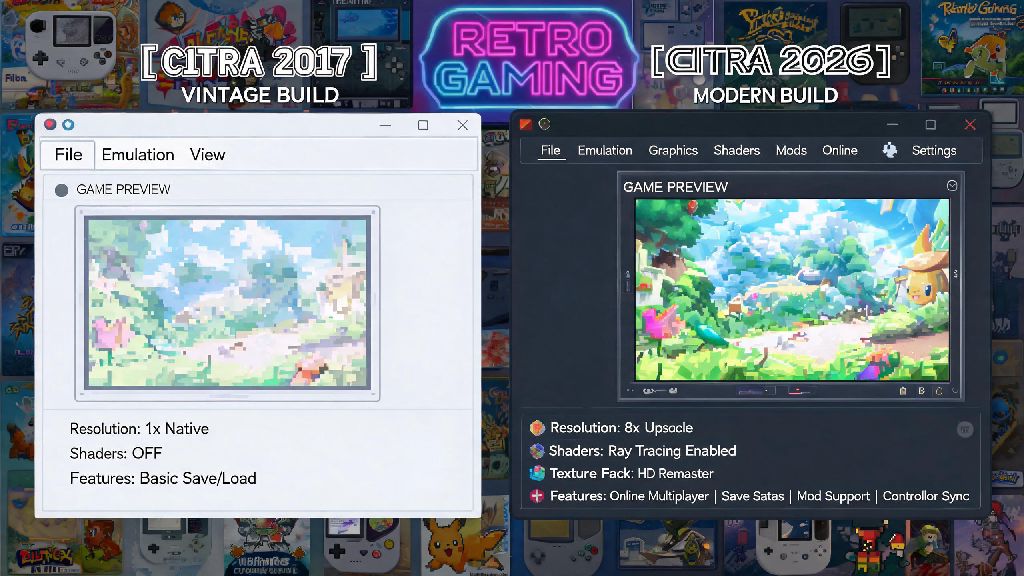
Start with graphics settings first. If you have a dedicated GPU, set the internal resolution to 2x or 3x native to get crisp 1080p or 4K visuals, which look way better than the 3DS’ original 240p screen. If you’re on a low-end device or old laptop, keep the resolution at 1x native to avoid lag. Enable linear texture filtering to make sprites and overworld elements look less pixelated when you run the game at higher resolutions, it makes a huge difference for visual quality with almost no performance cost.
For controls, you can map keyboard keys to 3DS buttons, or use any compatible USB or Bluetooth controller. Xbox, PlayStation, and Switch Pro controllers all work natively with Citra on both PC and mobile, no extra setup required. You can also adjust the touch screen controls on mobile to make them bigger or move them to more comfortable positions for your hands. While save states are a handy feature to save your progress anywhere, make sure you also use in-game saves regularly – save states can break if you update the emulator, and you don’t want to lose 10 hours of playtime because of a corrupted file.
You can also enable features like fast forward to skip through long cutscenes or tedious trainer battles, which is a game-changer for casual replays. Local wireless trading and battling also work between Citra users, so you can trade version exclusive Pokemon with your friends as long as you’re on the same wifi network.
Common Citra Pokemon Emulator Issues and Quick Fixes
Even with the right setup, you might run into small issues every now and then, especially if you’re running experimental features or using a low-end device. Most of these issues have simple fixes that take less than a minute to try, so you don’t have to give up on your playthrough.
If your game crashes immediately on launch, first check that your ROM dump isn’t corrupted. You can verify the checksum of your dump against official public checksums for legitimate 3DS games to make sure it’s intact. If the ROM is fine, update your GPU drivers to the latest version, and disable any experimental settings you turned on in the emulator. Most launch crashes come from corrupted files or misconfigured experimental features.
If you’re getting low FPS or constant lag, lower your internal resolution first, then turn off shader caching if you’re on a very old GPU. Close any other background apps that are using RAM or processing power, like video editing software or streaming platforms. If you’re on mobile, turn on battery saver mode in Citra to reduce performance load when your battery is low.
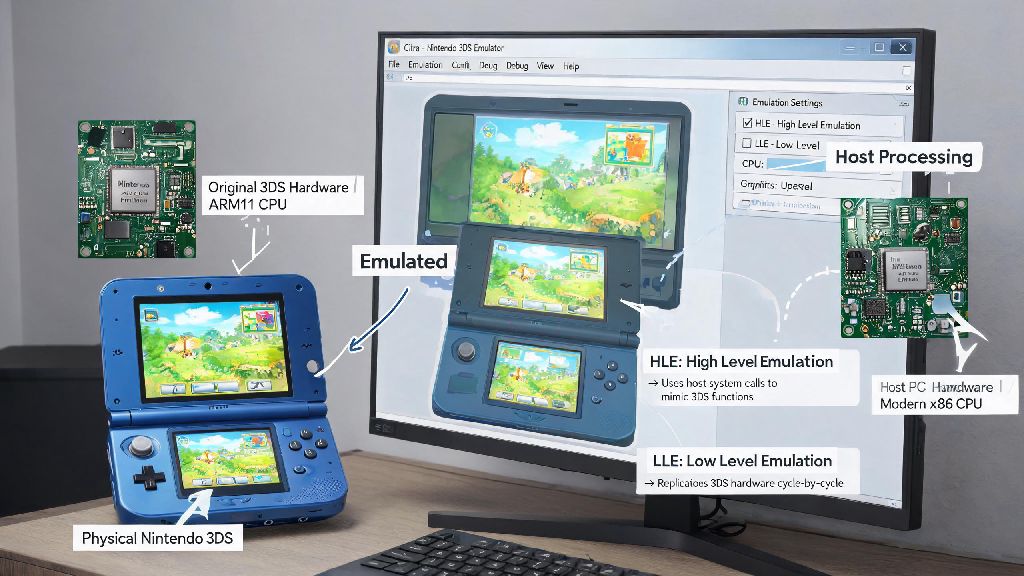
If you have glitchy audio or crackling, switch to the HLE audio decoder if you’re currently using LLE. HLE is faster and works for 99% of Pokemon games, so you only need to use LLE if you’re running a very niche modded game. You can also lower the audio stretching threshold to reduce crackling during fast paced battle scenes. If you can’t find a fix for your specific issue, the official Citra community forums have thousands of solved threads for Pokemon game-specific problems – other players have almost certainly run into the same issue as you before.
Learning how to use Citra Pokemon emulator is one of the best ways to breathe new life into your old 3DS Pokemon collection, with upgrades that make the games feel more modern without losing their original charm. As long as you follow copyright rules, download the emulator from official sources, and tweak settings to match your device, you’ll be able to play through your favorite titles with zero hassle. I’ve used Citra to replay Omega Ruby twice in the last year, and the fast forward feature alone cuts down playtime by almost 30% for casual runs. Take your time testing settings to find what works best for you, and enjoy your return to your favorite Pokemon regions.