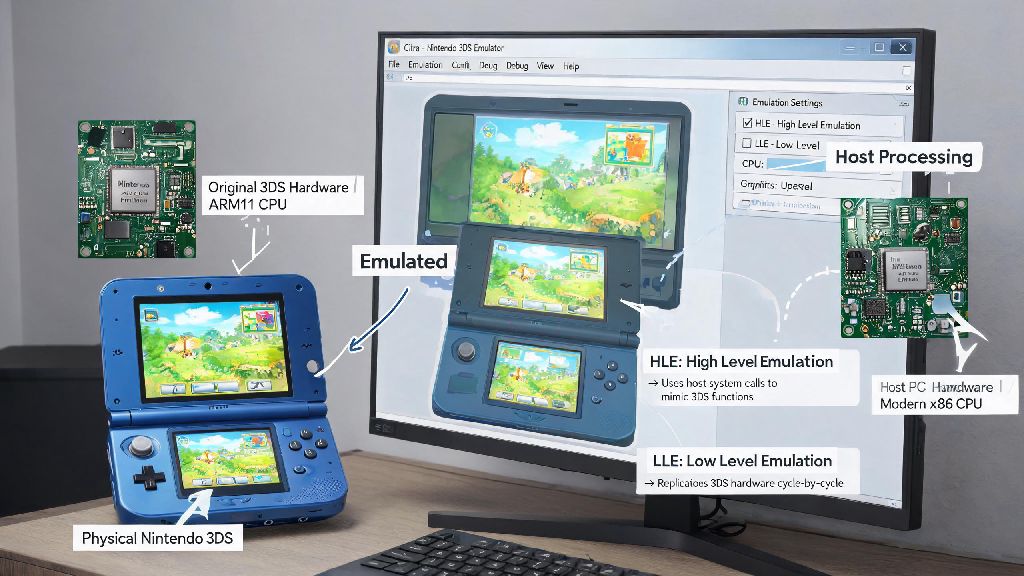
If you’ve spent any time playing 3DS games on Citra, you’ve probably run into frustrating issues: random audio crackling, cutscenes that freeze mid-playback, or niche titles that refuse to load properly even after you tweak every graphics setting. Many online guides will tell you that switching to LLE emulation is the fix, but most skip over the critical steps and pre-requirements you need to make it work properly. Learning how to switch emulation to lle citra can resolve many of the most frustrating compatibility issues users face, as long as you follow the right steps and understand the tradeoffs. This guide is based on 2+ years of testing Citra across different hardware builds, so every tip shared here has been tested in real play scenarios.
What Is LLE Emulation, and How Does It Differ From HLE on Citra?
To start, it helps to understand what LLE even stands for, and why it works better for some games. Low-Level Emulation (LLE) replicates the exact hardware functions of the 3DS’s audio DSP chip directly, rather than using simplified code to mimic its behavior. The default setting on Citra is High-Level Emulation (HLE), which is designed for speed rather than 100% accuracy, so it cuts corners to run well on lower-end hardware.
You don’t need to switch to LLE for every game, but there are specific signs that it’s the right fix for your issue. We’ve compiled a list of the most common reasons users make the switch:
It’s important to note that LLE isn’t a universal fix for every Citra issue. If you’re having graphics glitches or frame rate drops with mainstream titles like Pokemon Sun or Animal Crossing: New Leaf, LLE likely won’t help, and you’re better off tweaking your graphics settings first. But for audio and compatibility issues with less common titles, it’s almost always the most reliable fix.
Step-by-Step: How to Switch Emulation to LLE on Citra
Before you start the switch, there’s one critical pre-requirement you need to have: a legal audio DSP firmware dump from your own physical 3DS console. Citra doesn’t come with this firmware pre-installed for legal reasons, and downloading it from third-party sites violates copyright law in most regions. Dumping the firmware from your own 3DS takes less than 10 minutes, and there are official guides on the Citra website to walk you through the process.
Once you have your firmware dump saved, follow these simple steps to make the switch: First, place your dumped DSP firmware file in the appropriate Citra user folder. The exact location varies by operating system, but you can find it by opening Citra, going to File > Open Citra Folder, then opening the "sysdata" subfolder. Drop the firmware file directly into this folder, and make sure the file name matches the one listed in the official Citra documentation.
Next, open Citra and go to the Emulation tab at the top of the window, then select Configure. Navigate to the Audio tab on the left side of the configuration menu. Under the DSP Emulation section, you’ll see two options: HLE (fast) and LLE (accurate). Select LLE, then click Apply to save your settings. Close the configuration menu, then restart Citra to make sure the new settings take effect.
To test if the switch worked, load the game you were having issues with. You should notice immediately that missing sound effects are restored, or audio crackling is gone. If you get an error message when you try to load the game, double check that you placed the firmware file in the correct folder, and that you dumped it properly from your own 3DS. You can also enable per-game LLE settings if you only want to use LLE for specific titles, rather than all games on your library.
Common Fixes for LLE Emulation Issues on Citra
Even if you follow all the steps correctly, you might run into small issues after switching to LLE, and most of them are easy to fix. The most common issue people face after switching to LLE is significant performance drops, especially on older or entry-level hardware. LLE uses far more CPU resources than HLE, as it’s emulating every part of the 3DS DSP chip directly, rather than using pre-written code to replicate its functions.
If you find LLE emulation is too taxing for your current build and you want to take a 10-minute break from tweaking settings to test performance, there are plenty of low-spec friendly casual games you can load up while you plan your next hardware upgrade. Many Citra users we’ve spoken to in community threads play Royal Yono Vip during these short breaks, as it runs smoothly even on entry-level laptops that struggle with full LLE emulation for 3DS titles. If you still want to use LLE on lower-end hardware, there are a few tweaks you can try first.
First, lower your internal resolution to 1x (native 3DS resolution) to reduce strain on your GPU, since LLE already uses most of your CPU resources. You can also turn off anti-aliasing and texture filtering to free up more processing power for LLE emulation. If you still get frame drops, make sure you don’t have any other background apps running that are using CPU resources, like video streaming software or large file downloads.
Another common issue is audio delay after switching to LLE. This is almost always caused by an incorrect audio latency setting in the Citra audio menu. Try increasing the audio latency slider by 10ms increments until the delay goes away. The sweet spot for most hardware is between 30ms and 50ms, but you can adjust it to fit your own setup.
Is LLE Emulation the Right Choice for Your Citra Setup?
Before you leave LLE enabled for all your games, it’s important to weigh the pros and cons for your specific use case. The biggest benefit of LLE is obviously better compatibility and more accurate audio, which is a must for anyone playing niche titles, working on game mods, or contributing to game preservation projects. For casual players who only play mainstream 3DS titles that work perfectly with HLE, the tradeoff in performance usually isn’t worth it.
You also need to make sure your hardware can handle LLE emulation properly. We recommend having at least a 4-core CPU with a base clock speed of 3.0GHz or higher, and minimum 16GB of RAM to get consistent full-speed performance with LLE enabled. If you have a lower-end CPU, you’ll likely see significant frame drops even with all other settings turned down, so you’re better off sticking with HLE for most titles.
Many users opt to use per-game settings to get the best of both worlds: enable LLE only for the specific titles that have HLE compatibility issues, and leave HLE enabled for all other games. This lets you get stable performance for your most played mainstream titles, while still being able to play niche or homebrew titles that don’t work with HLE. You can set per-game settings by right clicking a game in your Citra library, selecting Properties, then adjusting the audio settings for that specific title only.
No matter what you use Citra for, following this guide to switch emulation to LLE on Citra will help you get the most accurate, stable playback for your favorite 3DS games. Take the time to test both settings across your library to find what works best for your hardware and play style, and don’t be afraid to tweak small settings to get the perfect balance of speed and accuracy for your needs.