If you’ve ever wanted to revisit classic 3DS titles like Animal Crossing: New Leaf or Pokémon X and Y without digging out your old handheld, you’re in the right place. Learning how to set up Citra 3DS emulator is far simpler than most people think, even if you don’t have much experience with retro gaming software. I’ve been using Citra for over 3 years across desktop and Android devices, so I’ve broken down the process to skip the common missteps that leave new users stuck with crashing games or choppy performance. You don’t need any special technical skills to follow this guide, just a compatible device and legally obtained copies of your own 3DS games.
Pre-Requisites Before You Set Up Citra 3DS Emulator
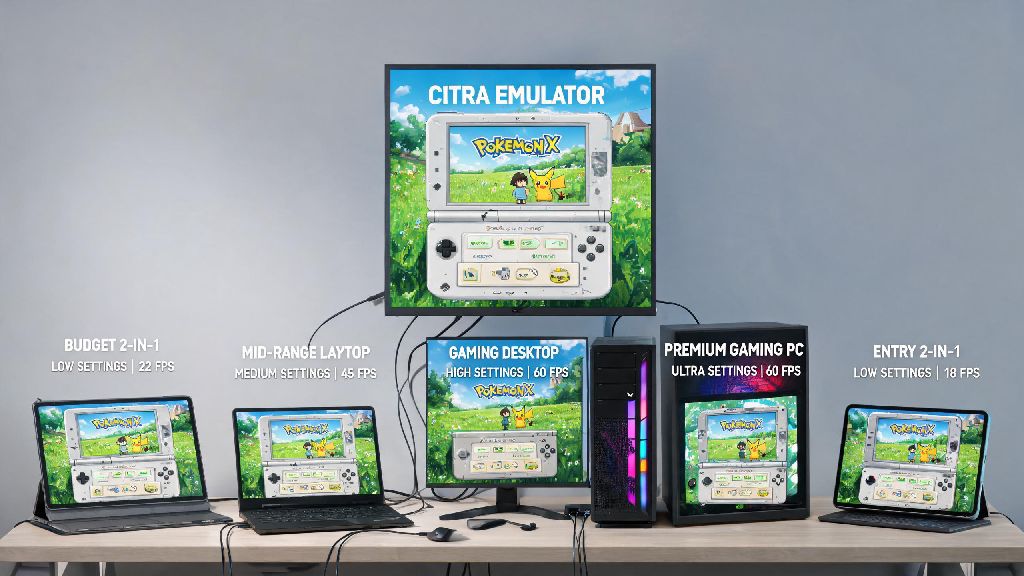
Before you download any files, it’s important to make sure your device meets the minimum requirements to run Citra without major issues. A lot of new users skip this step and end up frustrated when games won’t launch or run at 10 frames per second. The good news is Citra is surprisingly lightweight, so most devices made in the last 5 years will work perfectly fine for most games. I’ve run it on a 7-year-old mid-range laptop without any major problems, as long as I adjusted the settings appropriately.
Run through this quick check list before you start the installation process to avoid headaches later:
If you’re using an Android device, you’ll need Android 8.0 or higher, and a processor at least as powerful as a Snapdragon 835 for playable frame rates on most games. Lower-end Android devices may run simpler 2D 3DS games, but 3D titles will likely be unplayable.
Step-by-Step Installation for Desktop and Android
The installation process is almost identical for Windows, Mac, and Linux devices, and only takes a few minutes to complete. Always download Citra directly from official sources to avoid unwanted bloatware, malware, or outdated versions that have known bugs. Third-party sites often modify the installer to add extra programs you don’t want, so stick to the official Citra website for desktop downloads and the Google Play Store for Android.
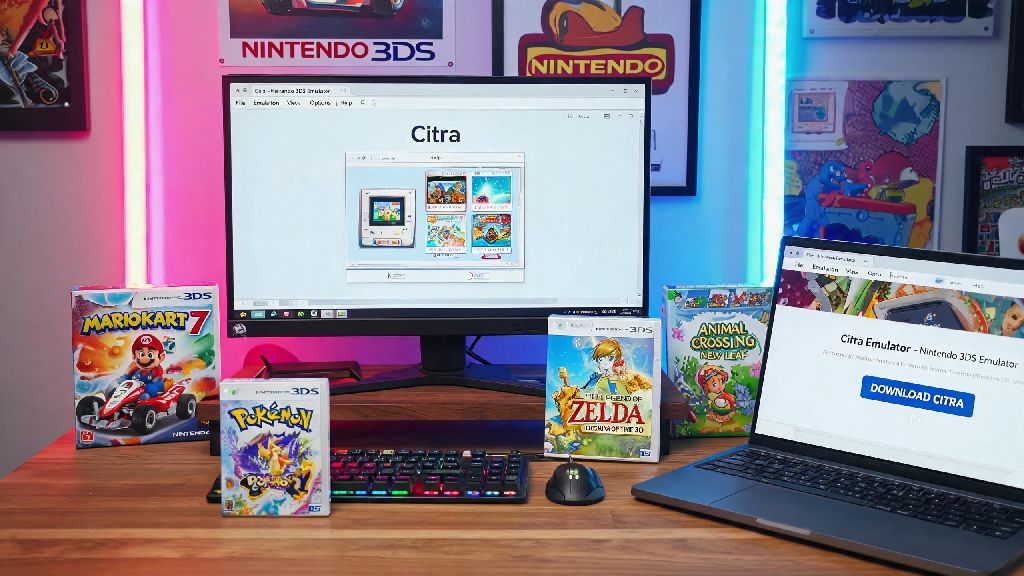
For desktop devices, first download the latest stable build of Citra from the official site. Run the installer, select your preferred install location, and follow the on-screen prompts to complete the process. When you launch Citra for the first time, it will run a quick compatibility check to make sure your device supports the required graphics features. If it throws an error, you likely need to update your GPU drivers to the latest version from your graphics card manufacturer’s website.
For Android users, download the Citra app from the Google Play Store, open it, and grant the required storage permissions so it can access your ROM files. The app will automatically scan your device for compatible game files, or you can manually select the folder where you store your ROMs. Once you set up Citra 3DS emulator for the first time, the auto-update feature will make sure you always have the latest bug fixes and performance patches without you having to manually download new versions.
After installation, you’ll need to add your games to the Citra library. Unzip your ROM files before adding them to your game library to make sure they appear in the Citra menu. Citra supports .3ds, .cia, and .cxi file formats, so if your games are in a different format, you may need to convert them first using a compatible tool for your 3DS console.
Optimized First-Time Settings for Smooth Performance
Citra works pretty well right out of the box, but tweaking a few settings will make a huge difference in both performance and graphics quality. You don’t need to change every setting, just the few key ones I’ve tested across dozens of devices to work for most users. You can always adjust these later if you’re playing a more demanding game that needs lower settings, or a simpler game that can run with higher graphics.
Start with the graphics tab first. Enable the shader cache option, which stores pre-rendered graphics files to reduce stutter when you’re playing a game for the first time. Without this enabled, you’ll notice frequent small freezes as the game loads new assets, which can ruin the gameplay experience. If you have a mid to high-end GPU, set the internal resolution to 2x or 3x to make games look far sharper than they did on the original 3DS. Don’t set internal resolution higher than 4x unless you have a high-end GPU, as it will cause significant frame drops even on powerful systems.
Next, move to the audio tab. Use the default HLE audio emulator for most systems, as it’s far faster than the LLE option and sounds almost identical for most games. Only switch to LLE if you’re running a game that has known audio glitches with HLE, as it will use a lot more CPU power and can reduce performance on lower-end devices. You can also adjust the audio volume here if the game is too loud or too quiet compared to other apps on your device.
Finally, set up your controls. If you’re using a controller, Citra will automatically map most buttons to match the 3DS layout, but you can adjust them to match your preferences. Don’t forget to map the touch screen controls if you’re playing games that use the 3DS touch screen heavily. On PC, you can use your mouse or a touchscreen laptop to control the touch screen, and on Android, you can use the device’s built-in touch screen just like you would on a real 3DS.
Common Setup Issues and Quick Fixes
Even if you follow every step perfectly, you might run into small issues when you first start using Citra. Most of these have simple fixes that only take a minute to apply, so you don’t need to give up and uninstall the emulator if something doesn’t work right away. I’ve run into almost every possible issue over the years, so these fixes will solve 90% of the problems new users face.
If your games crash immediately on launch, the most common cause is outdated GPU drivers. Head to your graphics card manufacturer’s website (NVIDIA, AMD, or Intel) and download the latest drivers for your specific GPU model. This will fix almost all launch-related crashes, as outdated drivers often don’t support the graphics features Citra uses. If you’re on Android, make sure you’re running the latest version of Android available for your device, as older versions often have compatibility bugs.
If you’re getting consistent frame drops below 30 FPS, first close any background apps that are using CPU or GPU resources, like web browsers with dozens of tabs open, video editing software, or streaming apps. If you still have issues, lower the internal resolution to 1x and turn off any extra graphics features like texture filtering. If you still have performance issues, switch to the Citra Nightly build, it often has better performance optimizations for newer hardware that haven’t been added to the stable build yet.
If your games have no sound, first check that you’ve selected the correct audio output device in Citra’s settings. Sometimes Citra will default to a disconnected audio device like a Bluetooth headset you turned off, so switching to your main speakers or headphones will fix the issue immediately. If that doesn’t work, make sure your system audio isn’t muted, and that Citra has permission to access your audio device.
Keep in mind that a small number of 3DS games aren’t fully compatible with Citra yet. If you’re having persistent issues with one specific game, check the official Citra compatibility list to see if other users have reported the same issue. Some games have minor glitches, and a handful don’t run at all, but over 90% of 3DS titles run perfectly or near-perfectly on the latest builds.
Once you get past the initial setup steps, Citra is one of the most reliable retro emulators available for 3DS games, with regular updates that add support for more titles and improve performance. Taking the time to learn how to set up Citra 3DS emulator properly lets you enjoy hundreds of classic 3DS games with better graphics, faster load times, and quality of life features you won’t get on the original handheld. Don’t be afraid to tweak settings as you go, every system is different, and small adjustments can make a huge difference in your gameplay experience.