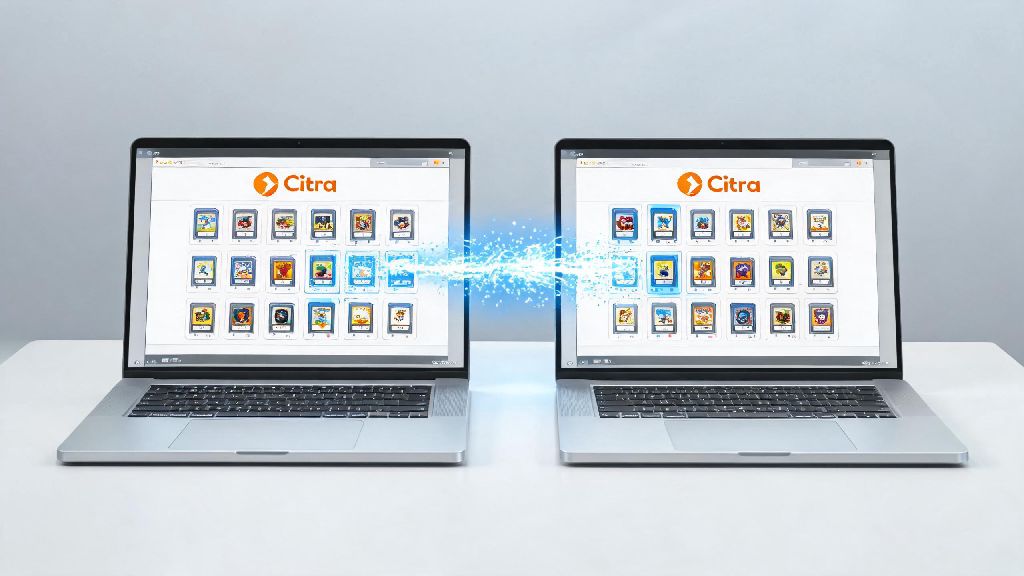
If you’ve sunk dozens of hours into a 3DS playthrough on Citra, the last thing you want is to lose all that progress when you switch laptops, reinstall your OS, or update your emulator build. Knowing how to move save files on the Citra emulator correctly saves you from replaying hours of content to get back to where you left off, and it’s far simpler than most users think. A lot of online tutorials skip critical prep steps that lead to corrupted saves, so we’ve tested every part of this process to make sure it works for both standard and portable Citra builds.
Prep Steps Before You Move Your Citra Save Files
You never want to mess with active save files without taking basic safety precautions first. Even a small mistake like copying a save while Citra is running can corrupt months of progress, so these steps are non-negotiable. Always create a full backup of your entire Citra user folder first before you move or edit any save files, so you have a restore point if something goes wrong.
You can find a game’s title ID by right-clicking the game in your Citra library and selecting “Properties” from the dropdown menu. Write this ID down or save it to a note, because different regional releases of the same game (like the US vs European version of Pokémon X) have different title IDs, and saves are not cross-compatible between them. Never modify individual save files directly unless you have experience with hex editing, as even small changes can break the save entirely.
Step-by-Step Process to Move Citra Save Files Between Devices
This process works for moving saves between two Windows PCs, from Windows to Mac or Linux, or even between a standard Citra install and a portable build stored on a USB drive. You might find third-party tools that claim to automate Citra save transfers, but we recommend doing it manually every time. Automated tools often misidentify save paths for custom Citra builds, and you run a higher risk of overwriting the wrong save by accident. The manual process only takes a couple of minutes per game, and you have full control over where your files go.
First, locate your source save files on the device you’re moving saves from. The default save path for most Citra builds is user/sdmc/Nintendo 3DS/00000000000000000000000000000000/00000000000000000000000000000000/title//data/00000001. If you’re using a portable Citra build, the user folder will be in the same folder as your Citra executable, so you don’t have to dig through system appdata folders to find it. Copy the entire 00000001 folder for the game you want to move, not just individual save files inside it, to make sure you don’t miss any associated config data.
Next, on the target device, open Citra, right-click the matching game in your library, and select “Open save data location”. This will pull up the exact folder you need to paste your save files into. Paste the 00000001 folder you copied earlier, and select “Overwrite” if you get a prompt about existing files. Open the game once to confirm the save loads correctly before you delete the original save files from your source device.
If you're transferring saves for more than 3 or 4 games, the whole process can take 10 to 15 minutes depending on how large your save files are. It's tempting to rush through the file copying steps to get back to playing, but that's how most people make mistakes like pasting files to the wrong folder. Taking a 2-minute break between batches of transfers helps you stay focused. Lots of Citra users we know keep casual, quick-play games on hand for these short gaps, and many enjoy playing IND Rummy to pass the time without getting sucked into a long session that makes them abandon the transfer halfway through.
Troubleshooting Common Issues When Moving Citra Saves
Even if you follow every step correctly, you might run into small issues when you first try to load your transferred save. Most of these problems have simple fixes that take less than a minute to resolve, so there’s no need to panic if your save doesn’t show up immediately.
The most common issue is a save that doesn’t appear when you launch the game. If your save doesn't load after transfer, double check that the title ID of the game on your target device matches the one you pulled the save from. It’s very easy to accidentally download the wrong regional version of a game without realizing it, and those saves won’t work cross-region. If the title IDs don’t match, you can either download the correct regional version of the game on your target device, or use a save editor to convert the save to work with your existing game version, though the first option is far more reliable.
Another common issue is corrupted save data. This almost always happens because Citra was still running in the background when you copied the original save files, so the file was still being written to when you copied it. If you made the full backup we recommended earlier, just restore the original save files from your backup, make sure Citra is fully closed on both devices, and try the transfer again. If you didn’t make a backup, you can try using a save repair tool, but success rates for those are pretty low, which is why we stress the backup step so much.
Best Practices to Keep Your Citra Save Files Safe Long Term
Moving saves correctly is just one part of keeping your 3DS playthrough progress safe. There are a few small habits you can build that will eliminate almost all risk of losing your saves, even if your device breaks or your Citra install gets corrupted.
Set up automatic cloud backups for your Citra user folder every week. You can use any cloud storage service you prefer, just make sure the sync is scheduled to run when Citra is not usually open, so you don’t end up syncing a partially written save file. If you play Citra every day, you can even set the sync to run daily for extra safety. You can also keep a second backup on a physical USB drive if you want extra redundancy, especially for long playthroughs you don’t want to lose.
Avoid downloading modded save files from untrusted sources. Even if they claim to have 100% completion or all items unlocked, these saves often have hidden corrupted data that can spread to other saves in your library, or even cause issues with your Citra install. If you do want to use modded saves, test them in a separate portable Citra build first, so they don’t touch your main save library.
If you like to test experimental Citra Canary builds, keep a separate copy of your save files for testing. Canary builds have new, untested features that can sometimes cause save compatibility issues, so you don’t want to use your main playthrough saves with those builds. You can easily copy your saves to a separate folder for testing, so your main progress stays safe even if the experimental build breaks something.
Taking the time to learn how to move save files on the Citra emulator correctly saves you from so much frustration down the line, whether you’re switching devices, upgrading your Citra build, or just want to make sure your 100% completion run of your favorite 3DS game is safe. Don’t skip the prep steps, always make a backup first, and you’ll have zero issues moving your saves whenever you need to. I’ve used these exact steps to move my own 70-hour Animal Crossing: New Leaf save between three different PCs over the last four years, and I’ve never had a single corruption issue.