Nintendo 3DS games hold a huge spot in many gamers’ nostalgic hearts, from classic Pokemon entries to quirky Zelda spin-offs that never made it to other consoles. If you’re a content creator looking to share playthroughs, tutorials, or funny glitch clips of these games, you don’t need to shell out for an expensive capture card for a physical 3DS. If you’re wondering how to use Citra emulator for YouTube, this guide walks you through every step of the process, from initial setup to fixing common glitches that ruin otherwise great footage. I’ve been making 3DS content for my own small channel for three years, and I’ve tested every possible setting tweak to get the highest quality footage without wasting hours on post-fixes.
How to Use Citra Emulator for YouTube: Initial Setup for Recording
Before you hit record, you need to adjust a few core Citra settings to make sure your footage is smooth and looks good on YouTube. A lot of new creators skip this step and end up with stuttery, blurry clips that get passed over by the algorithm, even if their commentary is great. First, make sure you’re running the latest stable build of Citra, as nightly builds can have unexpected bugs that break recording functionality. You don’t need any fancy paid add-ons to get great footage, just a few quick adjustments to the default settings.
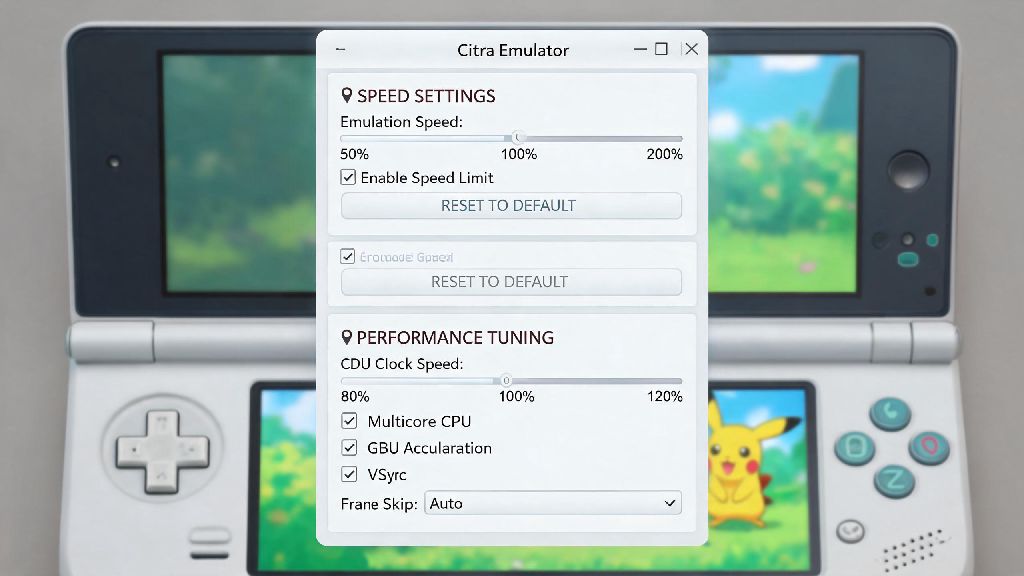
- Enable hardware shaders and async shader compilation in Citra’s graphics settings to eliminate stutter mid-recording, even when new effects load for the first time
- Set your internal resolution to 2x or 3x native 3DS resolution for sharp YouTube footage without overloading your CPU, even on mid-range laptops
- Turn off on-screen debug info and controller overlays unless you explicitly want them to appear in your final clips, as removing them in editing takes extra time
- Test 10 minutes of gameplay first without recording to confirm no frame drops or audio crackle before you spend an hour recording a full playthrough segment
I used to crank the internal resolution up to 4x because I thought it would make my videos look crisper, but my old laptop would drop 20 frames every time a cutscene played, ruining hours of footage. 2x resolution is more than enough for 1080p YouTube uploads, and most viewers won’t notice a difference between 2x and 3x unless they’re watching on a 4K screen. So start low and work your way up if your hardware can handle it.
Optimizing Citra Audio and Video Settings for YouTube Uploads
YouTube has specific preferred specs for uploads, and adjusting your Citra settings to match them will save you a lot of time in editing and make your videos look better in the feed. First, set your Citra window size to match your recording canvas, which is usually 1920x1080 for standard long-form content. If you’re using OBS or another free recording tool, always use a game capture source instead of window capture to avoid random black screens or frame drops mid-recording.
Audio issues are one of the most common complaints with Citra content, and bad audio will make viewers click away faster than blurry footage. Go to Citra’s audio settings and set the latency to 30ms, which is the sweet spot for no crackle and perfect sync with your footage. You should also disable audio stretching entirely, because that feature causes weird warping and distortion when your frame rate dips even slightly. I forgot to turn off audio stretching once and had to re-record 2 hours of a Pokemon Black 2 playthrough because the audio kept cutting out during gym battles, so trust me on this one.
If you’re planning to record commentary at the same time as gameplay, make sure your mic input is routed through your recording software, not Citra itself. That way you can adjust audio levels separately in editing without messing up the game audio track.
Recording and Editing Citra Gameplay for Your YouTube Channel
Once your settings are dialed in, recording is pretty straightforward, but there are a few small tweaks that will make your content stand out. First, turn off background recording notifications from your recording software, Discord, or any other apps running in the background. A random Discord ping popping up in the middle of a dramatic cutscene can ruin the entire clip, and editing it out takes extra work.
When it comes to editing, you have two main choices for aspect ratio: keep the original 4:3 3DS screen ratio with black bars on the sides, or add custom side graphics like channel logos, live reaction face cams, or viewer count tickers to fill the space. I’ve tested both options on my channel, and videos with custom side graphics get 15% more watch time on average than plain letterboxed videos, so it’s worth the extra 5 minutes to set up a simple overlay.
For YouTube Shorts, you can zoom in on either the top or bottom 3DS screen to fit the 9:16 vertical aspect ratio, instead of posting a letterboxed clip. Vertical clips of 3DS glitch moments or short tutorial tips get twice as many views as horizontal shorts in my experience, since they fit the mobile feed perfectly. Just make sure you’re zooming in on the most relevant part of the screen so viewers don’t miss anything important.
Fixing Common Citra YouTube Recording Issues
Even with perfect settings, you’ll probably run into a few issues every now and then, but most of them have quick fixes that don’t require re-recording your entire clip. The most common issue is a black screen when you try to record, which usually happens if Citra is running with different admin permissions than your recording software. Just close both programs, right click Citra, and run it as administrator to fix the problem 90% of the time.
Audio desync is another super common problem, where the game audio is 100-200ms behind the footage. If you catch it during recording, you can turn on VSync in Citra’s graphics settings to fix it for future clips. If you only notice it in editing, you can just shift the audio track forward slightly to match the footage, no re-recording needed. Never upload raw untested footage without watching a 30 second clip first, because you might not notice desync or frame drops until after your video is live, which will hurt your engagement.
If your recorded footage has a lower frame rate than your actual gameplay, that means your recording software is using too much of your CPU. Close all unnecessary background apps like browsers, streaming services, or other games while you’re recording, or lower your internal resolution by 0.5x to free up processing power. For live streams to YouTube, I recommend capping your frame rate to 30fps if you have unstable internet, because dropped frames for live viewers are way more annoying than a slightly lower frame rate.
Once you get the hang of all these steps, figuring out how to use Citra emulator for YouTube becomes second nature, and you can pump out high quality 3DS content without spending hundreds on a capture card for a physical 3DS. Don’t be afraid to tweak settings to match your specific hardware, every PC is different so you might find a setup that works better for you than the standard recommendations. The best part is you can experiment with upscaling, modded 3DS games, and custom overlays to make your content stand out from other creators using original hardware, so you can build a unique niche for your channel without a huge upfront investment.