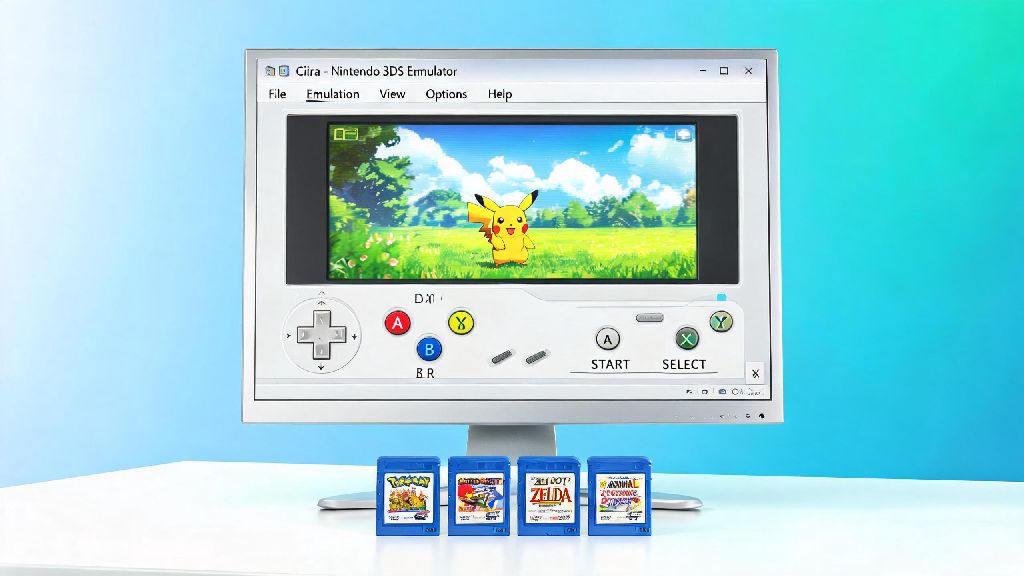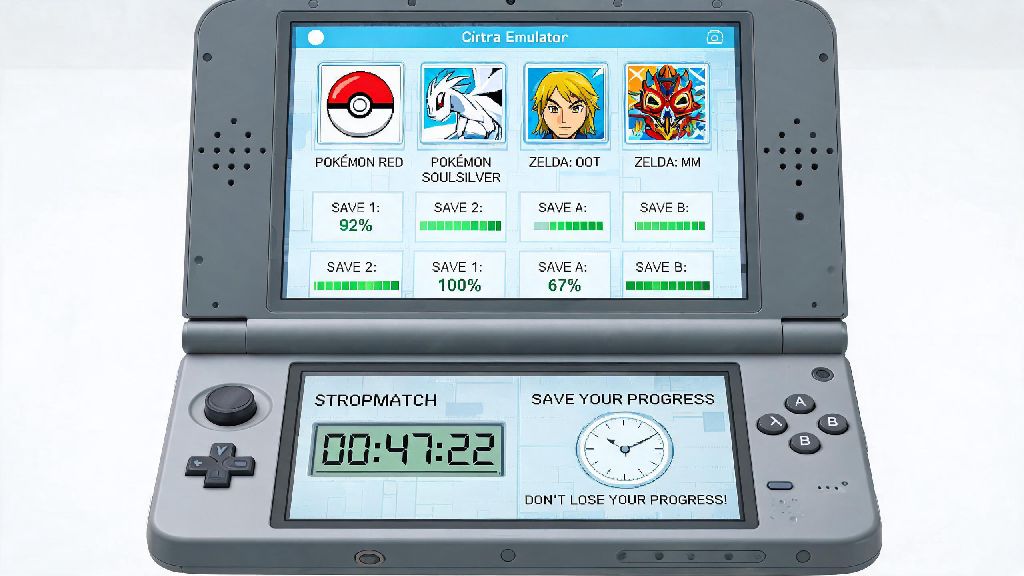
There’s no worse feeling than spending three hours hunting a shiny legendary in Pokémon Omega Ruby or beating a tough boss in The Legend of Zelda: A Link Between Worlds on Citra, only to close the emulator and realize your progress vanished. If you’re asking how to save my game in Citra emulator, you’re far from the first user to run into confusion around save systems on the platform. Citra works a little differently than a physical 3DS, and mixing up save types or skipping small best practices can lead to hours of lost work. This guide breaks down every part of the Citra save process, from standard save methods to error fixes and backup steps that work for all game types.
How to Save My Game in Citra Emulator: 2 Standard Methods That Work Every Time
Citra supports two separate save systems, and each has its own use cases, pros, and drawbacks. You don’t have to pick just one, in fact, most regular players use both to reduce the risk of lost progress. The first and most reliable method is standard in-game saving, which works exactly like it does on a physical 3DS console. When you reach a save point in your game, just select the save option from the in-game menu, and wait for the full confirmation prompt before closing the game or emulator. In-game saves are the most reliable option for long-term progress, because they are compatible with almost all Citra builds and even physical 3DS consoles.
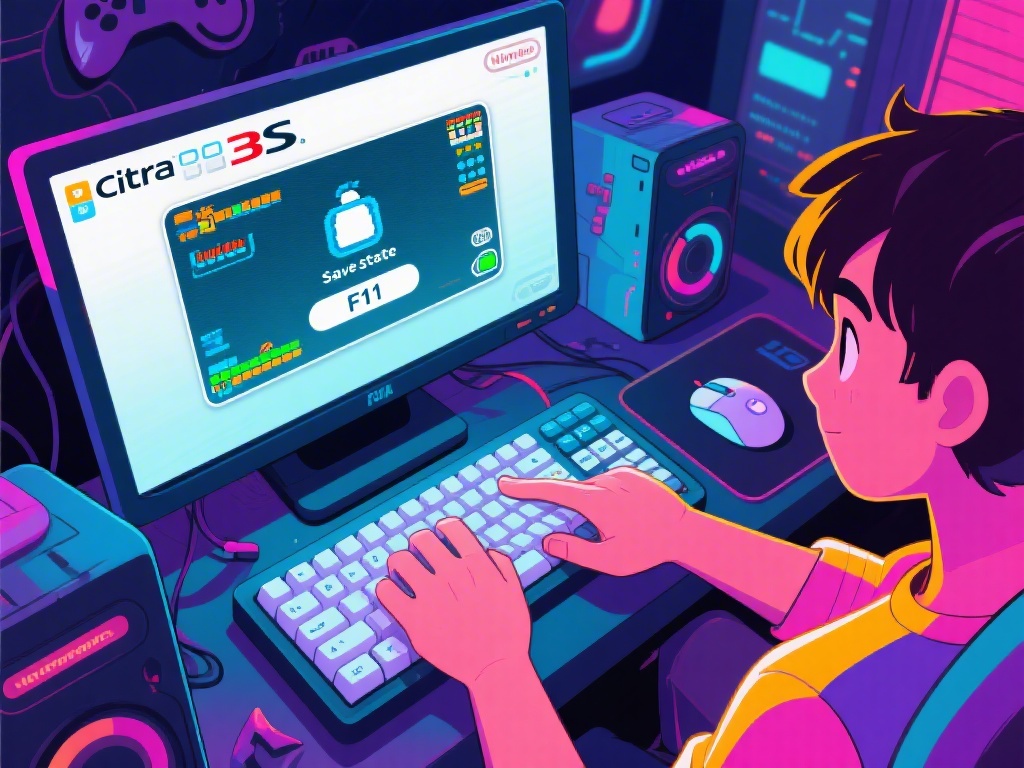
The second method is save states, a feature exclusive to emulators that lets you save your exact place in the game at any time, even if you’re mid-boss fight or walking through a route with no save points. You can access save states through the Emulation menu at the top of the Citra window, or use default keyboard shortcuts: Shift + F1 through F10 to save a state, and F1 through F10 to load it later. Save states are incredibly convenient for short-term use, but they have important limitations to keep in mind.
Save states are tied to the exact version of Citra you’re using, and the exact build of your game ROM. If you update Citra to a newer nightly or canary build, or use a different ROM file of the same game, your old save states may not load at all. Never rely solely on save states for your main progress, no matter how convenient they feel.
How to Back Up Your Citra Saves to Prevent Permanent Data Loss
Even if you follow all the save rules perfectly, unexpected issues like PC crashes, corrupted emulator updates, or accidental file deletions can wipe your saves in seconds. Regular backups take less than a minute to complete, and they eliminate almost all risk of permanent progress loss. First, you need to find where Citra stores your save files on your device. You can access the folder directly through Citra by clicking File > Open User Directory from the top menu. In that folder, in-game saves are stored in the sdmc/Nintendo 3DS/ subfolder, and save states are stored in the states/ subfolder.
If you’re using the portable version of Citra, the user directory will be in the same folder as your Citra executable. If you installed Citra through an installer, the user directory is usually in your AppData (Windows) or Library/Application Support (Mac) folder. Back up your entire user directory once every two weeks if you play Citra regularly, and store the copy on a cloud drive or external hard drive, not just your main PC storage.
You don’t need to back up every single save state if you don’t want to, but always back up your in-game save files. These files are usually very small, most are less than 1MB, so even dozens of game saves will take up barely any storage space. If you install game mods or texture packs, make an extra backup before you add any new files, because mods can sometimes alter save paths or corrupt existing save data.
Fixes for Common Citra Save Errors You Might Encounter
Even experienced Citra users run into save errors from time to time, and most are easy to fix if you know what to look for. The most common error is save states not loading after a Citra update. As we mentioned earlier, save states are tied to specific Citra builds, so this is normal. Your in-game save file is still intact, just load the game normally, use your in-game save, and make new save states on the updated Citra build. You don’t have to roll back your emulator update to get your progress back.
Another common error is the “unable to write save file” prompt that pops up when you try to save in-game. This almost always happens because your Citra user directory is stored in a restricted folder on your PC, like Program Files on Windows. The emulator doesn’t have permission to edit files in that location, so it can’t save your progress. Move your Citra user directory to a non-restricted folder like your Documents folder to fix this issue permanently, and you won’t see the error again.
If you get a “corrupted save” error when you load your game, it’s usually because you closed Citra mid-save, or your PC shut off unexpectedly while the save was writing. The only fix for this is to restore your save from a backup, which is why regular backups are so important. Always wait for the full in-game save confirmation before you close Citra, even if you’re in a hurry to shut down your PC.
How to Transfer Citra Saves Between Devices or Builds
Many Citra players play on a desktop when they’re at home, and a laptop or Android device when they’re out, and transferring saves between these devices is much easier than you might think. For in-game saves, all you need to do is copy the sdmc/Nintendo 3DS/ folder from your original device’s Citra user directory, and paste it into the user directory on your new device. These saves are universal, so they’ll work no matter what Citra build you’re using, or what operating system you’re on. You can even transfer these saves to a modded physical 3DS if you want to play your progress on original hardware.
Transferring save states is a little trickier, because they require matching Citra builds and matching ROM files. If you want to move a save state from your desktop to your laptop, make sure both devices are running the exact same version of Citra, and you’re using the exact same ROM file for the game. Even a small difference in ROM region or version will make the save state unreadable. Always test transferred saves on a copy of your game first to avoid overwriting good progress with a corrupted file.
If you’re switching from a nightly build of Citra to a canary build, or vice versa, keep in mind that these builds have separate user directories by default. You’ll need to copy your save files to both directories if you want to access your progress on both builds, or change the user directory path in the settings so both builds use the same folder.
At the end of the day, learning how to save my game in Citra emulator doesn’t have to be complicated, as long as you follow the basic rules we covered. Make in-game saves your primary progress storage, use save states for short-term convenience, back up your files regularly, and you’ll almost never run into lost progress. I’ve lost my own share of shiny Pokémon and uncompleted Zelda dungeons because I skipped backups early on, so trust me, the extra 10 seconds it takes to save in-game before closing the emulator is always worth it. You don’t have to risk losing dozens of hours of game progress with a few simple preventative steps.