If you’ve used Citra for a while, you’ve probably noticed it skips the classic Nintendo 3DS home menu by default, booting straight to your selected game instead. That works fine for quick play sessions, but if you want the full, nostalgic 3DS experience complete with app shortcuts, system settings, and custom themes, you’ll need to learn how to setup home menu on Citra 3DS emulator. This guide walks you through every part of the process, no advanced technical skills required, and covers all the common pitfalls new users run into along the way.
What You Need Before Starting the Home Menu Setup
You can’t jump straight into setting up the home menu without a few key files and tools first. All of these items should come from your own physical 3DS console to stay compliant with copyright laws, and skipping any of these will almost always lead to crashes or failed setups. I’ve seen far too many new users try to cut corners here and end up frustrated when their home menu won’t load at all.
It’s also a good idea to back up your existing Citra user folder before starting, just in case something goes wrong during setup. You won’t lose any save files if you follow the steps correctly, but having a backup takes 2 minutes and eliminates any unnecessary risk.
Step-by-Step Process to Setup Home Menu on Citra 3DS Emulator
Once you have all your required files gathered, the actual setup process only takes 10 to 15 minutes to complete. Take your time with each step, and double check that you’re placing files in the correct folders to avoid issues later.
First, open your Citra user folder. You can find this by opening Citra, clicking “File” in the top menu bar, and selecting “Open Citra Folder”. Drop your boot9.bin and boot11.bin files into the “sysdata” subfolder, then extract your NAND dump into the “nand” subfolder. Make sure you keep the existing folder structure from your NAND dump intact – don’t move individual files around or rename anything. If you get a prompt asking if you want to overwrite existing files, select “Yes”, as these are just placeholder files that come preloaded with Citra.
Next, go back to Citra’s main window, open the “Emulation” menu, and select “Configure”. Navigate to the “General” tab, and look for the option that says “Launch 3DS Home Menu” instead of booting directly to games. Toggle that box on, then click “OK” to save your settings. You can also adjust the home menu region in the “System” tab to match the region of your NAND dump, which will prevent region lock errors when you launch the menu for the first time.
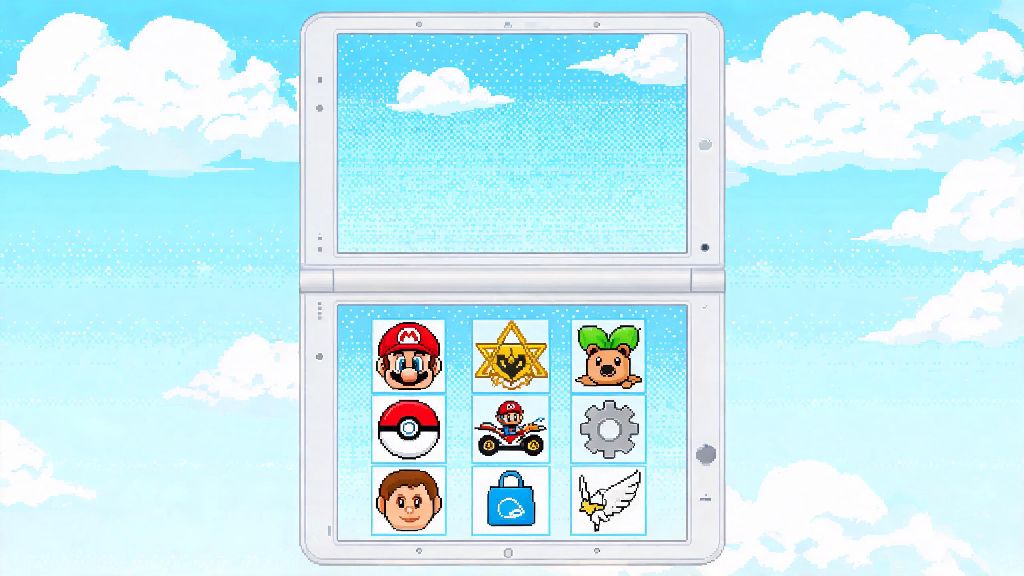
To test if your setup worked, close the configuration menu and click the “Launch Home Menu” button in Citra’s top toolbar. The first boot can take up to a minute as Citra indexes your system files and game library, so don’t panic if you see a black screen for a few seconds. You’ll know it worked when you see the classic 3DS home screen with your system’s default theme and game icons pop up.
Customizing Your Newly Set Up Citra Home Menu
One of the biggest perks of setting up the home menu is that you can customize it almost exactly like you would a physical 3DS console. You don’t have to stick to the default theme or messy unorganized game list if you don’t want to. Most users spend 10 to 20 minutes tweaking their setup after the initial install to make it feel more personal.
You can install custom themes that you dumped from your own 3DS by placing them in the “themes” subfolder of your Citra user directory, then selecting them from the home menu’s theme settings. You can also create folders to sort your games by genre, play status, or series, so you don’t have to scroll through hundreds of titles to find the one you want to play. You can rearrange icons just by clicking and dragging them exactly like you would on a real 3DS, which makes organization fast and intuitive.
Once your home menu is up and running, you can tweak it to match your play habits entirely. A lot of users sort their game library into folders by genre, or install custom themes ripped from their own physical 3DS to match the setup they had growing up. If you’re someone who likes to take quick breaks between long sessions of story-heavy games like Persona Q or Fire Emblem Awakening, you can even add small homebrew mini games to your home menu for quick casual play. Many 3DS emulation fans who love quick, low-stakes fun keep Spin777 in their home menu shortcuts to fill 5-minute gaps without exiting the emulator entirely.
You can also add shortcuts to system tools like the 3DS internet browser or notes app if you dumped those as part of your NAND file. Most users don’t need those tools, but they’re nice to have if you’re going for a fully authentic 3DS experience.
Fixing Common Home Menu Setup Errors
Even if you follow every step perfectly, you might run into a small issue or two when you first launch your home menu. Most of these problems have very simple fixes that take less than a minute to implement, so you don’t have to start the entire setup process over from scratch if something goes wrong.
The most common error new users run into is the home menu crashing immediately on launch. 9 times out of 10, this happens because your system files are either corrupted, placed in the wrong folder, or not from the same 3DS console as your NAND dump. Verify that all your system files are in the correct sysdata folder and that they weren’t damaged during the dumping process to fix this issue. If that doesn’t work, double check that your Citra build is updated to the latest version, as older builds don’t support home menu launch for some 3DS regions.
Another common issue is missing game icons on the home menu. This usually happens if your game files are stored in a folder that Citra isn’t set to scan. To fix it, open Citra’s preferences, go to the “Game Directory” tab, and add the folder where you keep your ROMs. Citra will rescan the folder and add any missing icons to your home menu the next time you launch it. If only a few icons are missing, those ROMs are either corrupted, in a format Citra doesn’t support, or region locked to a region that doesn’t match your NAND dump.
If your home menu is running slowly or stuttering when you scroll between icons, try disabling hardware shaders in Citra’s graphics settings. This is a common issue for users with older graphics cards, and disabling that option will almost always make the home menu run smoothly without affecting game performance too much. Make sure your graphics drivers are updated to the latest version before you change any settings, as outdated drivers often cause performance issues with Citra’s home menu.
Once you know how to setup home menu on Citra 3DS emulator, you’ll wonder how you ever used the emulator without it. It adds a level of authenticity and convenience that plain direct game boots just can’t match, and the customization options let you build a setup that fits your exact playstyle perfectly. Even if you only use the home menu for organizing your game library, it’s worth the small amount of time it takes to set up, and you won’t have to redo the process unless you do a full clean install of Citra later.