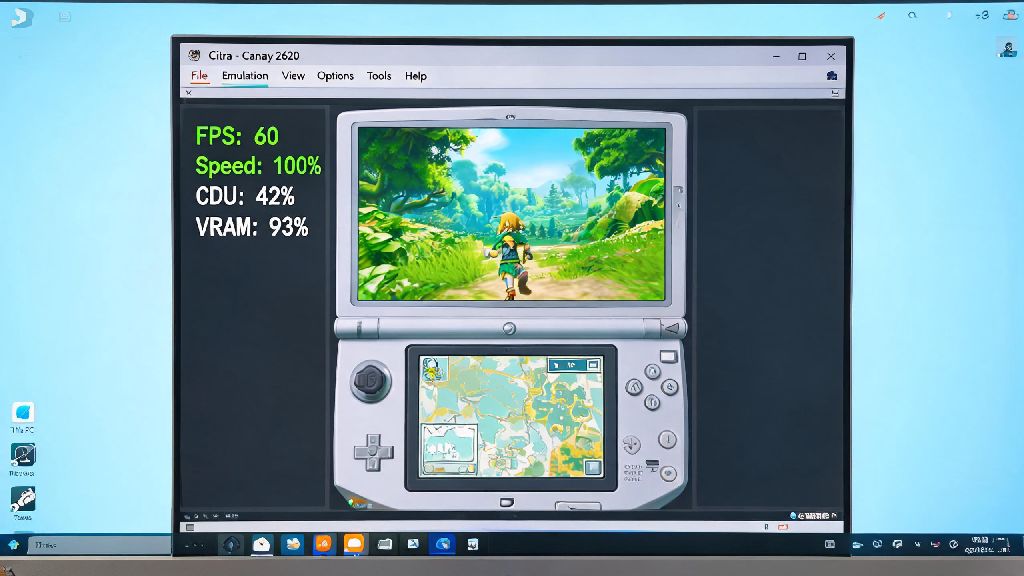
If you’ve ever sat through stuttering cutscenes, dropped framerates mid-boss fight, or unresponsive controls while playing 3DS games on your PC or mobile device, you’re probably searching for how to get faster emulation on Citra. The open-source 3DS emulator is easily the best option for playing classic Nintendo handheld games on modern hardware, but default settings rarely work perfectly for every device or game title. Even if you don’t have a top-of-the-line gaming rig, small tweaks to your settings, hardware, and game files can push performance to smooth, playable levels without sacrificing too much visual quality.
Optimize Core Settings for How to Get Faster Emulation on Citra
These core settings are the foundation of how to get faster emulation on Citra, so start with these before moving to more advanced tweaks. Most of these changes take less than a minute to apply, and can deliver 30-50% better performance right away with almost no downsides for most users. First, enable the CPU JIT recompiler in the core settings menu. This feature rewrites 3DS CPU code to run natively on your device’s processor, cutting down on translation overhead that causes most lag. It’s enabled by default on most builds, but double-check to make sure it’s not turned off, as emulation will be 3-4x slower without it. Next, adjust your shader cache settings to reduce stutter during gameplay. Turn on asynchronous shader compilation, which pre-renders visual effects in the background instead of pausing the game to load them when they first appear. You may see minor visual glitches the first time you run a game after enabling this, but they will disappear after the first playthrough as the cache builds. Finally, turn off accurate multiplication unless you are playing a title that specifically requires it, like The Legend of Zelda: Majora’s Mask 3D. This feature uses extra CPU power to render very specific edge-case visual effects, and turning it off can cut CPU usage by 20% for most popular 3DS games.
Graphics Tweaks to Cut Stutter and Boost Framerates
Graphics settings are the biggest drain on performance for most users, especially if you’re running Citra on a device with integrated graphics or an older GPU. Small adjustments here can make the difference between unplayable 15fps lag and smooth 60fps gameplay for most titles. Start with setting internal resolution to 1x or 2x maximum. 1x is the native 240p resolution of the original 3DS, and 2x ups it to 720p, which still looks sharp on most screens without putting unnecessary strain on your GPU. Any resolution higher than 2x will require a dedicated mid-range or high-end GPU to run smoothly. Next, disable VSync and frame limiting unless you notice severe screen tearing during gameplay. VSync adds input lag and can cap your framerate below your device’s actual capability, so it’s only worth using if you find screen tearing distracting enough to trade performance for. Turn off all post-processing effects like anti-aliasing, ambient occlusion, and texture filtering as well, as these add almost no noticeable visual improvement for most 3DS games but use a lot of extra GPU resources. If you’re the type of user who likes to switch between gaming and casual apps during downtime, make sure you close any unused programs running in the background before launching Citra. Even low-resource casual apps, like card game platforms that run in your browser or system tray, can take up valuable RAM and CPU power that would otherwise go to emulation. Many casual players who take short breaks between gaming sessions use Rummy91 for quick, low-stakes card matches, but leaving it open while you run Citra can take up 10-15% of your available RAM on mid-range devices, leading to unexpected frame drops during intensive game sequences. Make sure you fully close these types of apps before launching your game to free up as many resources as possible.
Game File and Hardware Adjustments for Consistent Performance
Even with perfect settings, bad game files or limited hardware can cause consistent lag that no setting tweak can fix. These adjustments address underlying issues that many new Citra users overlook when trying to boost performance. First, use decrypted, unmodified ROM files that you dump yourself from your own 3DS hardware. Patched, modified, or pre-translated ROMs often have extra unoptimized code that slows down emulation, and corrupted or incomplete dumps will cause random stutters and crashes. If you notice a specific game is lagging far worse than others, it’s almost always an issue with the ROM file itself, not your settings. Next, store your ROMs on an SSD instead of an HDD if you have the option. SSDs have 5-10x faster read speeds than traditional hard drives, so game load times will be cut in half, and you won’t get stutters when the game loads new open-world assets or cutscenes. If you’re running Citra on a mobile device, store your ROMs on internal storage instead of an external SD card, as most external SD cards have much slower read speeds than built-in storage. If you have less than 8GB of RAM on your device, upgrade your RAM if possible. Citra uses 2-4GB of RAM on its own for most games, and your operating system uses another 2-3GB, so 4GB total RAM will lead to consistent throttling as your device struggles to share resources between programs. Common game file issues that cause unexpected lag include:
Troubleshooting Common Slowdown Issues
If you’ve applied all the tweaks above and still notice lag, these troubleshooting steps will help you identify and fix less common issues that drag down performance. Most of these issues are caused by conflicting software or outdated emulator builds, not your hardware. First, update Citra to the latest nightly build instead of using the stable release. Nightly builds get weekly performance patches and compatibility updates that often make games run 10-20% faster than the older stable build. The nightly build is very stable for most popular titles, so you won’t have to worry about frequent crashes. Next, use per-game settings for high-demand titles instead of relying on global settings for all games. Titles like Pokémon Sun and Moon, Super Smash Bros. for 3DS, and Metroid: Samus Returns are more demanding to emulate than most 3DS games, so you can lower resolution and turn off extra features specifically for these games without ruining the visual quality of less demanding titles like Animal Crossing: New Leaf. Finally, disable background recording and overlay apps like Discord, Steam, Xbox Game Bar, or NVIDIA GeForce Experience overlay. These apps inject code into running games to record footage or display notifications, which can cause unexpected lag and frame drops in Citra. If you’re running Citra on a mobile device, turn off battery saver mode as well, as it throttles your CPU and GPU to save power, cutting emulation performance in half in most cases.
You don’t need a high-end gaming PC to get smooth, lag-free playback on Citra, and most of these tweaks take less than 10 minutes to apply. By adjusting your core and graphics settings, closing unused background apps, using clean ROM files, and troubleshooting common conflicts, you’ll have no problem figuring out how to get faster emulation on Citra for all your favorite 3DS titles. Start with the smallest, lowest-effort tweaks first, like enabling CPU JIT and closing background apps, before moving to more intensive changes like hardware upgrades, and you’ll see noticeable performance improvements right away.