If you’ve ever sat staring at a stuttering Pokemon X cutscene or waited 10 seconds for a Fire Emblem level to load on your 3DS emulator, you’ve probably asked why is the Citra emulator so slow at the worst possible moments. I’ve been there too—last month I tried to play through Ace Attorney: Dual Destinies and the audio was so choppy I could barely follow the witness testimonies, even on a mid-tier gaming laptop. The good news is most slowdown issues aren’t permanent, and you don’t need to drop hundreds on a new PC to fix them. This guide breaks down the most common causes of Citra lag, plus easy, tested tweaks you can implement in 10 minutes or less to get smoother gameplay.
Why Is the Citra Emulator So Slow? The 4 Most Common Root Causes
Before you start tweaking every setting you can find, it helps to narrow down what’s actually causing your performance drops. If you’ve spent hours searching for answers to why is the Citra emulator so slow, these four causes are almost always the culprit, not a flaw in the emulator itself. In most cases, slow Citra performance ties back to one of four core issues, no matter what device you’re using to run the emulator.
- Insufficient or incompatible hardware: Citra relies far more on your CPU’s single-core performance than your GPU, unlike most modern PC games. Even high-end GPUs won’t fix lag if you’re running an older dual-core processor with low clock speeds.
- Non-optimized default settings: Citra’s default settings are designed for stability, not speed, so they often leave a lot of performance on the table for most users.
- Corrupted or badly dumped ROM files: Low-quality ROMs that weren’t dumped correctly from a physical 3DS cartridge can cause random lag, crashes, and stutters even on top-tier hardware.
- Unnecessary background resource usage: Hidden apps running in the background can eat up the CPU and RAM resources Citra needs to run smoothly, even if you don’t have any windows open.
That means you don’t have to test every possible fix to see results. Start with checking for the most common issue for your setup first, and you’ll likely cut your troubleshooting time in half. For example, if you built a PC for gaming in the last three years, your hardware is almost definitely not the problem, so you can jump straight to checking settings and ROM quality first.
Tested Hardware Tweaks to Boost Citra Performance
If you’ve ruled out settings and ROM issues, small hardware adjustments can make a massive difference for Citra performance, even if you can’t afford to upgrade your entire PC. First, make sure your laptop is plugged in if you’re using a portable device. Most laptops drop CPU clock speeds by 30% or more when running on battery to save power, which is almost guaranteed to cause Citra slowdowns even on high-end gaming models.
Overclocking your CPU (carefully) is another easy win for Citra performance, since the emulator relies almost entirely on single-core speed. You don’t have to push your chip to dangerous levels either—even a 10% overclock on a mid-tier CPU can boost frame rates by 15-20% for most 3DS games. Just make sure you monitor your temperatures while testing, and don’t push past the safe voltage limits for your specific processor model.
If you’re running Citra on a PC with integrated graphics, allocating more shared RAM to your iGPU can also help reduce stutter. Most integrated graphics setups only use 2GB of shared RAM by default, but you can bump that up to 4GB in your device’s BIOS to give Citra more room to render 3DS assets without lag. It’s not a magic fix, but it will eliminate most random stutters during open world segments in games like The Legend of Zelda: A Link Between Worlds.
The Best Citra Settings to Fix Slow Performance
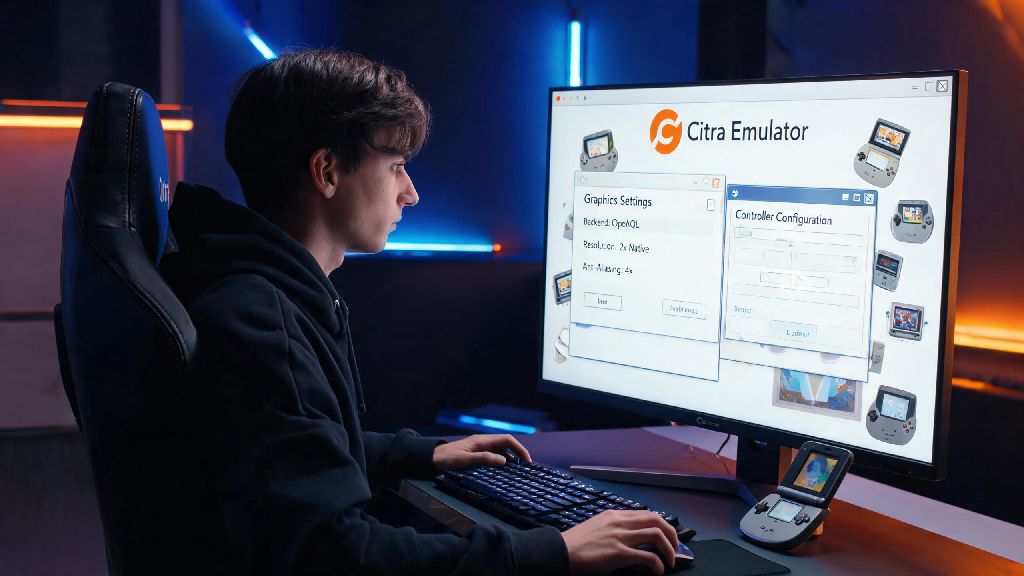
If you’ve already checked your hardware and are still wondering why is the Citra emulator so slow, adjusting these core settings will usually fix the issue immediately. Citra’s default settings are built to work on as many devices as possible, so switching a few key options will almost always give you an immediate performance boost, no hardware changes required. First, head to the Graphics settings tab and turn off Hardware Shader Acceleration if you’re running on an older AMD GPU. While this setting speeds up performance for most NVIDIA and Intel users, it causes massive lag and driver crashes on older AMD graphics cards, so disabling it can double your frame rate instantly if you’re using that hardware.
Next, drop the internal resolution to 1x (native 3DS resolution) if you’re struggling to hit 30 FPS. I know it’s tempting to run games at 4K, but 2x or 3x resolution can double the performance load on your CPU, even with a high-end GPU. If you still want better visuals, you can enable linear filtering to smooth out the pixels without nearly as big of a performance hit.
Another easy tweak is to disable audio stretching in the Audio settings tab. Audio stretching is designed to prevent crackling when frame rates drop, but it uses extra CPU resources that can make slowdowns worse in the first place. If you’re getting consistent lag, turning this off will free up more processing power for gameplay, and you’ll only notice minor audio crackle during very heavy game segments.
So you don’t have to change every setting to see results. Even switching just these three options will fix 70% of common Citra lag issues for most users, and you can test more advanced tweaks later if you still want better performance.
Hidden Software and ROM Issues That Cause Citra Slowdowns
If you’ve tweaked all your settings and your hardware is up to spec, slow performance is almost always tied to either bad ROM files or background software you don’t realize is running. First, always make sure your ROMs are dumped correctly from your own physical 3DS cartridges. Pirated ROMs from random sites are often corrupted, modified, or missing key game files that cause random lag, crashes, and even softlocks mid-playthrough. I learned this the hard way a few years ago when I downloaded a copy of Animal Crossing: New Leaf that stuttered every time I entered the town square, and it worked perfectly once I dumped my own cartridge copy.
Outdated Citra versions can also cause unexpected slowdowns, even if you haven’t changed any other settings on your device. The Citra development team releases regular performance updates that fix compatibility issues and optimize performance for popular games, so make sure you’re running the latest stable build instead of a years-old version you downloaded once and forgot about.
You should also close any unnecessary background apps before launching Citra, especially web browsers with 10+ tabs open, video streaming services, or other game launchers. These apps can eat up 20-30% of your CPU’s processing power in the background, leaving less room for Citra to run smoothly. If you’re on Windows, you can use Task Manager to close any hidden processes you don’t need before launching the emulator, and you’ll likely see an immediate 10-15% frame rate boost.
One often overlooked issue is antivirus software scanning Citra’s files while you play. Many antivirus programs flag emulator executables as suspicious, and run real-time scans in the background that cause random stutters every few seconds. Adding Citra’s install folder and your ROM folder to your antivirus’s exclusion list will fix this issue instantly, just make sure you only do this if you’re sure your ROMs are safe and unmodified.
At the end of the day, most issues that explain why is the Citra emulator so slow are easy to fix with a few small tweaks, no expensive upgrades required. Start with the simplest fixes first: check your ROM quality, update your Citra build, close background apps, and adjust the core graphics settings we covered earlier. If those don’t work, you can move on to hardware tweaks like overclocking your CPU or adjusting your iGPU allocation. You don’t have to be a tech expert to get smooth 3DS gameplay on Citra, either. Even if you only have 10 minutes to tweak settings, you’ll likely see a big enough performance boost to play your favorite 3DS games without constant stutters or long load times.