If you’ve ever wanted to revisit classic 3DS titles like Animal Crossing: New Leaf or Pokémon X/Y without digging out your old dust-covered handheld, you’re not alone. I’ve spent years testing different console emulators, and few are as polished and accessible as this open-source option. This guide breaks down how to use the citra 3ds emulator from first download to running your first game with no technical headaches. You don’t need advanced coding skills to get set up, just a bit of patience and hardware that meets minimum performance requirements.
How to Use the Citra 3DS Emulator: Initial Setup Walkthrough
First, you’ll need to download the correct build for your device. Citra has official builds for Windows, Mac, Linux, and Android, with iOS builds available via third-party trusted sources for jailbroken or sideload-enabled devices. Only download Citra from the official development site or verified app repositories to avoid malware or adware-ridden fake builds. I made the mistake of grabbing a random build from a random forum my first time trying it, and it took me an hour to remove the unwanted software that came with it, so don’t skip that step.
Before installing, double check that your device meets the minimum specs: 4GB of RAM, a GPU that supports OpenGL 3.3 or higher, and for Android users, Android 8.0 or later. You can run Citra on lower-spec hardware, but you’ll likely experience lag or crashes with more graphically intensive games. Once installed, launch the app for the first time. You’ll be prompted to select your preferred language, and choose a default folder for Citra to store save files, shader caches, and other data. Pick a folder with plenty of free space, as shader caches for large game libraries can take up several gigabytes of storage over time.
Optimized Settings to Boost Game Performance
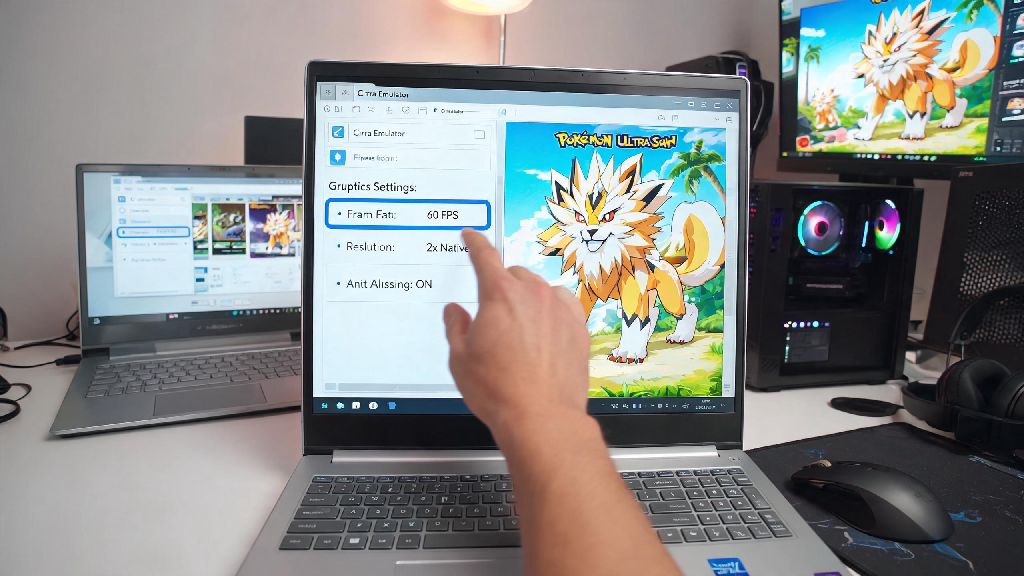
Citra’s default settings work fine for most basic use cases, but a few quick tweaks can make a huge difference in frame rate and visual quality, even on mid-range hardware. Enable asynchronous shader compilation first to eliminate the stutter that often happens when loading new in-game assets for the first time. This feature pre-compiles shaders in the background, so you won’t get those annoying freezes mid-gameplay when you enter a new area or trigger a cutscene.
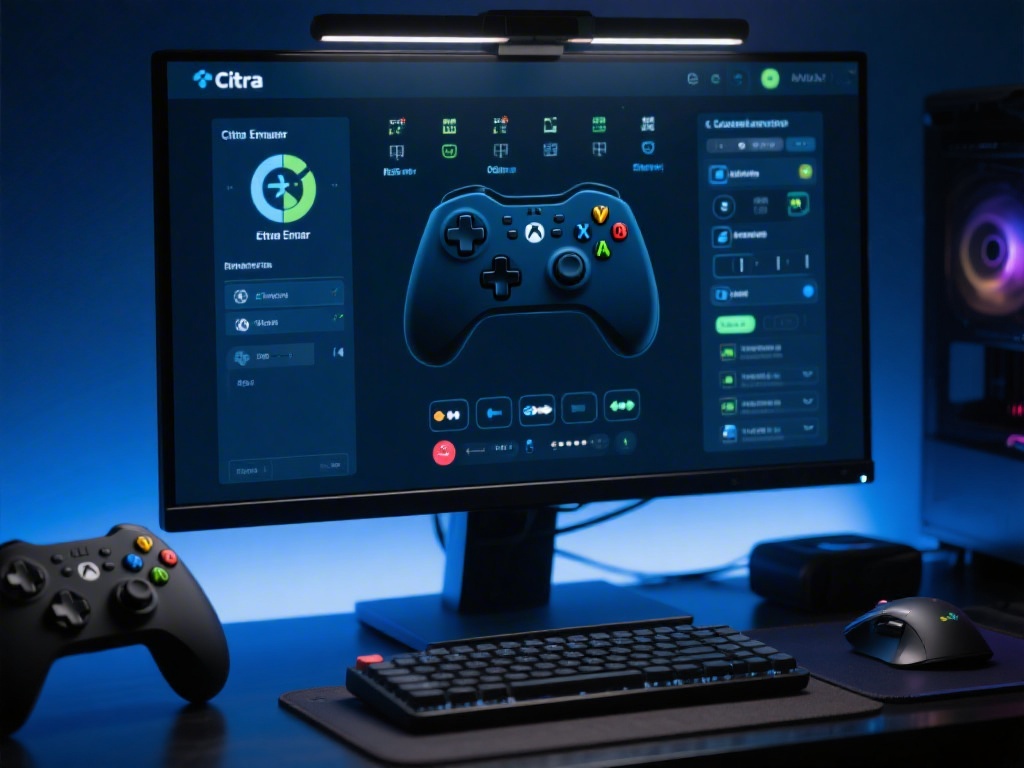
You can adjust your resolution scale based on your GPU power. If you have a mid to high-end PC, set the scale to 2x or 3x to run games at 1080p or higher, which looks far sharper than the 3DS’s native 240p display. If you’re on a low-end laptop or old Android phone, stick to 1x native resolution to avoid frame drops. For controls, you can map keyboard keys, connect an Xbox or PlayStation controller, or use touch controls on mobile devices. I prefer using a DualShock 4 controller, as the layout matches the 3DS button placement almost perfectly.
There are a few other small settings changes you can make to get the best experience:
- Turn off VSync if you experience screen tearing on high-refresh rate monitors
- Enable disk shader cache to reduce load times on repeated game launches
- Set audio stretching to “low” only if you notice audio desync during cutscenes
- Disable 3D depth slider entirely if you don’t use the 3DS’s stereoscopic 3D feature
You don’t need to enable every advanced performance feature if you’re running on a low-end device. Start with default settings and tweak one option at a time, testing a game for 10 to 15 minutes after each change to see how it impacts performance. That way you’ll know exactly which setting is causing issues if something stops working correctly.
How to Load and Manage Your Game Library on Citra
Before you load any games, there’s one critical rule to follow: you should only dump ROMs from 3DS cartridges or digital purchases you physically own. Downloading ROMs for games you don’t own is piracy, and it violates copyright law in most regions. Dumping your own games is fairly simple if you have a modded 3DS, and there are step-by-step guides available to walk you through the process. Citra supports .3ds, .cia, and .cxi file formats, so make sure your dumped games are saved in one of these supported types.
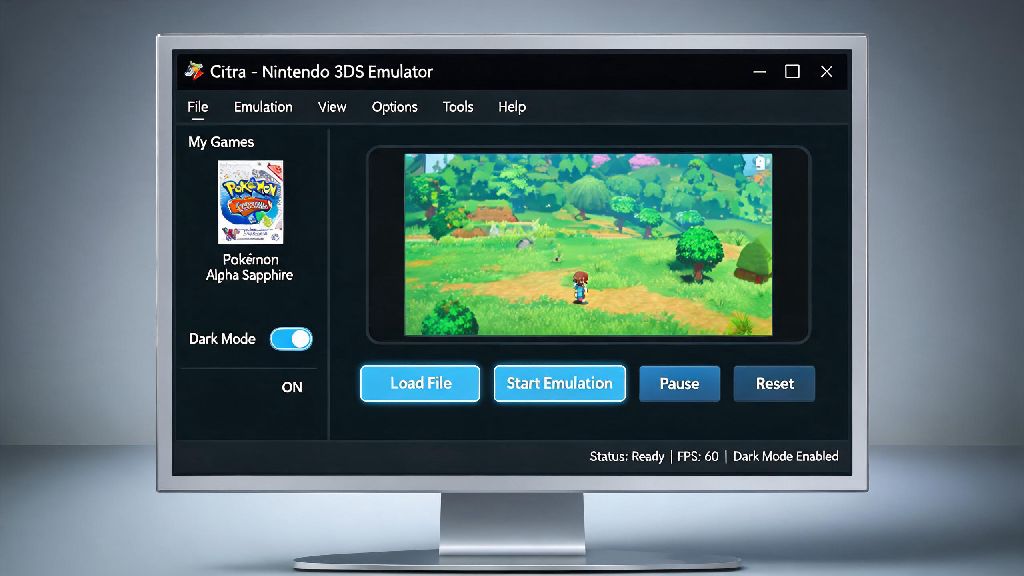
To add your games to Citra, go to the File menu and select “Add Game Directory”, then select the folder where you store your dumped ROMs. All of your games will populate in the main Citra menu automatically, and you can enable the built-in metadata scraper to pull in cover art, game descriptions, and release dates for a more polished library view. You can also sort games by name, release date, or play time to keep your library organized as you add more titles.
Citra stores save files in a separate folder from your game ROMs, so you don’t have to worry about losing your progress if you delete or move a game file. You can even transfer save files from your physical 3DS to Citra, or vice versa, if you want to pick up your progress where you left off on your handheld. You can also install dumped DLC and game updates the same way you load regular ROMs, to access all the extra content you own for your favorite games.
Common Citra Issues and Quick Fixes
Even with the right setup, you might run into occasional issues when using Citra, most of which have simple fixes. The most common problem new users run into is games crashing on launch. This is almost always caused by out-of-date GPU drivers, a corrupted ROM dump, or missing system files. First, update your graphics drivers to the latest version, then verify that your ROM dump is not corrupted by re-dumping it from your 3DS if needed.
If you’re getting consistently low frame rates, try closing any background apps that use your GPU, like video editing software or other games running in the background. Lower your resolution scale to 1x, and disable texture filtering and post-processing effects to free up more resources for gameplay. For Android users, enabling frame skip set to 1 can help on mid-range phones, but don’t set it higher than 1 or you’ll get very choppy, unplayable gameplay.
Another common issue is the “missing system archive” error that pops up when trying to launch some games. This happens when you don’t have the shared 3DS system files dumped from your physical device. You can fix this by dumping the system files from your own 3DS and adding them to Citra’s system folder. If a specific game still won’t run, check the official Citra game compatibility list to see if it’s supported. A small number of 3DS titles have known bugs that are still being fixed by the development team, so you may have to wait for a future update to play those games.
Once you get the hang of the basics, you’ll find that tweaking settings and exploring all of Citra’s features is half the fun. I still regularly fire up the emulator to play old 3DS RPGs on my lunch break, and the experience is almost always better than playing on the original handheld thanks to higher resolution and custom control options. Whether you’re a long-time 3DS fan or new to the console’s library, taking the time to learn how to use the citra 3ds emulator opens up a huge library of classic games you can play anywhere, no old handheld required. Just remember to stick to legal ROM dumps and adjust settings based on your hardware for the best possible experience.