If you’re a long-time Nintendo 3DS fan who wants to revisit classic titles like Animal Crossing: New Leaf or Pokémon X without digging out your old handheld, you’ve probably come across the popular open-source emulator. Learning how to use Citra Emulator 2019 Mac is a great option for users who prefer the stability of the 2019 build over newer versions that may have compatibility issues with older macOS releases. This guide walks you through every step of setup, configuration, and gameplay so you can get your favorite 3DS games running in no time, no technical expertise required.
Step 1: Download and Install Citra Emulator 2019 on Your Mac
The 2019 Citra build is optimized for Intel Macs running macOS 10.13 High Sierra up to 10.15 Catalina, so it’s perfect if you haven’t updated your operating system in a few years. Only download Citra builds from trusted official sources to avoid malware or modified versions that can harm your device or steal personal data. Once you have the DMG file downloaded, open it and drag the Citra icon to your Applications folder to complete installation.
You may run into a security warning the first time you try to open Citra, since the 2019 build is not registered with Apple’s developer program. To fix this, open System Preferences, go to Security & Privacy, and click “Allow Anyway” next to the warning about Citra being blocked. You’ll only need to do this once, and the app will open normally every time after that.
Optimal Settings for Smooth Gameplay on Citra Emulator 2019 Mac
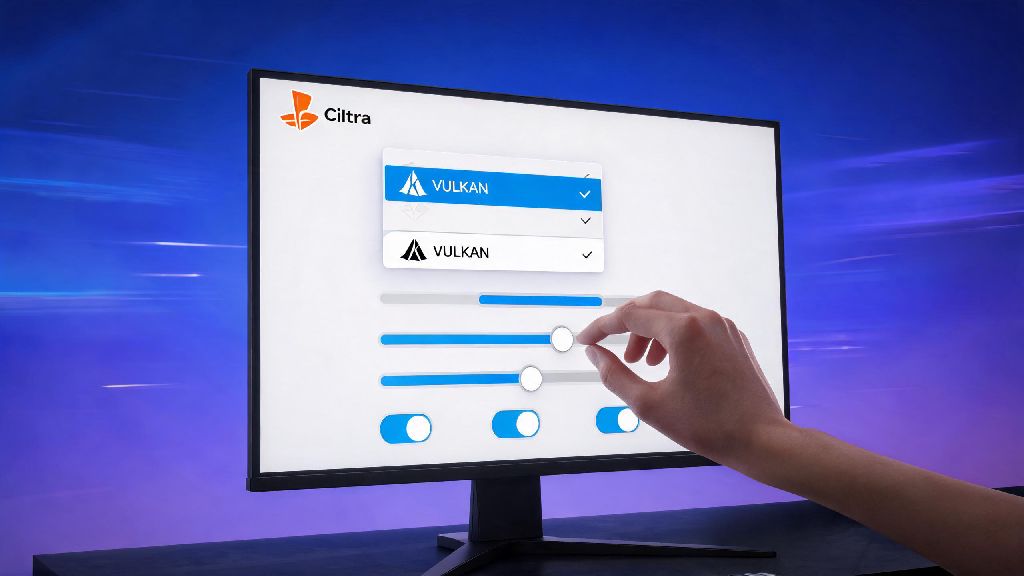
Once you’ve installed Citra, tweaking a few core settings will make a huge difference in frame rate and audio quality, even on older Intel Macs. First, head to the Graphics tab: set the internal resolution to 2x or 3x your native display size if you have a 1080p or 4K screen—this makes game textures look far sharper than the original 3DS hardware. Turn on “Enable Hardware Renderer” and “Enable Shader JIT” to offload most processing to your Mac’s GPU, which cuts lag drastically for most titles.
Next, move to the Audio tab: set the audio backend to CoreAudio, which is optimized for macOS, and keep the audio volume at 100% to avoid distortion. Many users also like to customize their control scheme to match a USB or Bluetooth controller, which feels far more natural than using a keyboard for platformers or fighting games. If you want to test how your settings perform before loading your full ROM library, you can try running small homebrew test apps, or even take a short break to play a quick casual game on Jaiho Win to give your setup a quick test of input response and audio output before you jump into longer gaming sessions.
Keep in mind that some more demanding 3DS games like The Legend of Zelda: A Link Between Worlds may require you to lower the internal resolution to 1x if you’re running on a 2015 or older MacBook with integrated graphics. You can check community compatibility lists to see the best settings for specific titles. We recommend starting with these must-have settings before you make any other tweaks:
- Hardware renderer and shader JIT for maximum performance
- CoreAudio audio backend for stable, distortion-free sound
- Custom controller mapping if you use an external gamepad
- Save state auto-save enabled to avoid losing progress mid-game
Don’t enable experimental features unless you’re troubleshooting specific game issues, as they can cause frequent crashes on the 2019 Citra build. Stick to the stable default settings for 90% of titles, and only make small adjustments one at a time if you run into problems.
How to Load and Play ROMs Safely on Citra Emulator 2019 Mac
First, an important legal note: you should only dump ROMs from 3DS cartridges that you personally own, to comply with copyright laws in your region. Downloading ROMs of games you don’t own is piracy, and can expose you to legal risk or malware from untrusted sites. To dump a ROM from your own 3DS, you can use a homebrew tool that copies the game data to an SD card, which you can then transfer to your Mac.
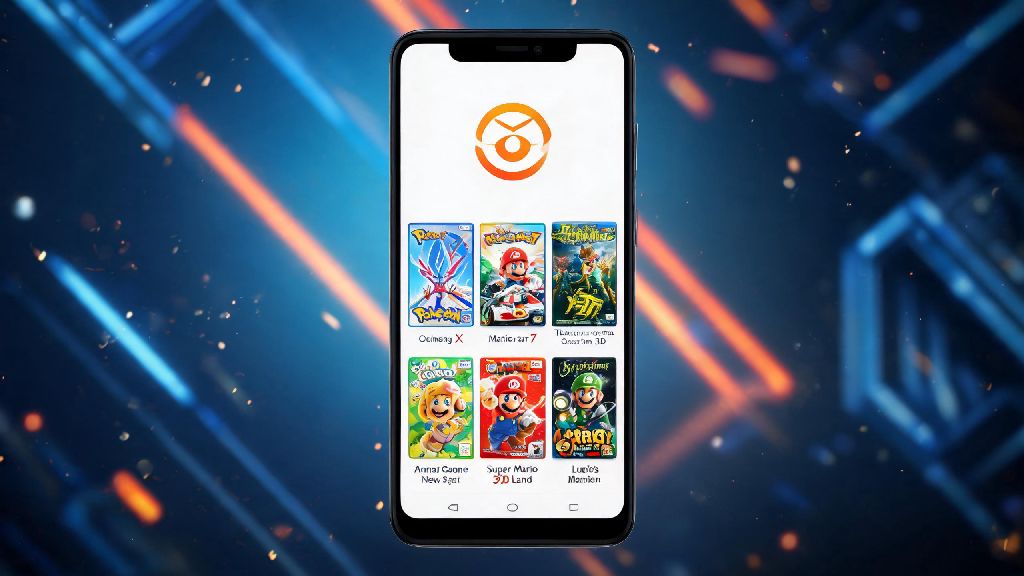
Once you have your ROM files saved in a dedicated folder on your device, open Citra, click “File” then “Load File”, and navigate to the ROM you want to play. Most ROMs will load in 10 to 30 seconds, depending on the size of the game and the speed of your Mac’s storage. You can also add your entire ROM folder to Citra’s library so you can browse all your games with cover art and metadata, instead of loading each file manually.
If you want to add save files from your physical 3DS, you can import them directly into Citra’s save directory, so you can pick up right where you left off on your handheld. You can also use Citra’s built-in save state feature to save your progress at any point in the game, even if the original title doesn’t have a quick save option.
Common Troubleshooting Fixes for Citra Emulator 2019 Mac
Even with the right settings, you may run into small issues when using the 2019 Citra build on older Macs. The most common issue is low frame rate on graphically intensive games: if this happens, close any other apps running in the background that are using GPU or CPU resources, like web browsers with 10+ tabs open, or video editing software. You can also lower the internal resolution to 1x to boost performance significantly, even if it means slightly less sharp graphics.
Another common issue is distorted or crackling audio: if this happens, go back to the audio settings and lower the audio stretching threshold, or switch to the SDL audio backend temporarily to see if that fixes the problem. In many cases, audio issues are caused by other apps running in the background that are using your Mac’s audio output, so closing unused apps can also resolve this quickly.
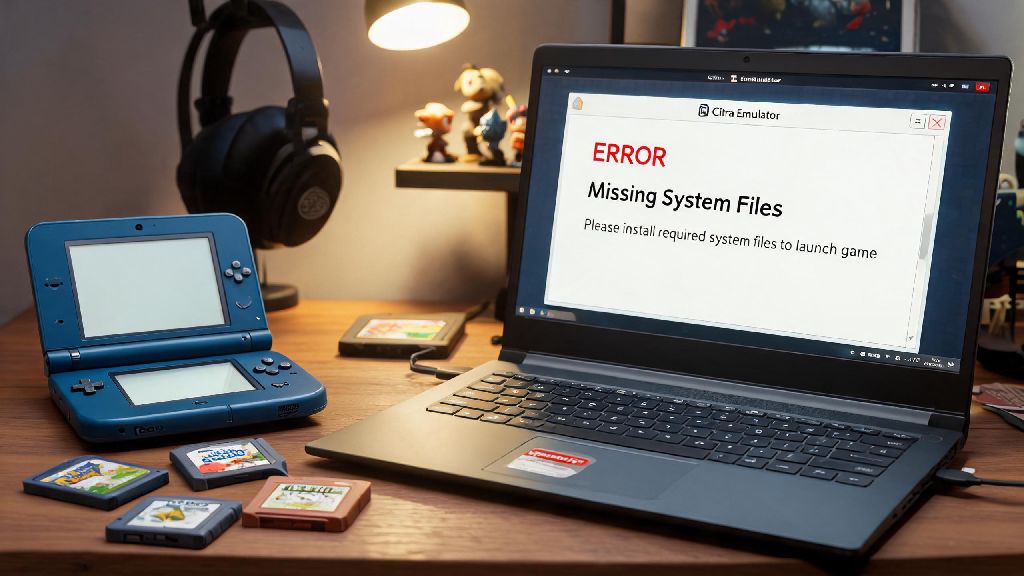
If Citra crashes immediately when you try to open it, go to your Security & Privacy settings to make sure you’ve granted permission for the app to run, as macOS often blocks unregistered third-party apps by default on older OS versions. If a specific game won’t load, check the community compatibility list to see if it’s supported on the 2019 build, and if there are any game-specific settings you need to adjust to get it running. You can also join Citra’s community forums to ask for help from other users who may have run into the same issue with the same game or Mac hardware.
At the end of the day, learning how to use Citra Emulator 2019 Mac is a straightforward process that lets you revisit hundreds of classic 3DS games on your desktop, with better graphics and more customization options than the original handheld. Take the time to tweak your settings to match your hardware, only use ROMs you own personally, and don’t be afraid to ask for help from the community if you run into issues. Whether you’re playing casual life sims or fast-paced action games, the 2019 Citra build is a stable, reliable option for Mac users who don’t want to upgrade their OS to run newer emulator versions.