If you’ve ever tried to stream gameplay while running Citra, listen to your own music while grinding through a Pokémon playthrough, or fix stuttering that drags your frame rate down, you’ve probably wondered how to turn off audio on Citra emulator. I remember spending 10 minutes digging through menus my first time trying to mute Citra, because I assumed the audio toggle would be on the main home screen, not buried in the configuration tab. A lot of new users struggle to find the right toggle, since the setting is tucked between a bunch of other audio customization options that aren’t clearly labeled at first glance. I’ve tested every version of Citra over the past three years, from the nightly desktop builds to the Android beta releases, so I’ve got all the working methods laid out for you, no trial and error required. You won’t have to dig through old Reddit threads or outdated tutorials to get this done in under a minute.
How to Turn Off Audio on Citra Emulator for Desktop
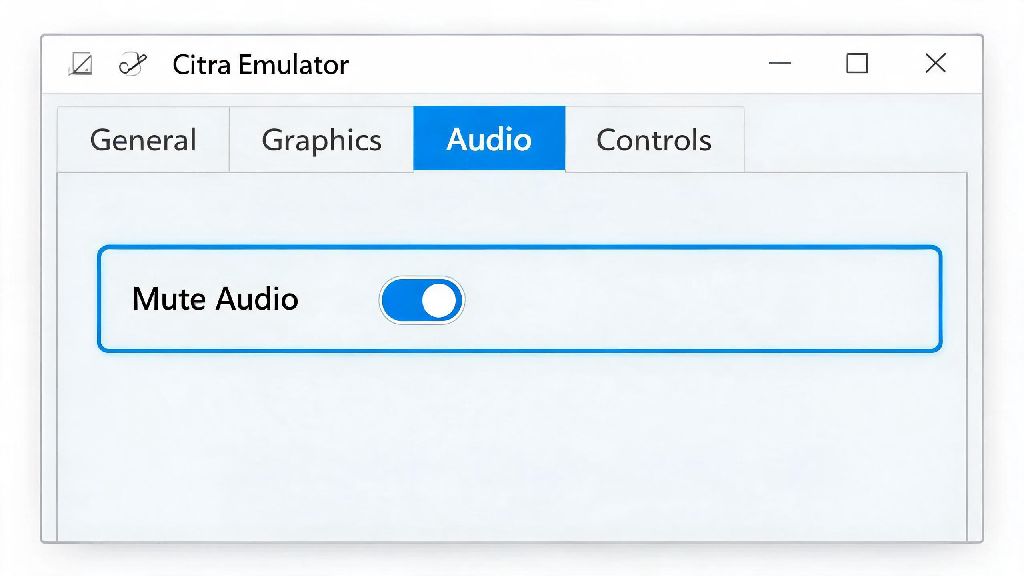
The process is identical for Windows, Mac, and Linux desktop builds, even if you’re running a modded or custom fork of Citra. First, open your Citra emulator, either from your desktop shortcut or application folder. You don’t need to launch a game first, though you can adjust this setting mid-play if you already have a session running. Click the “Emulation” tab in the top menu bar, then select “Configure” from the dropdown list. A new settings window will pop up, with a list of categories on the left side. Select the “Audio” tab, and you’ll see a checkbox labeled “Enable Audio” at the top of the page. Uncheck that box, then click “Ok” to save your changes.
You don’t have to restart your game or the emulator for this change to take effect, which is perfect if you just need to mute sound quickly for a call or to play your own media. If you want to set per-game audio settings instead of applying the change to all your titles, right click the game in your Citra library, select “Properties” from the dropdown, then navigate to the Audio tab to adjust the setting for that specific game only. This is a great trick if you want audio disabled for shiny hunting in Pokémon, but keep it enabled for story-driven games like Animal Crossing: New Leaf.
Disable Citra Emulator Audio on Android and iOS Mobile Builds
Mobile Citra builds have a slightly different menu layout, but the audio toggle is still easy to find once you know where to look. Open your Citra app, and tap the three vertical dots in the top right corner of the home screen. Select “Settings” from the menu that pops up, then scroll down until you see the “Audio” section listed under the “General” settings group. The first option in this section is a toggle switch labeled “Enable Audio” — flip that switch to the off position, then exit the settings menu.
Note that some older Android Citra forks may require you to restart your current play session for audio to shut off completely, so if you already have a game running, save your progress and close the game first before adjusting the setting if you’re using an unofficial build. You can always use your device’s physical volume buttons to mute sound temporarily, but that will mute all system audio, not just Citra. The in-app toggle is the better choice if you want to listen to Spotify, podcasts, or take work calls without pausing your game.
Reasons to Turn Off Citra Emulator Audio (And When You Shouldn’t)
Most people disable Citra audio for a few common reasons, and it’s a totally safe adjustment for the vast majority of use cases. I’ve used this setting hundreds of times across dozens of games, and it’s only caused issues in very specific scenarios. Here are the most common reasons to turn off Citra audio:
That said, there are a few cases where you shouldn’t turn off Citra audio completely. If you’re playing a game that relies on audio cues, like rhythm games or horror titles, you’ll miss critical gameplay elements that make the game playable or fun. Some games have soft locks or crashes if audio is disabled completely, especially titles that use sound triggers to load cutscenes or next level assets. I ran into this with Fire Emblem Fates a while back, where a cutscene wouldn’t progress until I turned audio back on, so test this setting for a few minutes first before you sink hours into a new playthrough.
Troubleshooting Common Issues When Turning Off Citra Audio
Most of the time, the steps above will work perfectly, but there are a few common edge cases that can prevent audio from turning off even if you flipped the right toggle. The most frequent issue I see is users adjusting the setting for one Citra instance but having another window open in the background — the audio setting only applies to the instance you adjusted unless you save it as a global default. To make the change apply to all future game launches, make sure you click “Save Configuration” after unchecking the audio enable box in the desktop settings menu.
Another common issue is mod or cheat code conflicts. If you’re using custom mods that alter in-game audio, or cheat codes that adjust sound levels, those might override your core Citra settings. Disable any mods or cheats first if you can’t get sound to turn off, then adjust the audio toggle again. If you’re on the Android beta build, there’s a known bug where audio stays enabled if you toggle it off while a game is running, so close your game first, adjust the setting, then relaunch your play session to fix the issue. If you only want to turn off specific audio elements instead of all sound, you can adjust the audio output type or disable DSP LLE instead of turning off audio entirely — that’s a great middle ground if you need to fix audio glitches but don’t want to mute all game sound.
At the end of the day, adjusting your sound settings is one of the simplest ways to customize your Citra experience to fit your needs, and learning how to turn off audio on Citra emulator takes less than a minute once you know where to look. You can always toggle the setting back on just as quickly if you decide you want to hear in-game sound later, so don’t be afraid to test it out if you’re dealing with performance issues or just want to listen to your own playlist while you play. I’ve used this trick for everything from speeding up shiny hunts in Pokémon to fixing stutter during busy cutscenes in The Legend of Zelda: Ocarina of Time 3D, and it’s never caused any permanent issues with my save files or emulator installs. If you run into any edge cases not covered here, you can always check the official Citra community channels for build-specific fixes that match your setup.