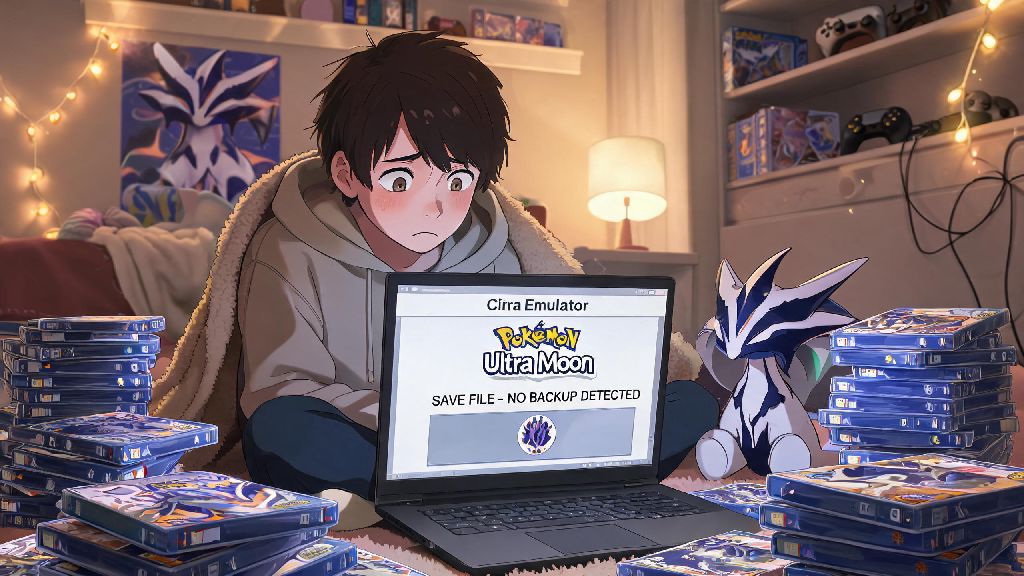
There’s nothing worse than losing dozens of hours of 3DS game progress because you forgot to back up your saves before updating or moving your Citra setup. I learned this the hard way back when I wiped my laptop’s app folder without thinking, and lost my entire completed Pokédex run in Pokémon Ultra Moon. If you’re here because you want to avoid that same headache, or need to move your progress to another device, this post breaks down exactly how to get save file from Citra emulator without risking corrupted data.
Why You Should Regularly Access and Back Up Your Citra Saves
Most people only think about accessing their Citra saves when they need to move them to a new device, but getting into the habit of regular backups will save you from so many unnecessary headaches. I’ve heard from dozens of community members who lost months of progress after a Citra update glitched, or their laptop died unexpectedly, and they had no way to recover their saves. Save corruption risks are higher than you might think, especially if you test experimental Citra builds or use modded 3DS ROMs.
Compatibility with modded ROMs is another big reason to keep copies of your saves. If you install a mod that breaks your game, you can roll back to an unmodded version and restore your save without losing any progress. You can also use backed up saves to share progress with friends, or switch between playing on your desktop at home and your Android phone when you’re traveling.
How to Get Save File from Citra Emulator: Step-by-Step for Desktop and Mobile
The easiest way to access your saves doesn’t require digging through hidden system folders at all, no matter what device you’re using. For desktop versions of Citra (Windows, Mac, Linux), just open the emulator, right-click on the game you want the save for, and select "Open Save Data Location" from the dropdown menu. This will pull up the exact folder with all your save files for that title, ready to copy or move.
If that method doesn’t work for any reason, you can navigate to the default save folder manually. For Windows, that’s %APPDATA%\Citra\sdmc, for Mac it’s ~/Library/Application Support/Citra/sdmc, and for Linux it’s ~/.local/share/citra-emu/sdmc. For Android users, open the Citra app, tap the three-dot menu next to the game you want, select “Save Data”, then tap “Export” to save a copy of the save file to your device’s downloads folder. Never modify save files directly unless you have experience with 3DS save editing, as even small changes can corrupt the entire file and make it unreadable. If you plan to transfer the save to a physical 3DS, you will need to encrypt the file first, but that process is separate and not required for use across Citra installations.
Common Issues When Accessing Citra Save Files (And How to Fix Them)
Even if you follow the steps above, you might run into a few common snags when trying to access your saves. I’ve dealt with all of these at one point or another, and these fixes work 99% of the time:
I ran into the empty save folder issue last year when I tested a portable Citra build on a USB drive for a trip. The build stored all saves on the USB instead of my main PC’s storage, so the default desktop path didn’t have any files. The “Open Citra Folder” setting fixed it immediately, no matter what build I’m using. Avoid third-party save editors unless they’re specifically recommended by the official Citra community, as many older editors don’t support the modern save format Citra uses, and can break your files permanently.
Best Practices for Managing Your Citra Save Files Long-Term
Once you know how to access your Citra saves, a few simple habits will make sure you never lose progress again. I set a monthly reminder to back up all my saves to a cloud drive, and it’s saved me twice when my PC crashed and I had to reinstall my entire operating system. You don’t need to back up the whole Citra folder, either. You only need to copy the sdmc folder where all save data is stored, which takes up barely any storage space even if you have dozens of games.
Name your backup folders clearly, like “Pokemon Ultra Sun 100% Pokedex June 2024”, so you know exactly which save to use if you need to restore it later. If you use multiple Citra builds (like the nightly and canary versions), make sure their save folders are synced so you don’t end up with conflicting progress across builds. If you share saves with friends, double check that you’re both using the same ROM version and region to avoid compatibility issues when they import the save.
At the end of the day, taking a few minutes to learn how to get save file from Citra emulator and back up your progress will save you hours of frustration down the line. You don’t need any special technical skills to do it, just a minute to navigate to the right folder and copy your files to a safe location. Whether you’re switching devices, testing new Citra builds, or just want to make sure your 100-hour Animal Crossing town is safe, these steps will work every single time.