If you’ve ever sat through a 10-minute unskippable cutscene in a 3DS JRPG or spent 20 minutes grinding for experience points at normal speed, you know how much time you can waste playing on Citra without quality of life tweaks. I’ve spent dozens of hours running through Pokemon Ultra Moon and The Legend of Zelda: A Link Between Worlds on the emulator, and the single most useful feature I’ve set up is easily fast forward. This guide will walk you through exactly how to toggle fast forward in a Citra emulator for both desktop and Android, plus how to fix common issues that pop up when using the feature.
How to Toggle Fast Forward in a Citra Emulator for Desktop
The desktop version of Citra (for Windows, Mac, and Linux) has the most customizable fast forward options, and setup only takes a minute. First, open your Citra app and head to the top menu bar. Click the “Emulation” dropdown, then select “Configure” from the list of options. From the left sidebar of the configuration window, choose “Controls” to open your input settings.
You’ll see a list of all mappable functions, including two fast forward options: one for “Fast Forward (Hold)” and one for “Fast Forward (Toggle)”. The hold option only runs fast forward while you press the assigned key, which is great for short skips, while toggle stays on until you press the key again. You can map it to any unused key on your keyboard or controller – I use the left bumper on my Xbox controller for toggle, since it’s easy to reach without messing up other inputs.
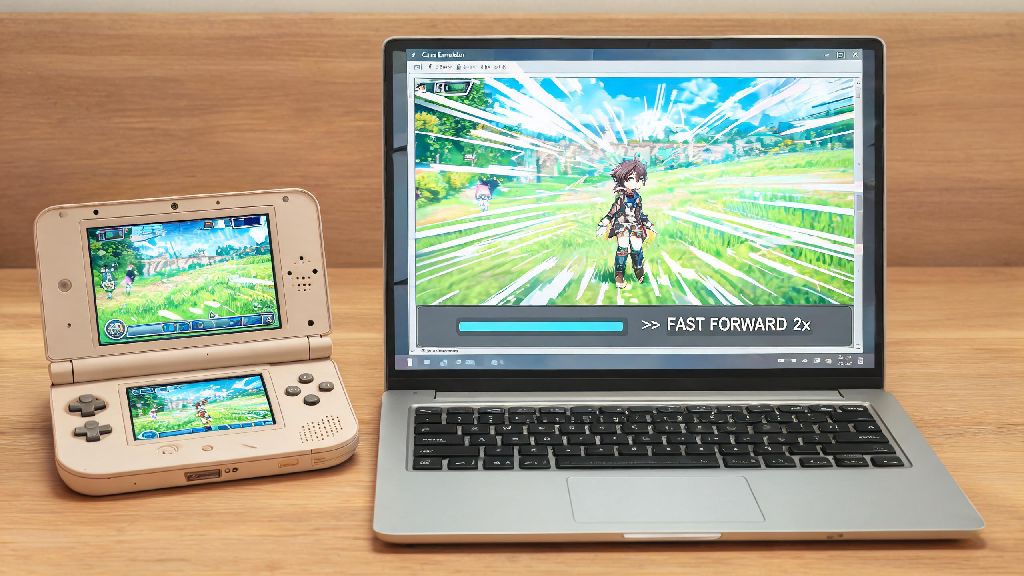
Once you’ve assigned your key, click “OK” to save your settings. Test it out by loading a game and pressing your assigned key. You’ll see a small fast forward icon pop up in the corner of your screen to confirm the feature is active. If you don’t see the icon, double check that you didn’t assign the same key to another control function, like screenshot or pause.
Customizing Fast Forward Speed to Match Your Game
By default, Citra sets fast forward to 200% speed, but you can adjust this to be faster or slower depending on the game you’re playing and your device’s processing power. To change the default speed, head back to Emulation > Configure, then select “General” from the left sidebar. You’ll see a slider labeled “Emulation Speed” that you can drag from 10% all the way up to 1000%.
Not all games run well at max speed, so it’s best to test different settings for each title you play. I’ve tested dozens of 3DS games on Citra, and these are the speed ranges that work most consistently:
If you don’t want to go into settings every time you switch games, you can also map separate hotkeys for increasing and decreasing emulation speed. These are found in the same Controls menu where you set up your fast forward toggle, and they let you adjust speed on the fly without pausing your game. Always test speed settings before starting a long grind session to avoid losing progress if the game crashes at a higher speed.
Toggling Fast Forward on Citra Mobile for Android
Citra’s Android app works almost the same as the desktop version, but the fast forward setup is a little different to work with touch controls. First, open the Citra app and tap the three-dot menu icon in the top right corner of the home screen. Select “Settings” from the dropdown, then choose “Controls” from the list of options.
If you use on-screen touch controls, select “On-screen controls” then scroll down to the “Fast forward” option. Toggle the switch to show the button on your control overlay, and you can drag it to any position on the screen that feels comfortable for you. If you use a physical controller with your Android device, you can map the fast forward toggle to a controller button just like you would on desktop, from the “Controller” menu in controls settings.
You can hide the fast forward button when you don't need it by going back to the on-screen controls menu and toggling it off. This is really helpful for games that require precise touch inputs, like rhythm games or platformers, where you might accidentally tap the fast forward button mid-play. Keep in mind that most mid-range Android phones can only handle up to 200% speed without stuttering, so you may need to lower the default speed if you notice frame drops.
Common Fast Forward Issues and Quick Fixes
Even if you set up fast forward correctly, you might run into small issues every now and then, most of which have super simple fixes. The most common issue is audio crackling or distortion when fast forward is active. This happens because the emulator is trying to play audio at the same accelerated speed as the game, and it can’t keep up. To fix this, head to Emulation > Configure > Audio, then toggle on “Audio stretching” to smooth out sound even at higher speeds.
If fast forward is working but your game is lagging or stuttering, you’re probably pushing the emulation speed higher than your device can handle. Try lowering the speed by 100% increments until it runs smoothly, and close any other apps running in the background that are using up RAM or processing power. For desktop users, make sure you’re running Citra on your dedicated graphics card instead of integrated graphics if you have one, that can double your fast forward performance for 3D games.
In rare cases, fast forward might not work at all for a specific game. This isn’t a bug with your Citra setup – some 3DS games have hardcoded speed limits or anti-cheat features that prevent speed manipulation. You can check the Citra game compatibility list to see if other users have reported the same issue for that title. Enable audio stretching in the audio settings even if you don’t have crackling issues, it prevents small audio glitches that can pop up when you switch between normal and fast speed.
Once you have your fast forward toggle set up to fit your playstyle, you’ll be shocked how much time you save playing your favorite 3DS games. Knowing how to toggle fast forward in a Citra emulator lets you skip the boring, tedious parts of games and spend more time on the sections you actually enjoy. Don’t be afraid to mess around with different speed settings and key binds until you find a setup that works perfectly for you and the games you play most.