If you’ve ever wanted to revisit classic Nintendo 3DS games like Pokémon X/Y or Animal Crossing: New Leaf without digging your old handheld out of storage, you’ve probably come across the Citra emulator. Learning how to setup Citra 3DS emulator is far simpler than most people assume, even if you don’t have much experience with emulation tools. I’ve tested this process across three different Windows and Mac devices over the past year, so I’ve cut out all the confusing extra steps that usually trip up new users. You don’t need expensive hardware to get solid performance either, as long as you follow the setup rules we’ll cover below. I’ve also included fixes for the most common mistakes that cause new users to abandon their setup entirely.
Pre-Requisites to Run Citra Smoothly on Your Device
Before you download any files, it’s important to confirm your device meets the minimum requirements to run Citra without constant crashes or frame drops. The emulator is far more lightweight than many modern console emulators, but it still has non-negotiable baseline needs. I’ve seen users waste hours troubleshooting performance issues that boil down to using an incompatible 32-bit operating system, so double check these specs first.
You don’t need a top-tier gaming PC to get good results. Even mid-range laptops released in the last 5 years can run most 3DS games at native resolution with no issues. Discrete GPUs with OpenGL 4.3 or Vulkan support will give you the best performance, but integrated Intel Iris or AMD Radeon integrated graphics will work for casual play too. Keep in mind that distributing or downloading pirated game ROMs is illegal in most regions, so only use copies of games you physically own.
How to Setup Citra 3DS Emulator for Your Operating System
The installation process varies slightly depending on what device you use, but all versions follow the same core structure. Always download Citra directly from the official distribution channels to avoid malware, modified versions with hidden spyware, or pre-loaded pirated content that can get you in legal trouble. The official site offers two build options: Nightly and Canary.
For Windows users, download the Nightly build installer, run the executable, and follow the on-screen prompts. I recommend installing it to a custom folder outside of Program Files if you plan to edit configuration files later, as Windows restricts edits to Program Files folders by default. For Mac users, download the DMG file, drag the Citra icon to your Applications folder, and right-click to open it the first time to bypass Apple’s unidentified developer security prompt.
Linux users will have the easiest experience using the official Flatpak build, which comes with all dependencies pre-installed so you don’t have to mess with terminal commands to get it running. If you want access to experimental features that haven’t been added to the stable Nightly build yet, you can download the Canary build, but expect occasional crashes or broken functionality. Canary is best for advanced users who want to test new updates before they roll out to the general public.
First-Time Configuration Settings for Optimal Performance
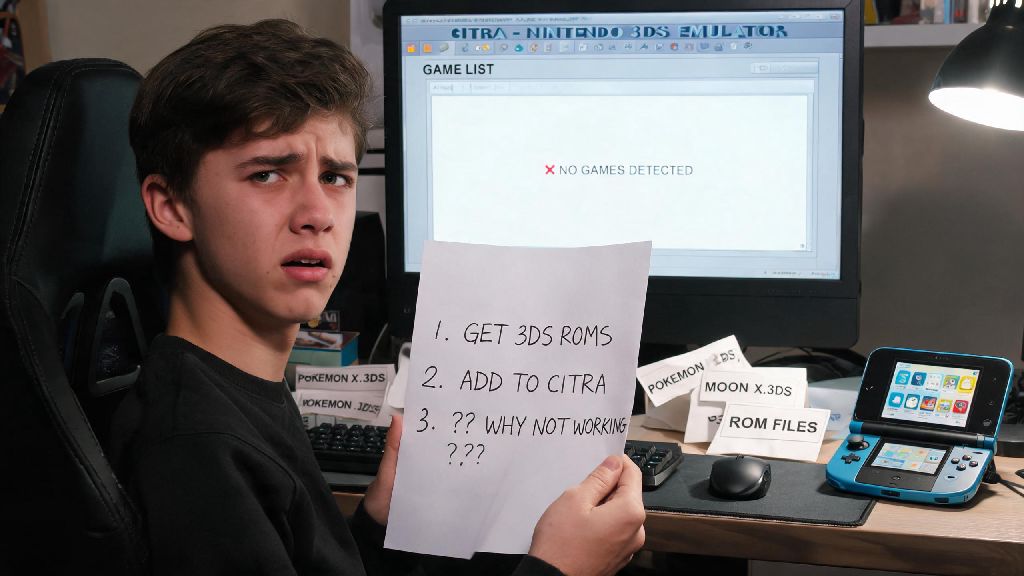
Once you have Citra installed, you’ll need to do a few quick setup steps before you can launch any games. First, install your dumped 3DS system firmware by going to File > Install NAND and selecting the firmware file you pulled from your own 3DS. Skipping this step is the number one reason new users see black screens or constant crashes when they try to launch games, so don’t skip it.
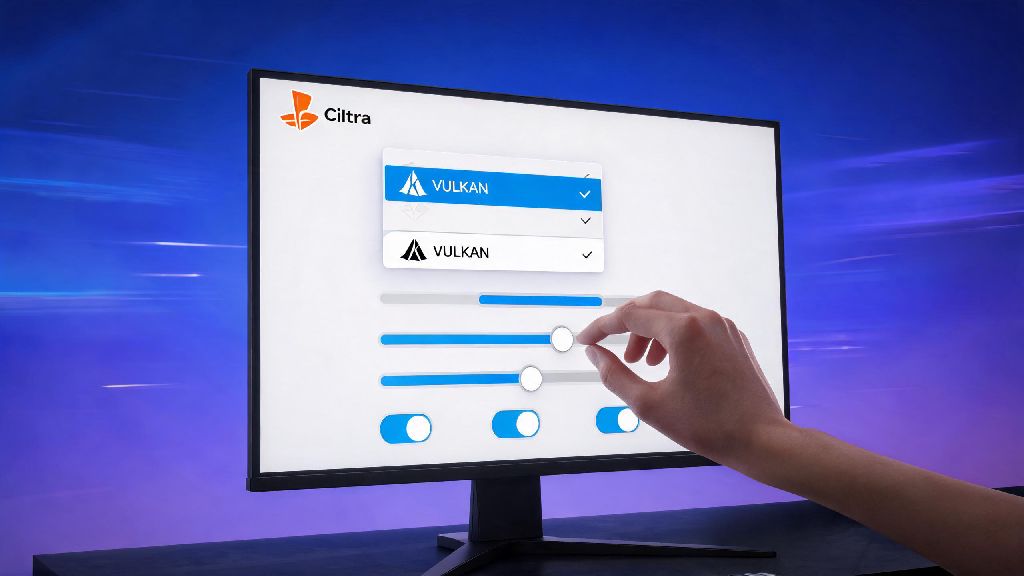
Next, head to the Graphics settings tab to tweak performance to match your device. Enable asynchronous shader compilation first, as this eliminates almost all stutter that happens when the emulator loads new game assets for the first time. If your GPU supports Vulkan, select that as your renderer instead of OpenGL, as it delivers 20-30% better frame rates for most setups. You can adjust the internal resolution slider to make games look sharper, but keep in mind that doubling or quadrupling the resolution will put more strain on your GPU.
For audio settings, stick to the default HLE audio option for lower latency and better performance. Only switch to LLE audio if you notice specific audio glitches in your favorite games, as LLE uses far more processing power. The controls tab will automatically detect most modern Xbox, PlayStation, and Switch Pro controllers, so you can map buttons to match your preferred layout in under a minute. If you don’t have a controller, you can use your keyboard by mapping keys to the 3DS button inputs manually.
Common Setup Mistakes to Avoid With Citra
Even if you follow all the installation steps correctly, small mistakes can ruin your experience. The first and most important mistake to avoid is downloading pre-bundled Citra packs from random file sharing sites. These packs almost always include pirated games, and many have hidden malware that can steal your personal data or damage your device. Never download ROMs from untrusted third-party sites, even if they claim to have “Citra optimized” versions of popular games.
Another common mistake is cranking all graphics settings to max immediately. Even high-end gaming PCs can struggle with 4x internal resolution and all post-processing effects enabled for more demanding 3DS games like The Legend of Zelda: Ocarina of Time 3D. Start with native 1x resolution, test a game for 10-15 minutes, then adjust settings incrementally to find the balance between visual quality and performance that works for your device.
Don’t waste hours tweaking settings if a game won’t run properly. The official Citra website has a public game compatibility list that shows what games are fully playable, partially functional, or not supported at all. If a game is listed as “unsupported”, no amount of setting tweaks will make it run correctly, so you’re better off waiting for a future Citra update that adds support for that title. If you run into persistent bugs, try updating to the latest Nightly build first, as updates often fix compatibility issues for dozens of games at once.
Once you work through these steps, you’ll be able to jump into your favorite 3DS titles in minutes, with performance that often beats the original handheld’s native output. Learning how to setup Citra 3DS emulator doesn’t require advanced tech skills, just a bit of patience to follow the steps and adjust settings to match your device. If you run into issues after setup, start with the basics: confirm your firmware is installed correctly, your game dump isn’t corrupted, and you’re running the latest stable build of Citra. Before you know it, you’ll be replaying all your old 3DS favorites on a bigger screen, with better performance than you ever got on the original hardware.