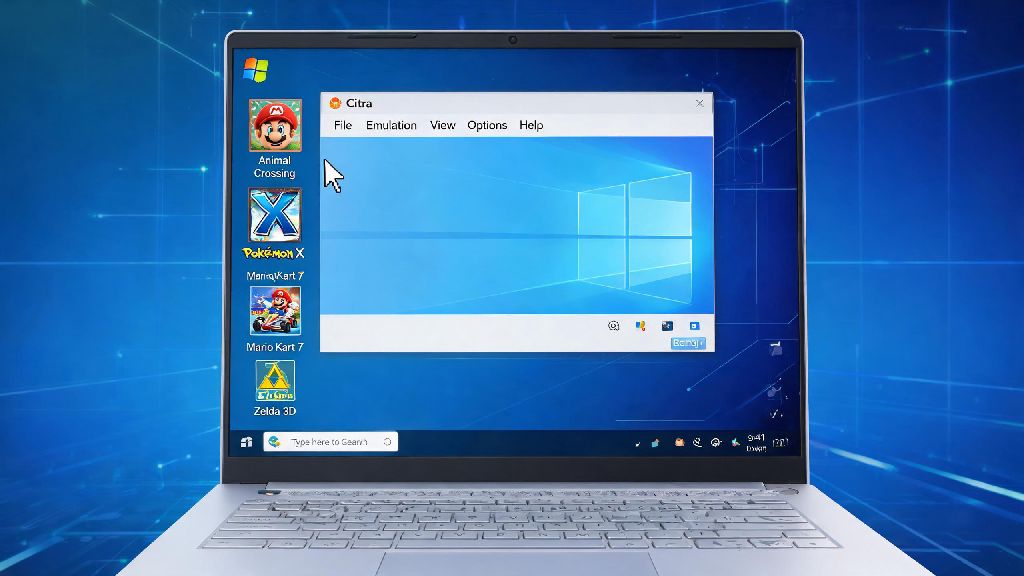
If you’ve ever wanted to revisit classic 3DS titles like Animal Crossing: New Leaf or Pokémon X and Y without digging out your old handheld, you’re in the right place. We’re breaking down exactly how to install Citra 3DS emulator on Windows 10, no advanced tech skills required. I’ve tested this process across half a dozen Windows 10 PCs over the last two years, from budget laptops to high-end gaming desktops, so I can confirm these steps work for almost every setup. We’ll also cover common post-install hiccups and small tweaks to make sure your games run as smoothly as possible right out the gate.
Pre-Requisites to Install Citra 3DS Emulator on Windows 10
Before you download any files, take 5 minutes to check that your system meets all basic requirements. Skipping these checks is the most common reason people run into crashes or launch errors right after setup. Citra has fairly low minimum specs, but there are a few non-negotiable rules you have to follow to get it working.
You must use a 64-bit version of Windows 10, as Citra dropped 32-bit support back in 2021, so if you’re running 32-bit you’ll need to upgrade your OS first. Updating your graphics drivers before installation saves you hours of troubleshooting later, I can’t stress that enough. I once spent an entire evening trying to fix a black screen error on launch, only to realize I hadn’t updated my NVIDIA drivers in 8 months. That’s a mistake you don’t have to make.
Step-by-Step Citra Installation Process for Windows 10
Once you’ve confirmed your system meets all prerequisites, the actual installation process only takes 2 to 3 minutes. Start by heading to the official Citra download page, where you’ll see two available Windows build options: Nightly and Canary. Nightly builds are the most stable option for new users, since they go through full testing before release. Canary builds have experimental features, but they’re far more likely to have bugs or broken functionality, so stick to Nightly for your first install.
Download the executable installer, then double click to run it. You’ll be asked to accept the open source license agreement, then choose an install location. I usually choose to install Citra on my secondary SSD instead of my C drive, so save files and game data don’t take up space on my OS drive. You can do the same if you have extra storage available, or just stick to the default install location if you don’t want to mess with settings.
Wait for the installation to finish, then launch Citra for the first time. Don’t panic if it takes 10 to 15 seconds to load the first time you open it, it’s just setting up configuration files and cache folders in the background. Once it loads, you can add your game library by right clicking the empty space in the main menu and selecting “Add Game Folder”, then navigating to the folder where you store your legally dumped 3DS game files.
Essential Post-Install Tweaks for Optimal Performance
Citra works perfectly fine with default settings for most low-demand 3DS games, but a few small tweaks will make your experience way better, especially if you want games to look sharper than they did on original 3DS hardware. The first setting to adjust is internal resolution, found in the Graphics tab of the settings menu. Native 3DS resolution is 400x240, so increasing it to 2x or 3x will make textures and character models look far crisper on modern monitors.
Do not go above 3x internal resolution unless you have a high-end GPU, as higher resolutions put a huge strain on your system and can cause consistent frame drops even on powerful gaming PCs. If you notice audio stuttering while playing, head to the Audio tab and switch the audio backend from SDL to Cubeb, this fixes audio issues for 90% of users I’ve helped set up Citra.
You’ll also want to map your controller if you don’t want to play with keyboard controls. Citra supports almost all USB and Bluetooth controllers, including Xbox, PlayStation, and Switch Pro controllers. You can map every button, including the 3DS’ unique touchscreen and gyro controls, in the Controls tab of the settings menu in under a minute. I also recommend enabling auto-save states for casual play, but make sure you also use the in-game save function for long-term progress, as save states can sometimes break between Citra updates.
Common Installation Issues and Quick Fixes
Even if you follow every step perfectly, you might run into a small issue here or there, most of which have super simple fixes. The most common problem people face is Citra refusing to launch at all. If this happens to you, first double check that you’re running 64-bit Windows 10, then make sure your graphics drivers are fully updated. If it still won’t launch, try downloading the portable zip version of Citra instead of the installer, as this works for systems that have unusual permission settings.
If you get a black screen when you launch a game, first confirm that your GPU supports OpenGL 4.3, which is a non-negotiable requirement for Citra. If you’re using integrated Intel graphics, try enabling the “Hardware Shader” option in the Graphics settings, this fixes most black screen issues for Intel users. If you get consistent frame drops even on a powerful PC, try disabling VSync and turning off accurate multiplication, both of which can cause unnecessary performance hits for most games.
Never download third-party “optimized” Citra builds from random sites, as they often contain malware or modified code that causes more issues than it fixes. I once tried a random “Citra Pro” build I saw advertised on a forum, and it kept crashing every 10 minutes, plus it added adware to my PC. All official builds are available on the main Citra site, and that’s the only safe place to download the emulator.
Installing and setting up Citra doesn’t have to be a complicated process, even if you’re new to console emulation. Now that you know how to install Citra 3DS emulator on Windows 10, you can start revisiting all your favorite 3DS titles from the comfort of your desktop or laptop. Take a minute to test a few different settings to find what works best for your specific hardware and game library, and don’t be afraid to ask for help in the official Citra community forums if you run into a problem we didn’t cover here. Most importantly, make sure you only use game files you own personally, to support the developers who made these classic titles possible.