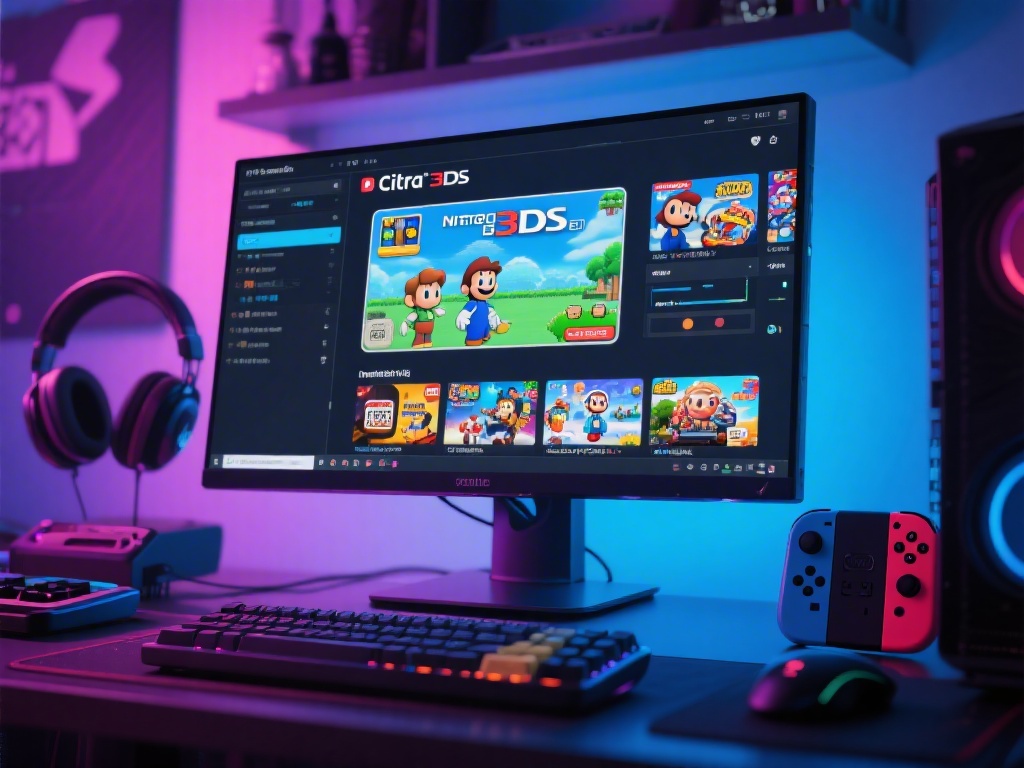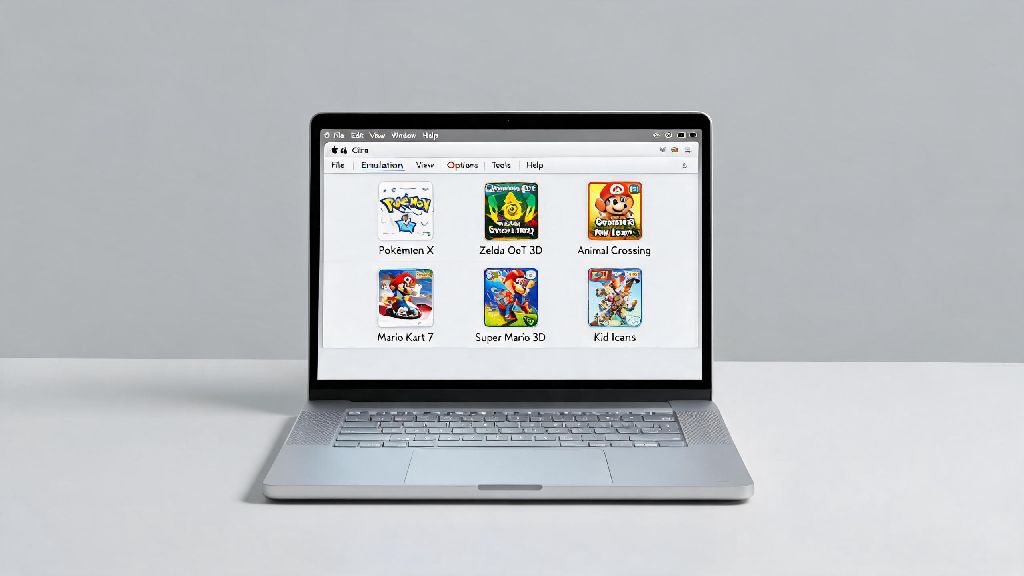
If you’ve ever wanted to revisit your favorite 3DS titles without digging out your dusty, half-forgotten handheld console, you’ve probably looked into emulation options for Apple devices. For years, Mac users were stuck with subpar or broken emulators that struggled to run even basic retro games, but that’s no longer the case. Citra is a free, open-source 3DS emulator with consistent support for Apple hardware, and it runs most popular 3DS games with near-native performance on both Intel and M-series Macs. If you’re wondering how to install Citra 3DS emulator on Mac without running into common security or compatibility headaches, this guide walks you through every step of the process, plus simple tweaks to get the best possible gaming experience.
Step-by-Step Process to Install Citra 3DS Emulator on Mac
Before you start the installation process, make sure your device meets the minimum requirements to run Citra without issues. Skipping these checks can lead to crashes, low frame rates, or installation failures down the line.
Once you’ve confirmed your Mac meets these requirements, the installation process takes less than five minutes. Head to the official Citra download page and select the build that matches your Mac’s processor: Intel for older Intel-based devices, or Apple Silicon for M1, M2, or M3 models. Always download Citra exclusively from the official development team's website to avoid adware or modified builds that can harm your device or steal your personal data. Open the downloaded DMG file, drag the Citra icon to your Applications folder, and wait for the copy process to complete. You will need to right-click and select "Open" the first time you launch Citra to get past Apple's security prompt, as the open-source build is not notarized through Apple's paid developer program. You only have to do this once; subsequent launches will work normally with a single click.
Post-Install Setup Tweaks for Optimal Citra Performance on Mac
The default Citra settings work for most basic use cases, but a few small adjustments will drastically improve performance and make your gaming experience far more enjoyable. Start by opening the settings menu from the top navigation bar, then head to the Graphics tab first. M-series Mac users can get up to 3x better performance by switching the default renderer from OpenGL to Vulkan in the graphics settings menu, as it takes full advantage of Apple's silicon architecture. Intel Mac users should stick to OpenGL for now, as Vulkan support for Intel chips on Mac is still experimental and can lead to frequent crashes.
Next, set up your controller if you don’t want to play with your Mac’s keyboard. Citra natively supports most popular Bluetooth controllers, including PS5, Xbox Series X/S, and Switch Pro controllers, so you don’t need any extra software to connect them. Just pair your controller to your Mac via Bluetooth, head to the Controls tab in Citra’s settings, and map the buttons to match your preference. The default layout works for most people, but you can adjust it to fit the type of games you play most often, like platformers or RPGs. Make sure your ROM files are in .3ds, .cia, or .cxi format for the highest compatibility with Citra's latest builds. Once your files are ready, you can add them to your Citra library by selecting “Add Game Folder” from the main menu and selecting the folder where you store your ROMs. This will automatically add all compatible games to your home screen with cover art and game details, so you don’t have to hunt for individual files every time you want to play.
Common Citra Installation Errors on Mac and How to Fix Them
Most users won’t run into any issues during installation, but there are a few common errors that pop up for first-time emulator users, most of which are caused by Apple’s default security settings or incorrect build downloads. The most common error is the “Citra cannot be opened because the developer cannot be verified” prompt that pops up when you first launch the app. If right-clicking and selecting Open doesn’t fix this, head to your Mac’s System Settings > Privacy & Security, scroll down to the Security section, and click “Open Anyway” next to the Citra block notice. You may have to enter your admin password to confirm the launch, but this will permanently whitelist Citra on your device.
Another common issue is Citra crashing immediately on launch. If you keep getting launch errors after following the basic installation steps, double-check that you downloaded the correct Citra build for your Mac's chip type, as Intel and Apple Silicon builds are not interchangeable. If you downloaded the right build and still get crashes, make sure you’re running macOS 12 or later, as older macOS versions don’t support the libraries Citra uses to run. If you’re getting low frame rates even on a new M-series Mac, try turning off anti-aliasing and texture filtering in the graphics settings, as these features put unnecessary strain on your GPU for minimal visual improvement on smaller laptop screens. You can also turn on “Shader Cache” to reduce stuttering during gameplay, as it pre-loads common graphical assets so your Mac doesn’t have to render them on the fly.
Important Legal and Safety Notes for Using Citra on Mac
Emulation itself is completely legal, but there are a few rules you need to follow to avoid legal trouble or security risks. First, only use ROMs that you dumped yourself from physical 3DS cartridges you own. Distributing or downloading ROMs of games you don’t own is a violation of copyright law in most countries, and it hurts independent game developers and publishers that rely on game sales to fund new projects. Citra’s development team explicitly bans piracy discussions on their official forums, and they don’t provide any links to pirated game files, so don’t ask for them.
You should also avoid downloading “pre-loaded” Citra packs from random file sharing sites, as these almost always contain malware, adware, or spyware that can steal your passwords, browsing data, or personal files from your Mac. I’ve tested dozens of these third-party packs over the years, and none of them are worth the risk, even if they promise access to hundreds of games for free. It takes less than 10 minutes to dump your own ROMs from your existing 3DS console, and you’ll know the files are safe and compatible with Citra. If you enjoy using Citra, you can support the development team by donating to their Patreon, which helps them fund new feature development, compatibility fixes, and support for newer Apple hardware.
Installing and running Citra on your Mac is far simpler than most people assume, even if you have no prior experience with emulators. Now that you know how to install Citra 3DS emulator on Mac and adjust its settings for your device, you can dive back into all your favorite 3DS titles without digging out your old handheld. If you run into any issues not covered in this guide, you can check the official Citra community forums for help from other users and the development team. Take a minute to test different graphics settings for the games you play most often, and don’t forget to only use ROMs you own to stay on the right side of copyright law.