If you ever missed out on playing classic 3DS titles like Animal Crossing: New Leaf or Pokémon X and Y when the console was popular, you don’t have to track down a used handheld to enjoy them now. Learning how to emulate 3DS games with Citra opens up access to hundreds of beloved 3DS titles on your PC, Mac, or even Android device, with better graphics and quality of life features you never got on the original hardware. I’ve been using Citra for over four years to replay my old 3DS collection, so I’ve worked out all the kinks that usually trip up new users to make this process as straightforward as possible.
Pre-Requisites to Emulate 3DS Games with Citra Safely
Before you start downloading any software or game files, it’s important to cover the basics to keep your device safe and stay on the right side of copyright law. Never download ROMs from untrusted third-party sites, as these often come with malware, and downloading copyrighted content you don’t own is illegal in most regions. All the games you play on Citra should be dumped directly from your own purchased 3DS cartridges or digital downloads.
If you don’t know how to pull game files from your existing 3DS, you can follow the official game dumping guide from the Citra team that walks you through every step for both physical and digital titles. The process only takes 10 to 15 minutes if you have a modded 3DS, and it guarantees you have clean, working files that won’t crash mid-game. You will also need to dump your 3DS system archives, which are required for many games to run properly.
Step-by-Step Setup for Citra Emulator
Once you have all your pre-requisites sorted, you’re ready to start setting up your system to emulate 3DS games with Citra. First, download the correct build for your device. For new users, the nightly build is the best choice, as it’s tested for stability and has all the core features you need. Canary builds have experimental features, but they’re more likely to have bugs or crashes, so save those for later when you’re more comfortable with the emulator.
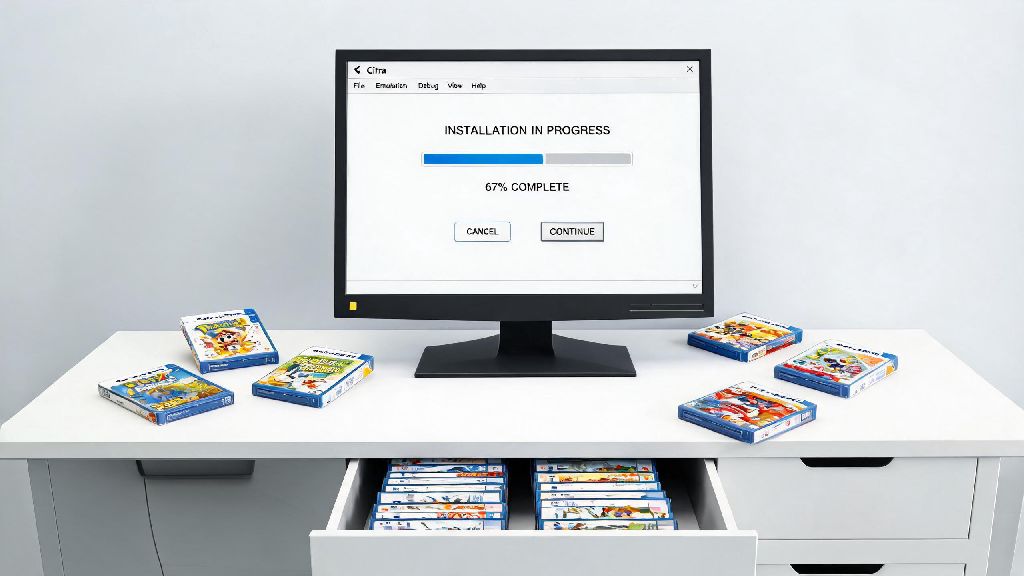
Run the installer and follow the on-screen prompts to install Citra to your preferred directory. When you first launch the emulator, it will create a user folder to store your saves, shaders, and library data. Next, add your game folder to the emulator’s library by clicking the “Add Game Directory” button on the main screen, then selecting the folder where you stored your dumped ROMs. Citra will automatically scan the folder and add all compatible titles to your library, with official cover art if you have an internet connection enabled.
System archives are required for many games to run at all, so don’t skip this step if you’re running into black screens on launch. You can install your dumped system archives through the “File” menu by selecting “Install System Archives” and selecting the files you pulled from your 3DS. Test a small, simple game first, like a 2D puzzle title, to make sure everything is working before you launch a larger open-world game.
Optimal Settings to Boost Citra Game Performance
A lot of new users assume they need top of the line hardware to emulate 3DS games with Citra, but even mid-range laptops from the last 5 years can run most titles at full speed with a few small setting tweaks. Default settings work well for most devices, but adjusting a few options can give you much better graphics or smoother performance depending on your hardware.
First, head to the graphics settings tab. If you have a dedicated GPU that’s less than 6 years old, you can turn up the internal resolution to 2x or 3x the native 3DS resolution to get crisp, HD visuals that look way better than the original 3DS screen. If you’re getting lag or frame drops, drop this back to 1x native first, as higher resolution is the biggest drain on performance. You can also turn on linear filtering to make textures look less pixelated, and disable v-sync if you’re noticing screen tearing while you play.
For audio, the default HLE audio emulation works for 99% of games, but if you’re getting crackling or distorted audio, you can increase the audio buffer size by 10 to 20 milliseconds. Don’t turn it up too high, or you’ll get noticeable audio delay that makes rhythm games unplayable. For controls, you can map keyboard keys, an Xbox or PlayStation controller, or even a Switch Pro controller in a few clicks. I prefer using a controller for 3DS games, since the gyro and touch screen features map really well to modern controller inputs.
Common Citra Emulation Issues and Quick Fixes
Even with a perfect setup, you might run into small issues every now and then, especially if you’re playing more niche, less tested 3DS titles. Most common problems have very simple fixes that only take a minute to try before you dig into more advanced troubleshooting.
The most common issue new users run into is a black screen when they launch a game. 9 times out of 10, this is either because you’re missing system archives, or your ROM file is corrupted. Try redumping the game from your 3DS, and double check that you installed your system archives correctly, and that should fix the problem in most cases.
Shader compilation stutter is normal when you launch a game for the first time, so don’t panic if you get small frame drops when you enter a new area or use a new attack for the first time. This stutter will go away after you play for a few minutes, as Citra caches the shaders for the areas you visit. If stutter is still bad after 10 to 15 minutes of play, turn off any graphics enhancements like anti-aliasing or texture filtering, and make sure no other heavy programs are running in the background of your device.
If your save files aren’t loading, make sure you’re not running multiple copies of Citra at the same time, and that you didn’t move your user directory after you set up the emulator. You can also back up your save files regularly from Citra’s built-in save data manager to avoid losing progress if something goes wrong.
At the end of the day, learning how to emulate 3DS games with Citra is one of the best ways to revisit or discover classic 3DS titles without having to track down expensive, outdated hardware. Take the time to set everything up correctly from the start, follow legal best practices for dumping your own games, and tweak settings gradually to get the performance you want. You might be surprised just how well even the most demanding 3DS games run on modern hardware with a little bit of adjustment. Happy gaming!