If you’ve held onto a stack of old Nintendo 3DS games but haven’t touched your handheld in years, you don’t have to let those titles collect dust. Emulation has come a long way for Apple devices in the past few years, and Citra is the most stable, feature-complete option for 3DS games on macOS. If you’ve been wondering how to use Citra emulator on Mac to revisit classic 3DS titles without digging out your old handheld, you’re in the right place. This guide works for both Intel and Apple Silicon Macs, with specific tips for each architecture to get the best possible performance.
How to Use Citra Emulator on Mac: Full Installation Walkthrough
Before you start, you’ll want to confirm what type of Mac you have to download the correct Citra build. Click the Apple icon in the top left corner of your screen and select “About This Mac” to see if you have an Intel processor or an Apple M-series chip. Downloading the wrong build will lead to crashes, slow performance, or it won’t launch at all. Always download Citra directly from the official development team’s page to avoid malware or modified builds that steal your data.
Once the .dmg file finishes downloading, open it and drag the Citra icon to your Applications folder, just like you would with any other Mac app. The first time you launch Citra, you’ll likely get a security pop-up saying macOS can’t verify the developer. To fix this, open System Settings, go to Privacy & Security, scroll down to the Security section, and click “Allow Anyway” next to the note about Citra being blocked. You’ll only have to do this once.
For Apple Silicon users, the native ARM build of Citra runs 2-3x faster than the Intel build running through Rosetta 2, so make sure you select that option when downloading. Intel Macs from 2017 or later will run most 3DS games perfectly fine, but older models may struggle with more graphically intensive titles.
Optimal Citra Settings for Smooth Performance on Any Mac
Once you have Citra installed, you’ll want to tweak a few settings before loading any games to avoid lag, stutter, or graphical glitches. The default settings work for basic use, but small adjustments will make a huge difference in how your games run, especially if you have a lower-powered MacBook Air or older Intel model. Disabling VSync if you notice stuttering on high refresh rate external displays is one of the quickest fixes for unexpected performance issues.
These are the core settings we recommend adjusting for all first-time Citra users on Mac:
- Set graphics backend to Metal for all Apple Silicon and 2017+ Intel Macs for the best performance and lowest power draw
- Limit internal resolution to 2x or 3x native if you’re using a base M1, M2 or 2016 or older Intel MacBook to avoid frame drops
- Enable "disk shader cache" to eliminate stutter after the first time you load a game, as it stores pre-rendered graphics assets locally
- Turn off "accurate multiplication" in advanced graphics settings if you experience frequent frame drops in open-world 3DS games like The Legend of Zelda: Ocarina of Time 3D
You can also map a controller if you don’t want to use your keyboard to play. Citra natively recognizes PS5, Xbox Series, and Nintendo Switch Pro controllers paired to your Mac via Bluetooth or USB, so you won’t need any third-party software to use them. Just head to the Controls tab in settings to adjust button mapping to match your preferences.
How to Load and Play Games on Citra for Mac
It’s important to note first that you should only play 3DS game ROMs that you’ve dumped yourself from physical cartridges you own. Downloading ROMs of games you don’t own is piracy, and it violates copyright law in most regions, so we don’t recommend or support that practice. You can dump your own 3DS games using a modded 3DS handheld, and there are free public guides available to walk you through that process step by step.
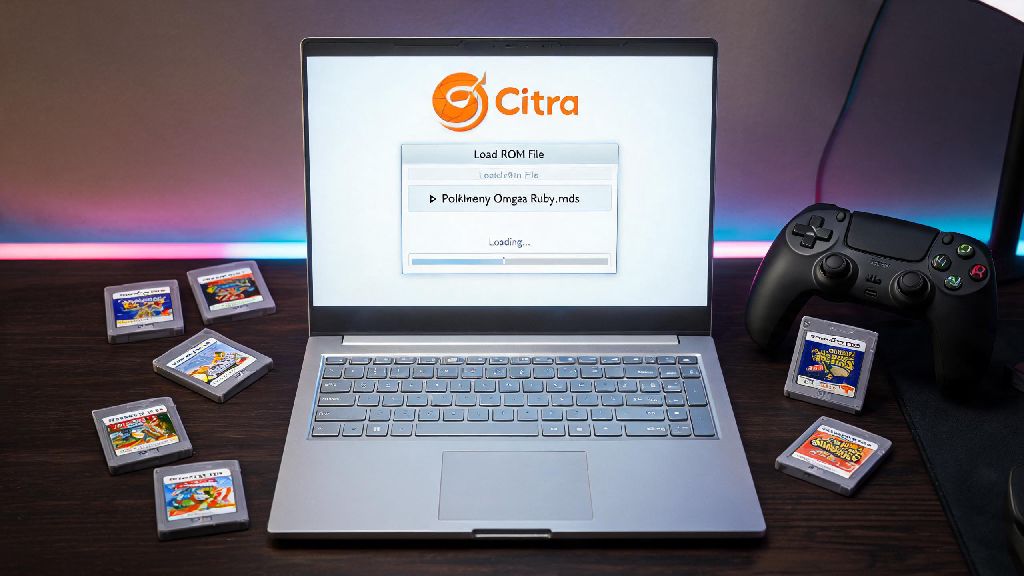
Once you have your legally dumped ROMs, which will usually be in .3ds or .cia format, loading them is simple. You can either drag and drop the ROM file directly into the Citra window, go to File > Load File and select the ROM from your folders, or add a dedicated game folder to Citra’s library so all your titles show up in a single menu with cover art. Citra supports both physical cartridge dumps and digital eShop title dumps, as long as you have the proper decryption keys from your own 3DS console.
If you have existing save files from your real 3DS, you can import them directly into Citra so you don’t have to restart your favorite games from scratch. Just head to File > Open Save Data Location and drop your .sav files into the corresponding game folder. You can also check the official Citra compatibility list if you’re unsure if a specific game will run well, as the team regularly updates it with performance notes for thousands of 3DS titles.
Fixes for Common Citra Issues on Mac
Even with the right setup, you might run into a few small issues when using Citra on Mac, most of which have simple fixes. The most common issue people face is Citra crashing immediately on launch, which almost always means you downloaded the wrong build for your processor architecture. Double check that you have the ARM build for M-series Macs and the Intel build for Intel Macs, and that you’re running macOS 10.15 Catalina or later, as older macOS versions are no longer supported.
If your games are running at 10 FPS or lower, first try lowering the internal resolution in graphics settings, and close any other heavy apps you have running in the background, like video editors, streaming software, or dozens of open browser tabs. MacBooks also throttle performance heavily when they’re on low battery, so plug your device in if you want the smoothest possible experience. If you get a "ROM is encrypted" error, that means you haven’t added your personal 3DS decryption keys to Citra, or the ROM you dumped wasn’t decrypted properly during the dump process.
Audio crackling is another common issue, and it’s usually fixed by switching your audio backend from OpenAL to Cubeb in the audio settings tab, or slightly increasing the audio latency slider. If your controller isn’t being recognized, unpair and re-pair it to your Mac, then restart Citra, and it should show up automatically in the controls menu.
Citra for Mac has improved drastically in just the past two years, and native support for Apple Silicon chips means you can run most 3DS games at full speed even on a fanless MacBook Air, with better graphics than the original handheld ever could produce. You can even play local multiplayer with friends who use Citra on Windows or Linux, as the emulator supports cross-platform wireless emulation for hundreds of popular titles. Now that you know how to use Citra emulator on Mac, you can spend the afternoon revisiting your favorite 3DS classics, from Pokemon X and Y to Animal Crossing: New Leaf, without digging your old handheld out of storage.