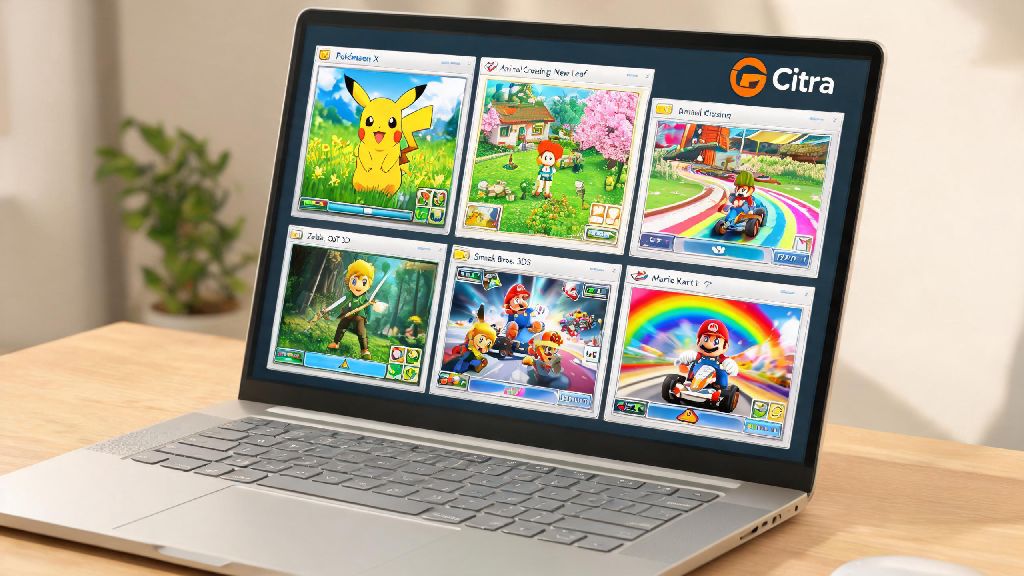
If you’ve ever dug through a closet looking for your old 3DS only to find it’s broken, lost, or missing your favorite game cartridge, you’ve probably wondered if there’s an easier way to revisit those classic titles. Learning how to play games in citra emulator is one of the most reliable ways to access hundreds of 3DS releases on your PC, phone, or even handheld gaming device, no physical hardware required. I’ve been using Citra for over 5 years to play everything from Pokémon Sun and Moon to Animal Crossing: New Leaf, and I’ve picked up enough tricks to make the setup process far less intimidating than it looks for new users. This guide will walk you through every step, from initial installation to fixing the most common bugs that pop up when you first boot up a game.
Pre-Requisites Before You Learn How to Play Games in Citra Emulator
Before you even download the emulator, there are a few basic requirements you need to check off to avoid frustration later. First, make sure your device meets the minimum specs: for desktop, you’ll need a 64-bit operating system, 4GB of RAM at minimum, and a GPU that supports OpenGL 3.3 or higher. For Android users, you’ll need Android 8.0 or higher, and at least a Snapdragon 660 processor to get playable speeds for most titles. You don’t need a high-end gaming rig either; I’ve run most 2D 3DS games perfectly on a 5-year-old budget laptop with integrated graphics.
Next, you need legally obtained game dumps of titles you already own. It’s illegal to download or distribute 3DS ROMs you don’t own the physical copy of, so make sure you dump games directly from your own 3DS cartridge or digital library. Citra supports .3ds, .cia, and .cxi file formats, so confirm your dumps are saved in one of these before you start. Finally, pick the right Citra build for your skill level: Nightly builds are stable and tested for general use, while Canary builds have experimental features that may fix issues for less supported games, but can be more buggy for new users.
Step-by-Step Setup for First-Time Citra Users
Once you have all your pre-requisites ready, the setup process only takes 10 to 15 minutes for most users. First, download the correct Citra build for your operating system and install it like any other program. When you launch it for the first time, you’ll see a blank library screen, and a prompt to add a game directory.
Add a dedicated folder for your 3DS game dumps during this first setup step, so Citra can automatically scan and display all your titles in the library view. That means you won’t have to hunt for individual files every time you want to launch a game. Next, head to the Controls menu to map your inputs. Citra supports almost all wired and wireless controllers, including Xbox, PlayStation, and Switch Pro controllers, so you can match the button layout exactly to the original 3DS. If you’re using a keyboard, map the touch screen input to a mouse button or easy-to-reach key, since many 3DS games rely on touch controls for core features.
You can also adjust your display layout in the View menu to fit your preferences. Dual screen display options let you place the bottom touch screen next to the top main screen, or hide it entirely when you don’t need it, which is perfect for games that only use the touch screen for occasional inputs. For mobile users, you can customize the size and position of on-screen touch controls to fit your hand size, so you don’t accidentally press the wrong button mid-game.
Optimized Settings to Boost Game Performance and Visuals
The default Citra settings work fine for most games, but a few small tweaks can make a huge difference in both frame rate and visual quality. First, head to the Graphics settings tab. If you’re playing on a higher-end device, you can crank the internal resolution up to 2x or 3x your native screen resolution, which makes 3DS games look far sharper than they ever did on original hardware. Don't go higher than 4x internal resolution though, even high-end GPUs struggle with that level of upscaling for most 3D 3DS titles, and you’ll end up with annoying stuttering.
If you’re dealing with lag or low frame rates on a lower-end device, there are a few quick fixes that resolve 90% of common performance issues:
Fixing Common Citra Game Play Issues
Even with perfect setup, you might run into a few small issues when you first start playing. The most common problem is a game failing to load entirely. 9 times out of 10, this is because your game dump is corrupted or in an unsupported format. If you’re sure your file is in .3ds, .cia, or .cxi format, try re-dumping the game from your original cartridge to fix the corruption.
Touch screen not working is another common complaint for new users. If you’re on desktop, double check that you mapped the touch input to a mouse button or key in the Controls menu. If you’re on mobile, make sure you haven’t accidentally locked the on-screen touch controls in the settings menu. If you get a "system archive missing" error, that means you need to dump system files from your own physical 3DS to run games that use built-in 3DS features like Mii Maker or StreetPass. The process is very straightforward if you have a modded 3DS, and official guides walk you through every step.
If a game is running way too fast, that’s an easy fix too. Just head to the Graphics settings and enable the frame rate limit, setting it to 100% to match the original 3DS speed. Most new users forget to enable this setting, and end up with games running at 2x or 3x speed by accident.
You don’t need to be a tech expert to get the most out of this open source emulator, and even small tweaks can make your favorite 3DS titles feel like they were built for modern hardware. Once you get the hang of how to play games in Citra emulator, you’ll have access to hundreds of classic titles you thought you’d never be able to play again, without having to track down expensive old cartridges or working 3DS hardware. Take it slow, start with a simple game to test your settings, and don’t be afraid to experiment with small tweaks to get the exact performance and visual quality you want. If you run into a problem you can’t fix, the active Citra community is always sharing new fixes and tips for less supported titles too.