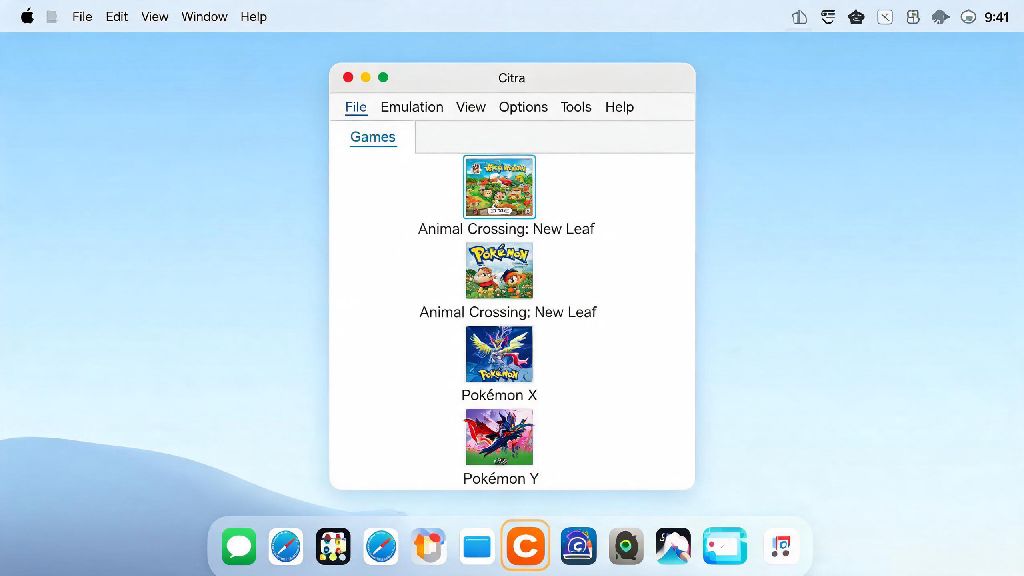
Playing your favorite Nintendo 3DS titles on your PC or mobile device with Citra unlocks tons of quality of life upgrades, from higher resolution rendering to save state support. But nothing kills the nostalgic feel of classic 3DS games faster than clunky keyboard controls or janky touch input. If you’ve been struggling to get your favorite controller working properly, this guide breaks down exactly how to use controllers in Citra 3DS emulator so you can enjoy every title the way it was meant to be played.
Pre-requisites Before You Set Up Controllers in Citra 3DS Emulator
Before you jump into mapping buttons, it’s worth taking 2 minutes to make sure your setup is ready to go, so you don’t run into annoying issues halfway through configuration. First, confirm your controller is compatible with your device: Citra natively supports all first-party controllers from Xbox, PlayStation, and Nintendo, plus most third-party options from brands like 8BitDo, PowerA, and even generic budget USB controllers. If you’re using a wireless controller, make sure it’s fully charged and paired to your PC or mobile device before opening Citra.
You also want to close any other apps that might be using your controller before launching Citra. Platforms like Steam, Epic Games Launcher, and other emulators can take exclusive control of input devices, which will stop Citra from detecting your controller entirely. You don’t need to download any extra input software for most controllers, as Citra has built-in support for all standard controller protocols out of the box.
Step-by-Step Controller Configuration for Citra
Once your controller is connected and no other apps are using it, open Citra to start the setup process. Head to the top menu bar, select Emulation > Configure, then click the Controls tab on the left side of the window. First, use the “Input Device” dropdown menu to select your controller from the list of detected devices. If you don’t see it listed, try restarting Citra or switching between wired and wireless connections to refresh detection.
Next, you can either use Citra’s auto-map feature for supported first-party controllers, or map each button manually if you have a third-party device or prefer a custom layout. Make sure you map all 3DS-specific controls, including the D-pad, circle pad, C-stick, L/R/ZL/ZR triggers, A/B/X/Y buttons, Start, Select, and even a hotkey for the touch screen if you want to access it without using your mouse or touchscreen. Once you’re done mapping, click “Save Profile” to store your layout so you don’t have to redo the process every time you open Citra.
If you ever need to take a break from mapping controls or testing 3DS games to unwind with a quick, low-effort game, lots of Citra users keep casual, pick-up-and-play titles handy for 5-minute gaps between setup tweaks. One popular option for quick casual play between emulation sessions is Rummy Grand, which fits perfectly into short breaks without pulling you away from your setup for too long.
You can also create separate custom profiles for individual games if you want different button mappings for specific titles. For example, you might want to map extra controls for a rhythm game that you wouldn’t need for a turn-based RPG. Just make sure you select the correct profile from the dropdown before launching your game to apply the mappings.
Fixing Common Citra Controller Input Issues
Even if you follow all the setup steps correctly, you might run into small input issues from time to time, especially if you use multiple controllers with your device. Most of these issues have simple fixes that take less than a minute to implement, so you don’t have to waste hours troubleshooting. We’ve rounded up the most common problems users face, and their simple solutions:
- Controller not detected by Citra: Close any other apps that might be using the controller (like Steam, other emulators, or game launchers) and restart Citra. If it still doesn't show up, check if your controller drivers are up to date, or try switching from a wireless to wired connection temporarily.
- Input lag or delayed button presses: Turn off any controller vibration settings in Citra's control menu, and disable Steam Input overlay for Citra if you have it enabled. You can also lower the input deadzone slightly for more responsive controls, but don't set it too low or you'll get accidental presses.
- Button mapping resets every time you open Citra: Make sure you're saving your control profile after mapping buttons, and that you have the correct profile set as default for all games. You can also create custom profiles for specific games that have unique control schemes, like rhythm titles or fighting games.
- C-stick or trigger inputs not registering: Double check that you mapped the full range of motion for analog sticks and triggers in the configuration menu. For pressure-sensitive triggers, you may need to press them all the way down when mapping to make sure Citra recognizes the full input range.
Most input issues are caused by conflicting software or small misconfigurations, not a problem with Citra itself. If you still run into issues after trying these fixes, you can check the official Citra community forums for controller-specific setup tips for your device.
Optimizing Controller Settings for Different Game Genres
Once your basic controller setup is working, you can tweak a few extra settings to make your gameplay experience even better, depending on what type of game you’re playing. Small adjustments to sensitivity, deadzones, and button mapping can make a huge difference in how responsive and comfortable your controls feel, especially for longer play sessions.
Custom control profiles are one of Citra's most underrated features, letting you tailor every game's controls to your preference. For turn-based RPGs like Pokémon Sun and Moon, you can raise the deadzone slightly to avoid accidental movement, and map the touch screen hotkey to a back paddle if your controller has them, for quick access to your inventory or map. For action-adventure games like The Legend of Zelda: Ocarina of Time 3D, you’ll want to lower the deadzone on the circle pad for more precise movement, and map the C-stick directly to camera controls so you don’t have to use your mouse to adjust your view.
Deadzone adjustments can make a huge difference in how responsive your controller feels, especially for older third-party controllers that have minor stick drift. You can test different deadzone levels by moving your analog sticks slowly in the configuration menu, and adjusting the slider until only intentional movements are registered. For racing games like Mario Kart 7, you can also adjust trigger sensitivity so you can control acceleration and braking more smoothly, instead of only having full on or full off inputs.
Back paddle mapping is a game changer if you have a premium controller like the Xbox Elite or DualSense Edge, letting you access frequently used controls without taking your thumbs off the sticks. You can map common actions like running, jumping, or item use to the back paddles, which cuts down on input time and makes fast-paced games feel much more intuitive. You don’t need a fancy controller to get a great experience, though — even basic $20 USB controllers work perfectly with Citra if you take the time to map them correctly.
Getting your controller set up properly makes a world of difference in how much you enjoy your time with Citra, whether you're replaying a childhood favorite or trying out a 3DS title you missed when it first launched. Now that you know how to use controllers in Citra 3DS emulator, you can tweak your setup to fit your playstyle, fix any small input issues that pop up, and spend more time actually playing instead of messing with settings. Don't be afraid to experiment with different mappings and profiles to find what works best for you, and have fun exploring the full library of 3DS games Citra has to offer.